
Speaker overlays
Who can use this
ContentHub
Free
Managed Service
Included
Speaker overlays are graphics on top of the program video. A typical overlay is a lower third: the speaker's name, title, and a logo along the bottom of the frame. Transparent parts of the image stay transparent, so the video shows through.
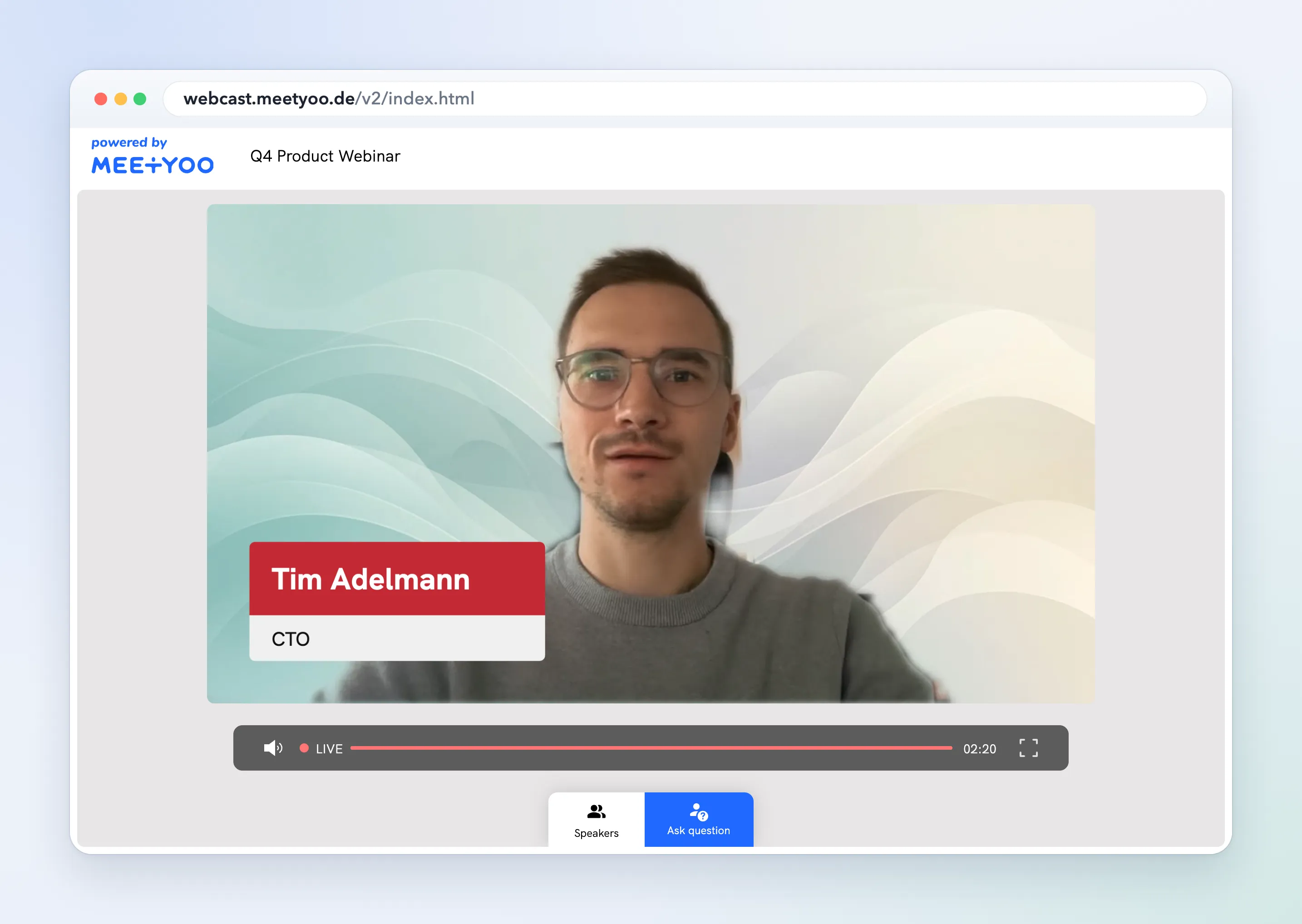
An overlay covers the whole frame. It is not a virtual background behind one camera, and it is not the name label on a presenter's preview. Backgrounds are described in Custom speaker backgrounds.
Prepare the images before the session. During the webcast, a presenter opens Open Overlays. The panel title is Overlays. They activate one overlay, or turn the current one off. The stream has to be running. If it is not, the panel says that no overlay can be selected.
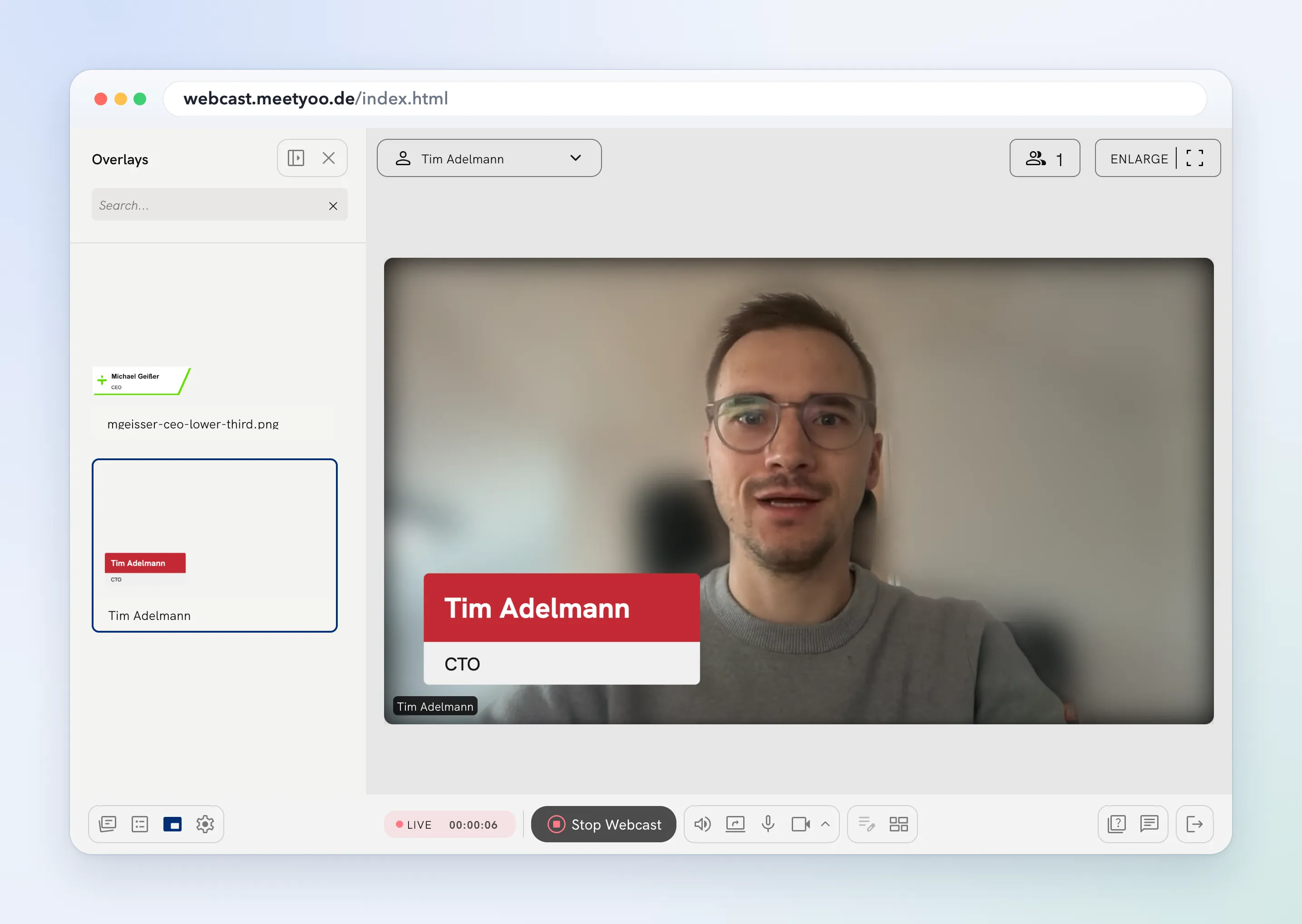
Participants see the active overlay on the live video and on the recording. One overlay is active at a time. The list belongs to the event.
Configure in ContentHub Admin
In ContentHub Admin, open the event. Under Design, open Speaker Customization, then the Overlays tab.
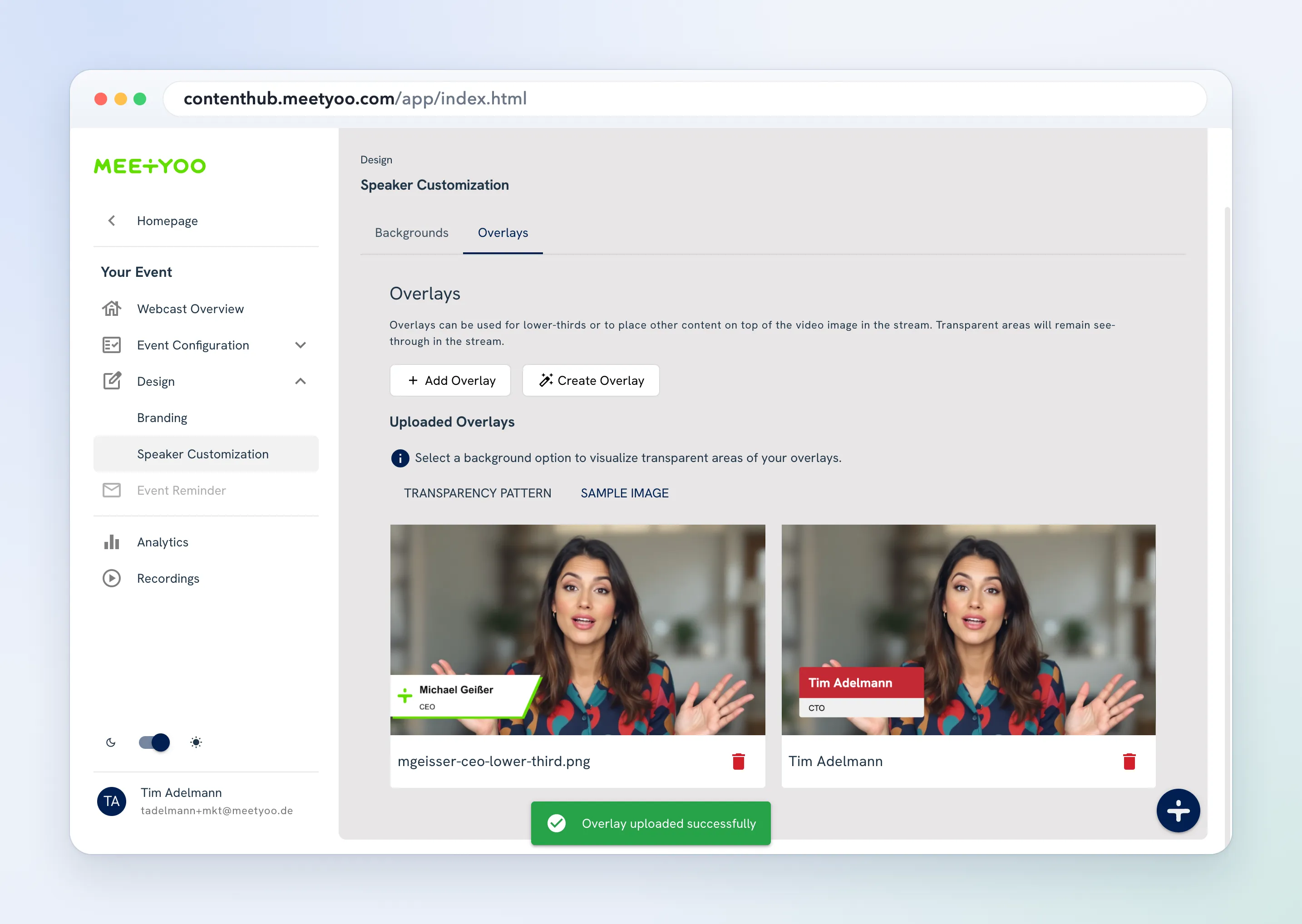
Add Overlay uploads an image. Set Overlay Name. Use a PNG with transparency when the video should show through. The file can be up to 5 MB. Check the result with Transparency Pattern or Sample Image.
Create Overlay opens Overlay Creator.
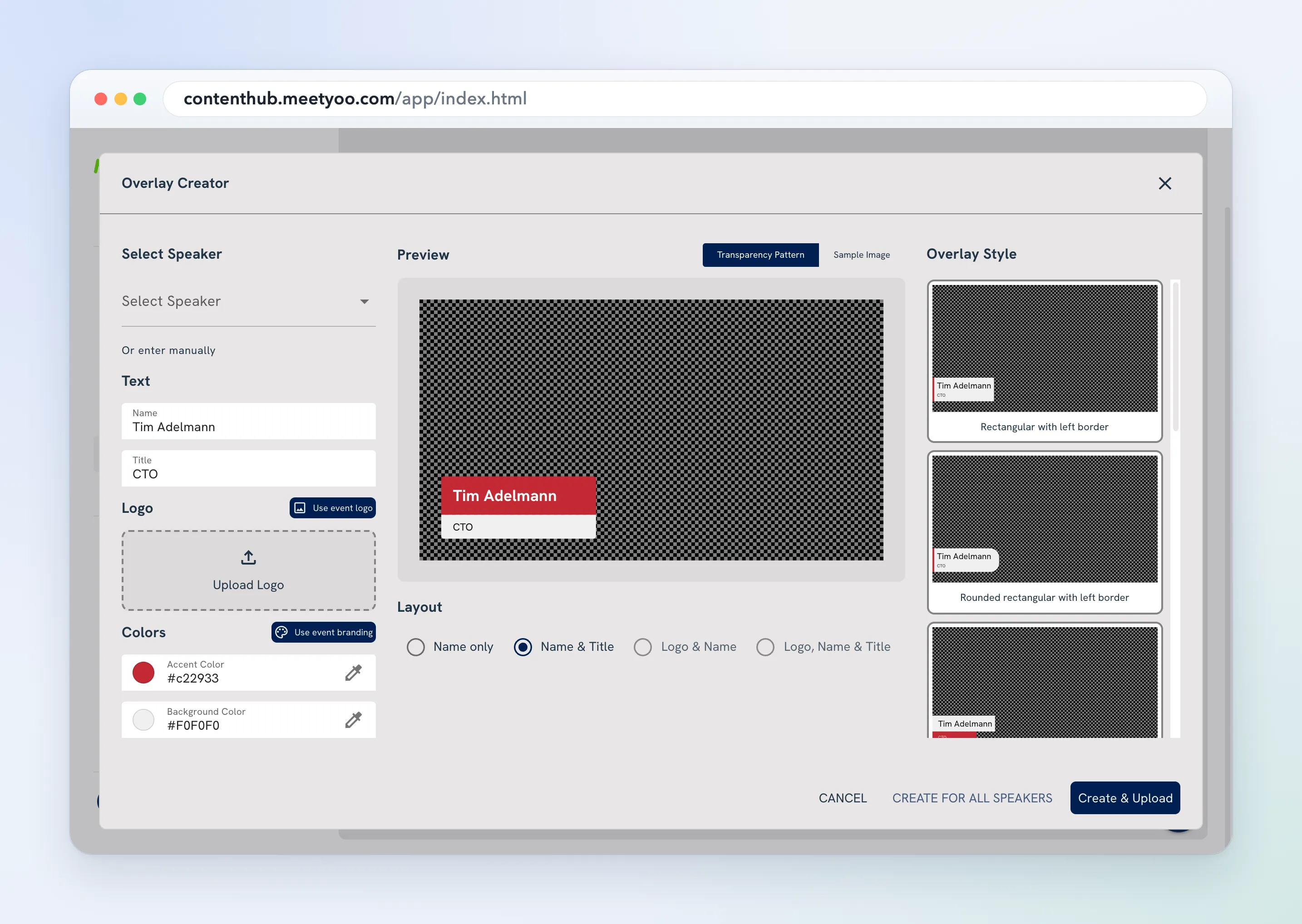
- Select Speaker, or Or enter manually.
- Set the name and title. Under Logo, choose Use event logo or Upload Logo.
- Set colors, or turn on Use event branding.
- Pick a layout: Name only, Name & Title, Logo & Name, or Logo, Name & Title.
- Pick a style.
- Create & Upload adds that overlay. Create for All Speakers adds one overlay per speaker.
Presenters turn an overlay on from Open Overlays once the stream is running.