
Custom speaker backgrounds
Who can use this
ContentHub
Free
Managed Service
Included
A custom speaker background replaces what is behind a presenter on camera. The presenter stays in frame. Blur, the current slide, or an image fills the rest. Participants see that picture on the live webcast, and the same picture is in the recording. Participants do not choose the background.
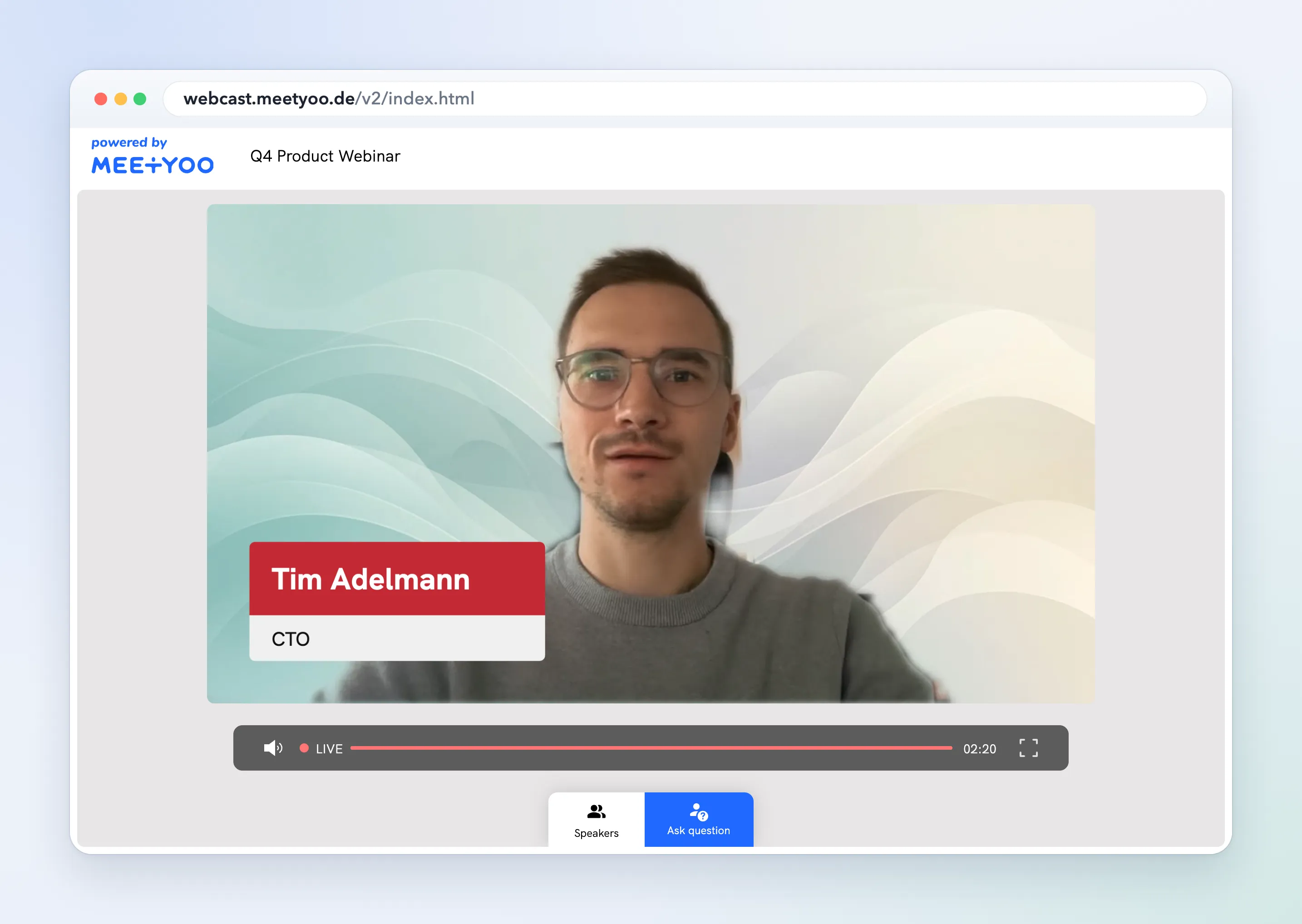
This is separate from the branding image on the login page and the player. Branding does not sit behind the camera. Graphics on top of the video are Speaker overlays.
In the presenter view
Presenters open Switch background. The panel title is Backgrounds and effects.
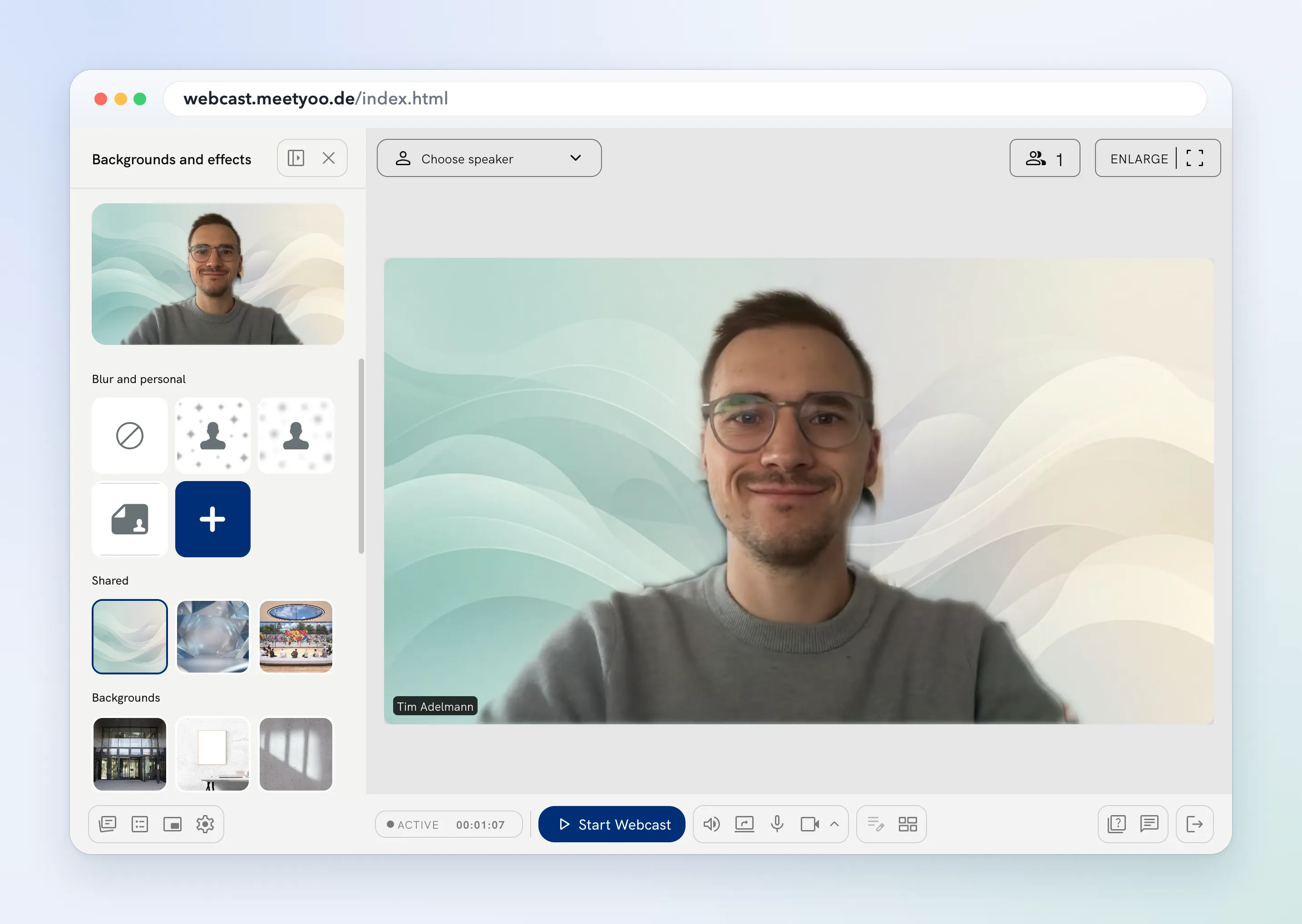
- None, Light blur, and Blur
- Current slide as background
- Add image, for a picture that stays on that computer
- Shared, the images uploaded for this event
- Backgrounds, a built-in library
Choosing the active option again turns the effect off. Share on a personal image adds it to Shared, so other presenters on the event can use it. The person who shared an image, or someone who manages the event, can remove it from Shared.
The effect runs in the presenter's browser. If the browser cannot run it, the panel title is Not supported in your browser and asks for Chrome or Edge. Presenters who join through the Jitsi operator path do not get Switch background.
Uploading images for every presenter on the event is a separate step, below. Those images show up under Shared.
Configure in ContentHub Admin
In ContentHub Admin, open the event. Under Design, open Speaker Customization, then the Backgrounds tab.
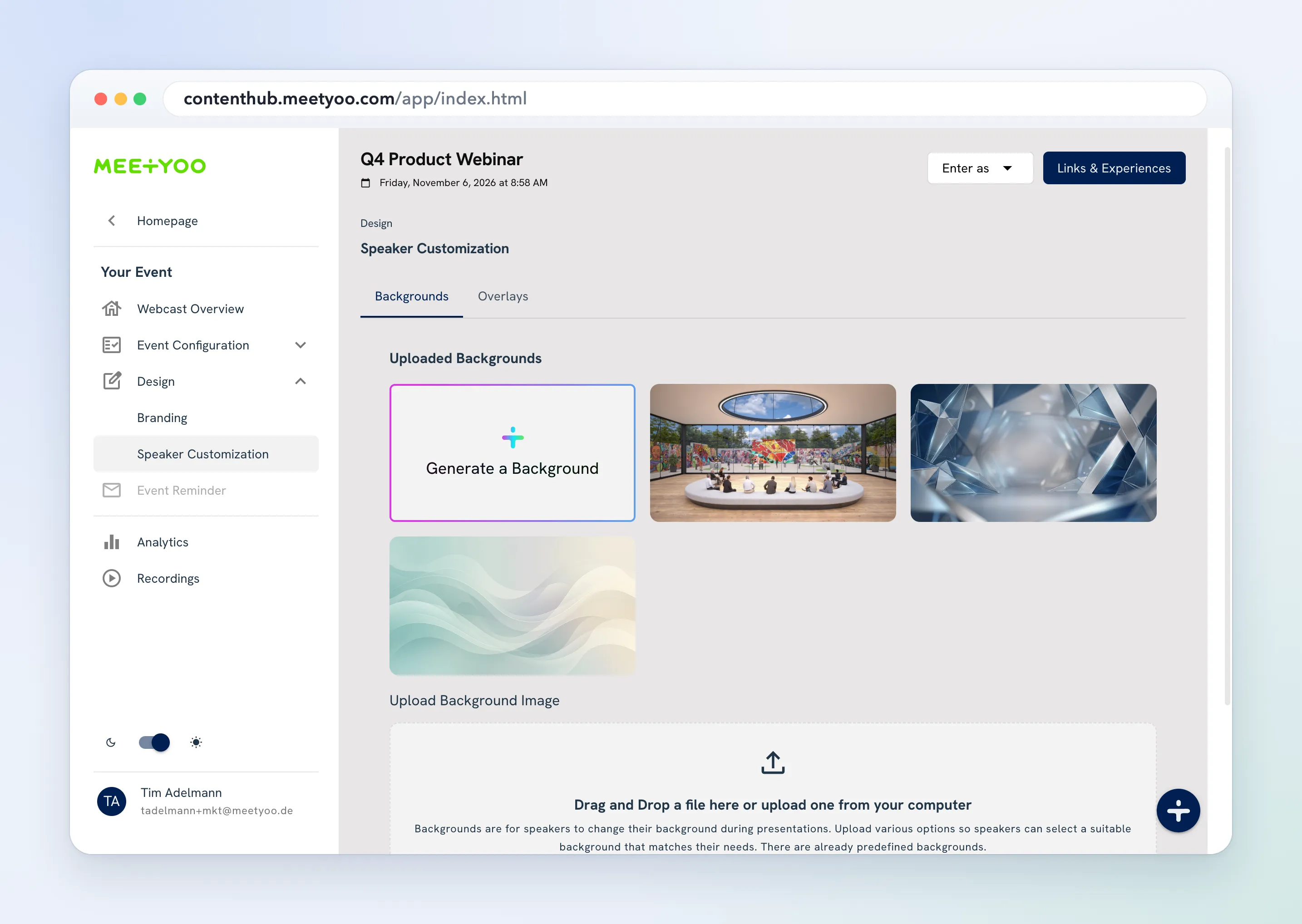
Uploaded Backgrounds lists the images already on the event. Drag an image onto Upload Background Image, or use the upload control. PNG, JPEG, and WebP are accepted. The stored image is WebP, at most 1920 pixels on a side and 10 MB.
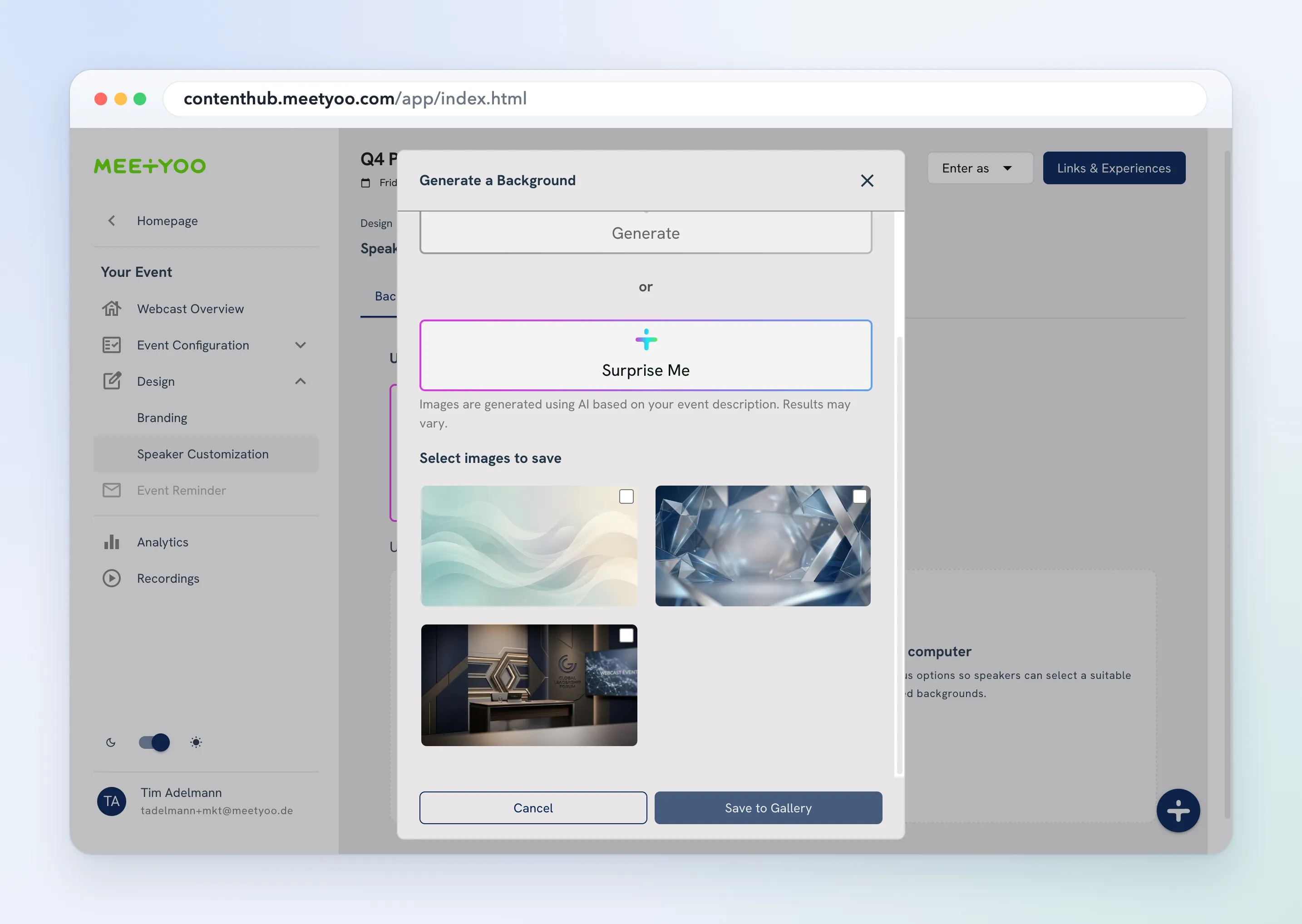
Generate a Background opens a prompt. Generate uses what you describe. Surprise Me builds images from the event description. Select the ones you want and choose Save to Gallery. They are added to Uploaded Backgrounds.
Delete an image from its tile. Presenters see the remaining images under Shared in Backgrounds and effects. The built-in library is already there. You do not upload those.