
Recording transcript
Who can use this
ContentHub
Free
Managed Service
Included
A recording transcript is the text of one recording. It is created when you ask for it. It is separate from live captions: live captions follow the transcription language on the event, and they appear in the player's audio menu while the webcast is running.
The transcript is the source for chapters, key moments, and for participants chatting with the recording. Those stay unavailable until this transcript is finished.
For organizers
On the recording, Transcribe Video starts the job. The confirmation says the process may take some time. While it runs, the menu shows Transcription requested. When it is done, View Transcript opens the text. Download saves it. JSON and VTT downloads are offered when those files exist.
The spoken language is detected for that job. You do not pick a language on Transcribe Video.
If you start chapters or key moments before a transcript exists, transcription runs first and the chapters or key moments follow.
Participants do not get a full transcript panel in the player. They can chat with the finished transcript through Event Guru when chat with the webcast is on.
Configure in ContentHub Admin
In ContentHub Admin, open the event and go to Recordings.
On the recording card, open the menu.
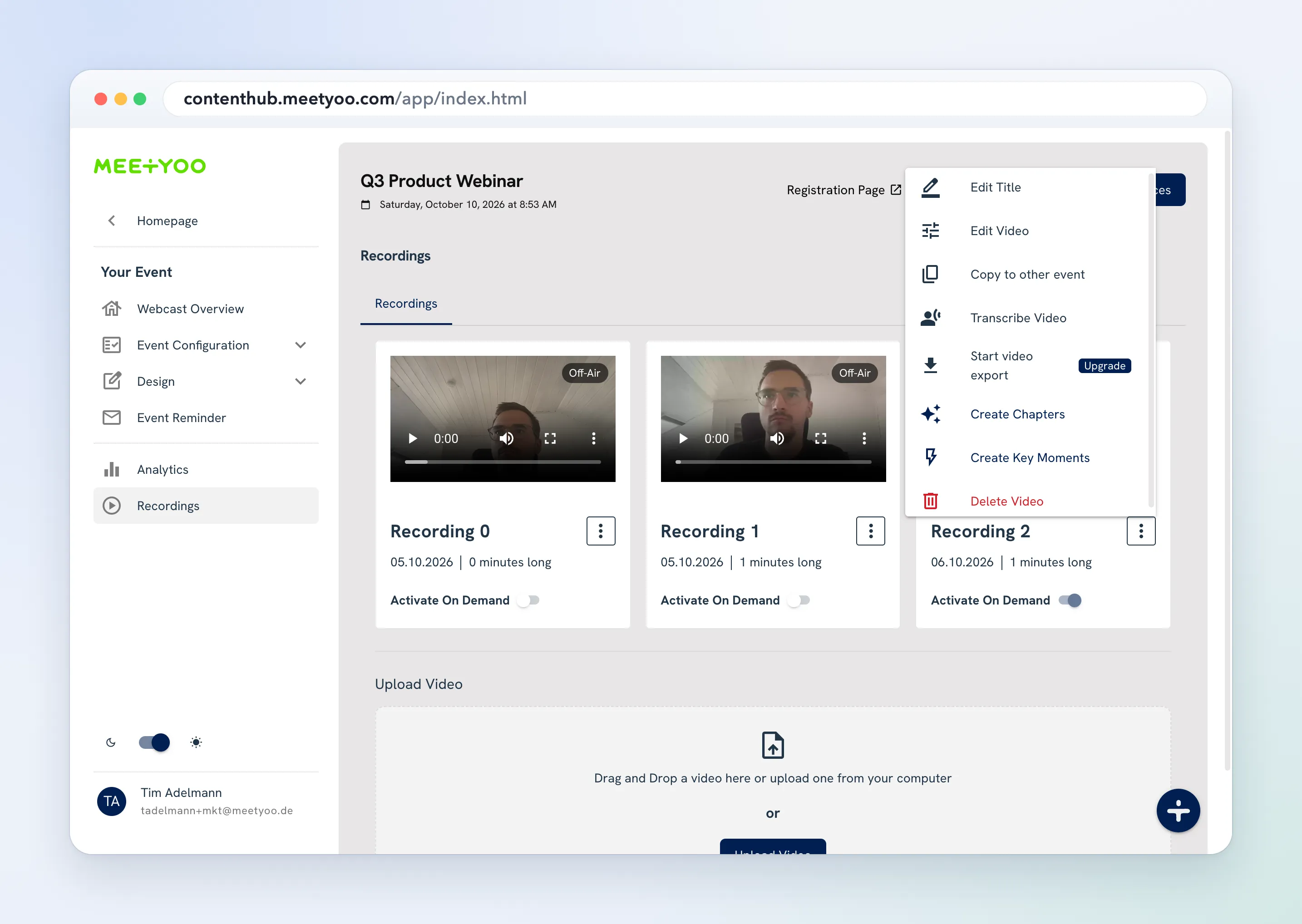
- Choose Transcribe Video.
- Confirm. The dialog says the process may take some time.
- The menu shows Transcription requested while the job runs.
- When it finishes, choose View Transcript.
- Choose Download, or the JSON or VTT button, to save the file.
Configure in ContentHub Admin
Each cut creates a new receiver. The cut is defined by a start time and an end time inside the original recording. This is not a fixed-grid split; you choose the range for every cut.
- Open the event in Content Hub Admin.
- Open the Recordings tab and select the recording that already has content.
- Click Edit in the context menu for one recording.
- Set Start Time (s) and End Time (s) for the segment you want.
- Choose Cut and Save or Process Cut.
- If Video cut notice appears, read it before you continue. While a cut is running, presenters cannot stream in this event until the cut has finished.
- If you are asked for a name, enter the Name for the new video and save.
Repeat for each additional segment. Every completed cut is a new receiver on the event.