
Recording key moments
Who can use this
ContentHub
Free
Managed Service
Included
Key moments are highlights in a recording: a title at a point in time. When participants watch on demand, they open Show more in the player and choose Key Moments to jump to that highlight. The list shows the title and the time. Key Moments appears only when the recording has them. Jumps stay off while the event is live.
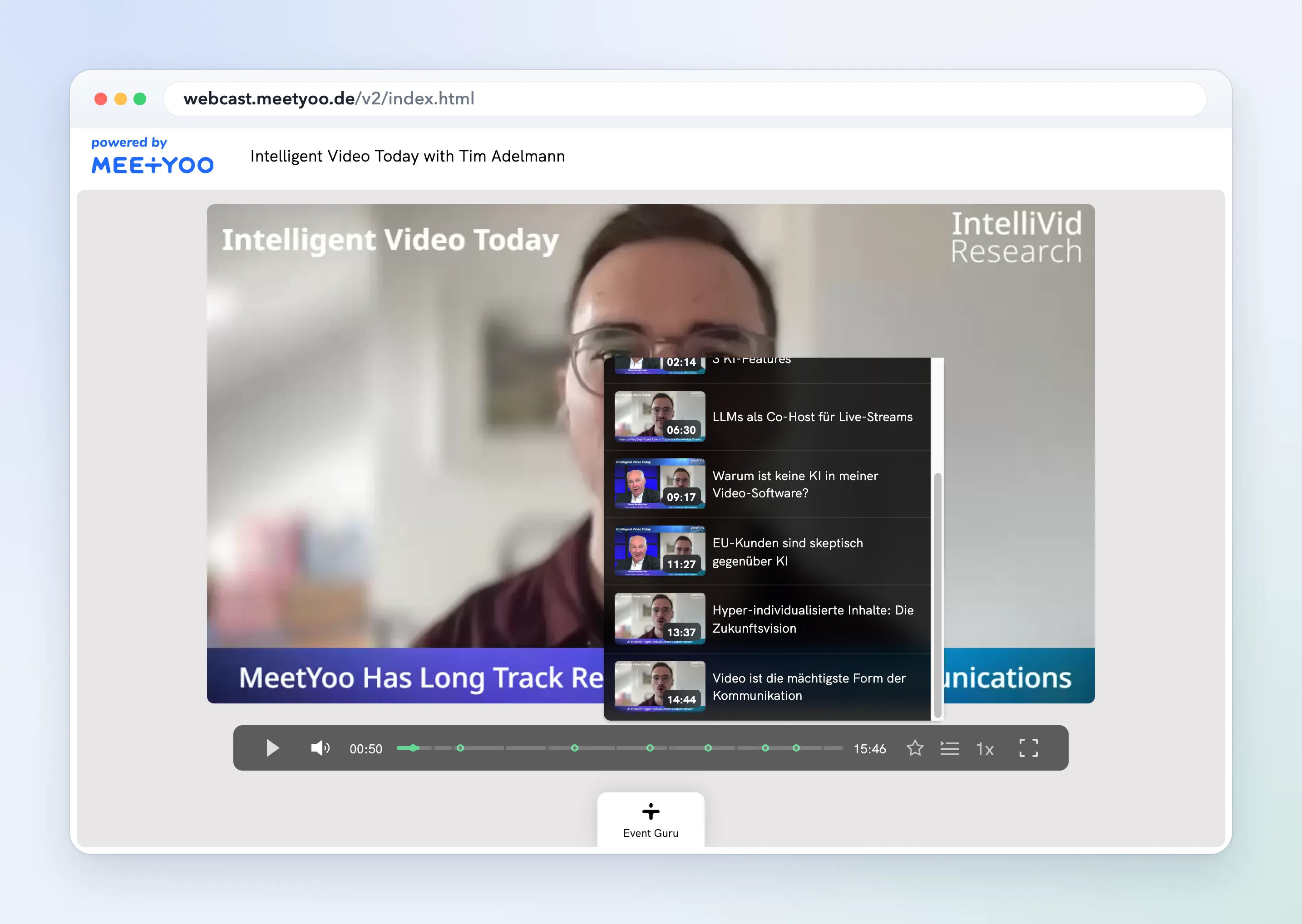
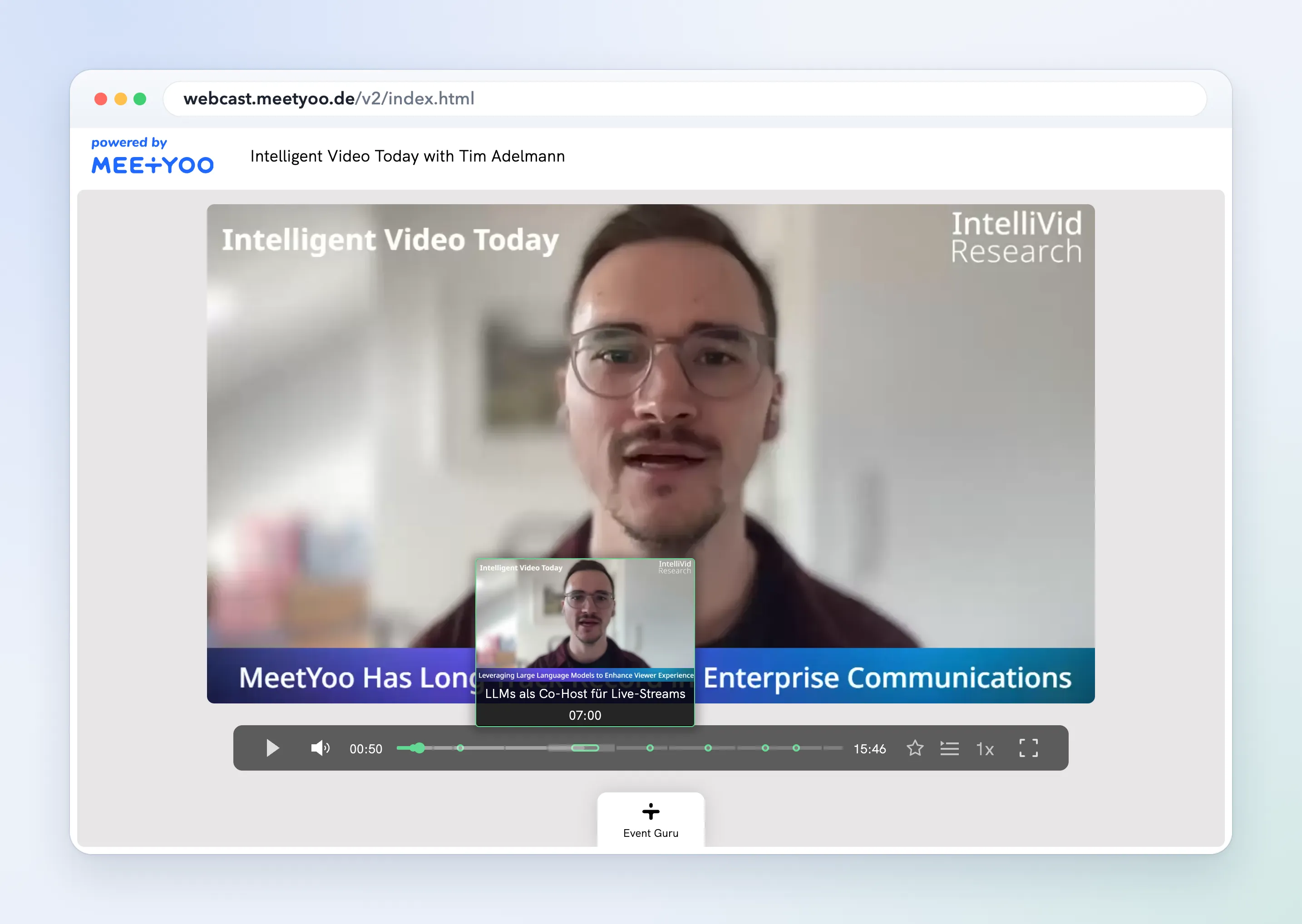
Choosing a highlight seeks the video. The timeline shows the title at that point.
Key moments come from the Recording transcript. Create Key Moments on the recording starts the job. If the recording has no transcript yet, transcription runs first. A later run replaces the key moments already on that recording.
When the job finishes, Open in editor now opens the video timeline.
Navigation by section titles, rather than highlights, is Recording chapters.
Configure in ContentHub Admin
In ContentHub Admin, open the event and go to Recordings.
On the recording card, open the menu and choose Create Key Moments.
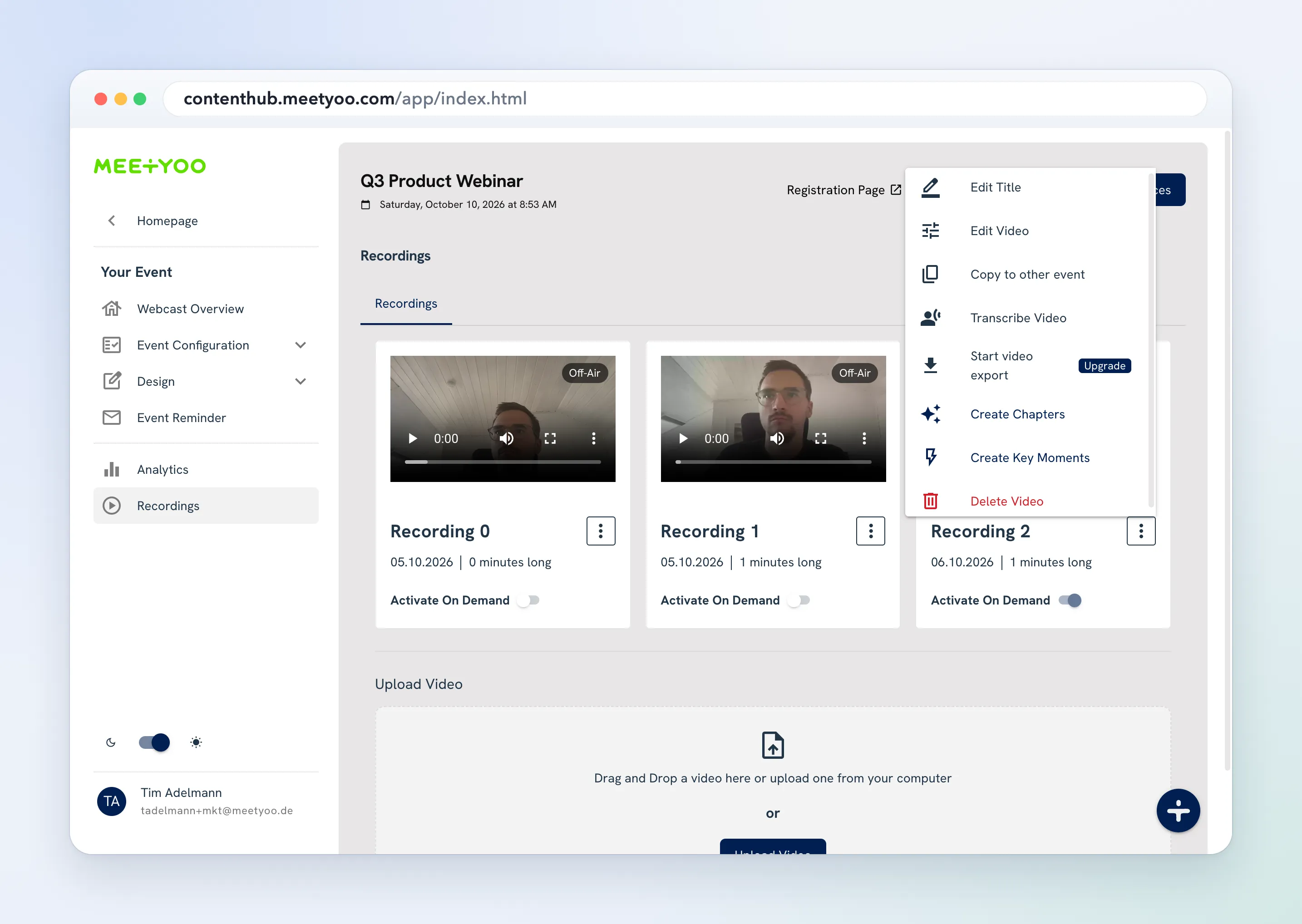
If the recording has no transcript yet, transcription runs first. The card shows that key moments are being created while the job runs. You are notified when it finishes.
Choose Open in editor now to review them on the video timeline. Running Create Key Moments again replaces the key moments on that recording.