
Event series
Who can use this
ContentHub
Free
Managed Service
Included
An event series collects webcasts and videos behind one link. Attendees open the series and pick a session. Reporting stays per session.
Use it in either of these ways:
- Programme — live, upcoming, and past sessions in one place. A webinar series or a town-hall series.
- Library — on-demand videos attendees browse and play. A training library or a recording archive.
Upload a video once. The same event can belong to more than one series.
The series has its own access, and each event has its own. The series link opens the events in that series. An event can also stay open on its own link, or be reachable only through the series.
Attendees can subscribe to one upcoming session and save it to their calendar. See RSVP.
Reminder emails go out only when you send them. Address everyone registered for the series, or only the people subscribed or registered for chosen sessions. See Emails to subgroups.
AI Assistant answers a question using every video in the series. See AI search across an event series.
Event series is included in every plan, from Forever Free up.
Configure in ContentHub Admin
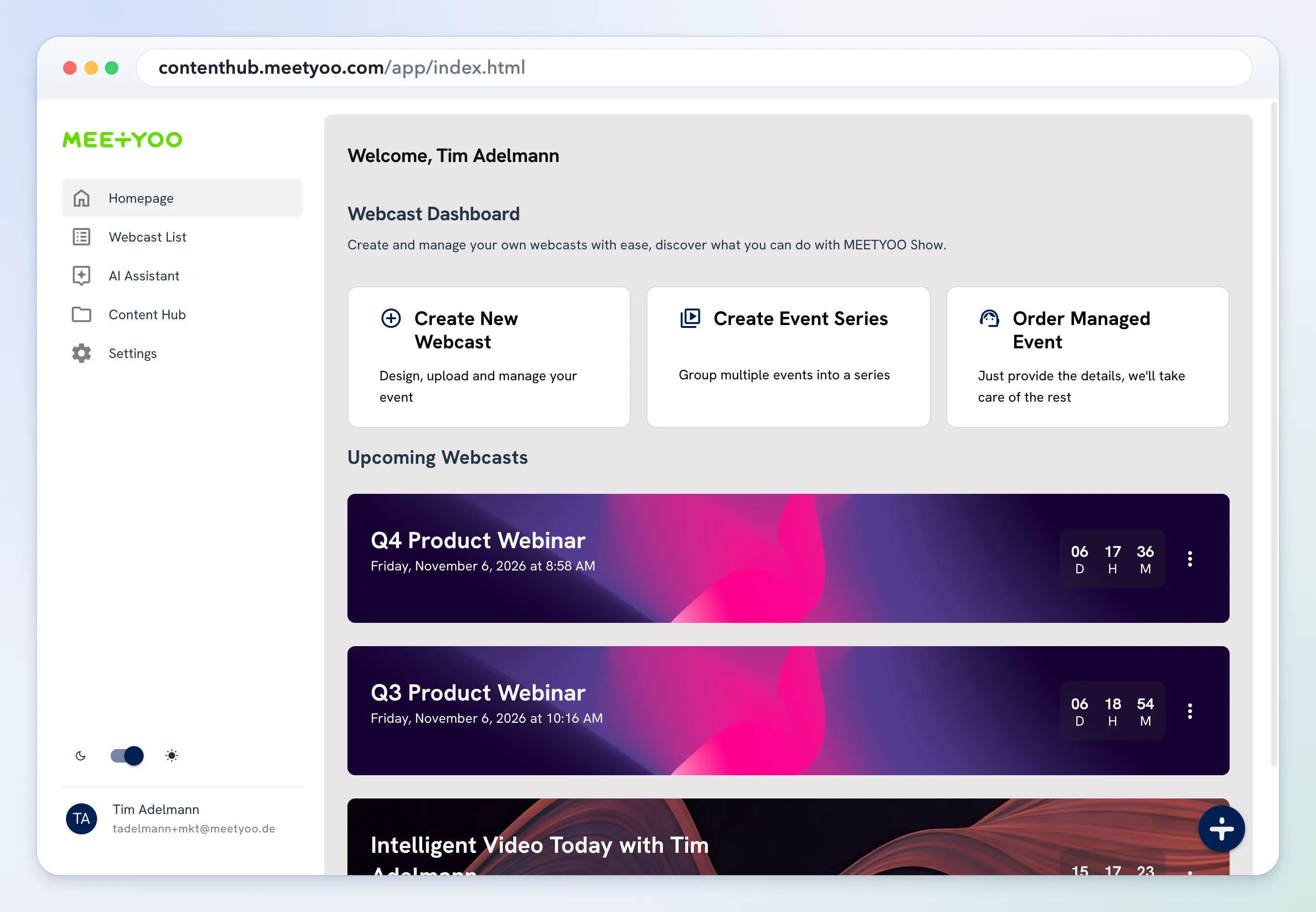
Create the series from the homepage, add the events, then copy the attendee link.
- On the homepage, choose Create Event Series.
Enter Series Name and Start Time. Internal notes are optional and stay with your team. Choose Create Event Series.
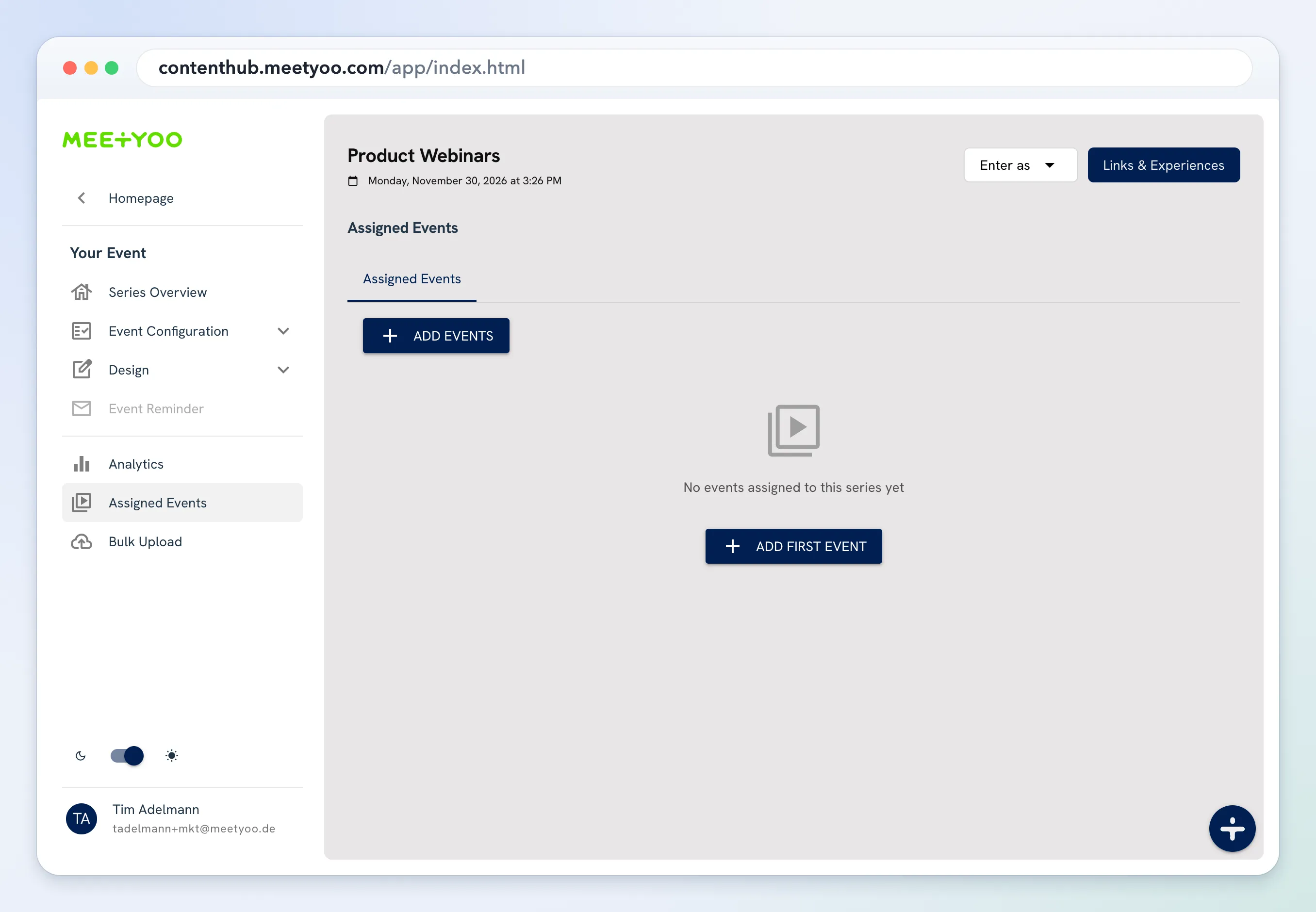
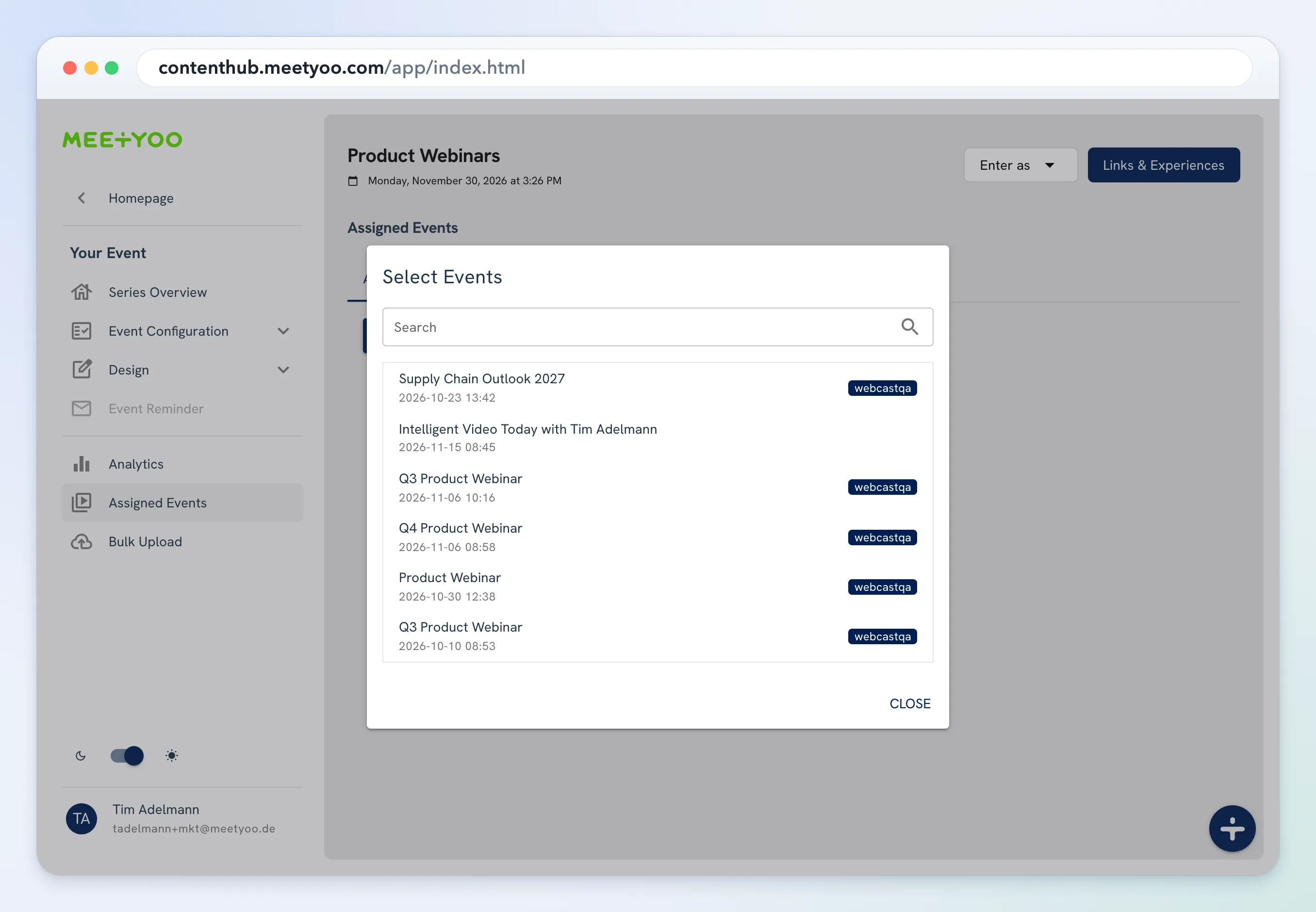
Open Assigned Events. Choose Add Events. On an empty series, choose Add First Event. Search, then select each event. The series confirms Event added to series.
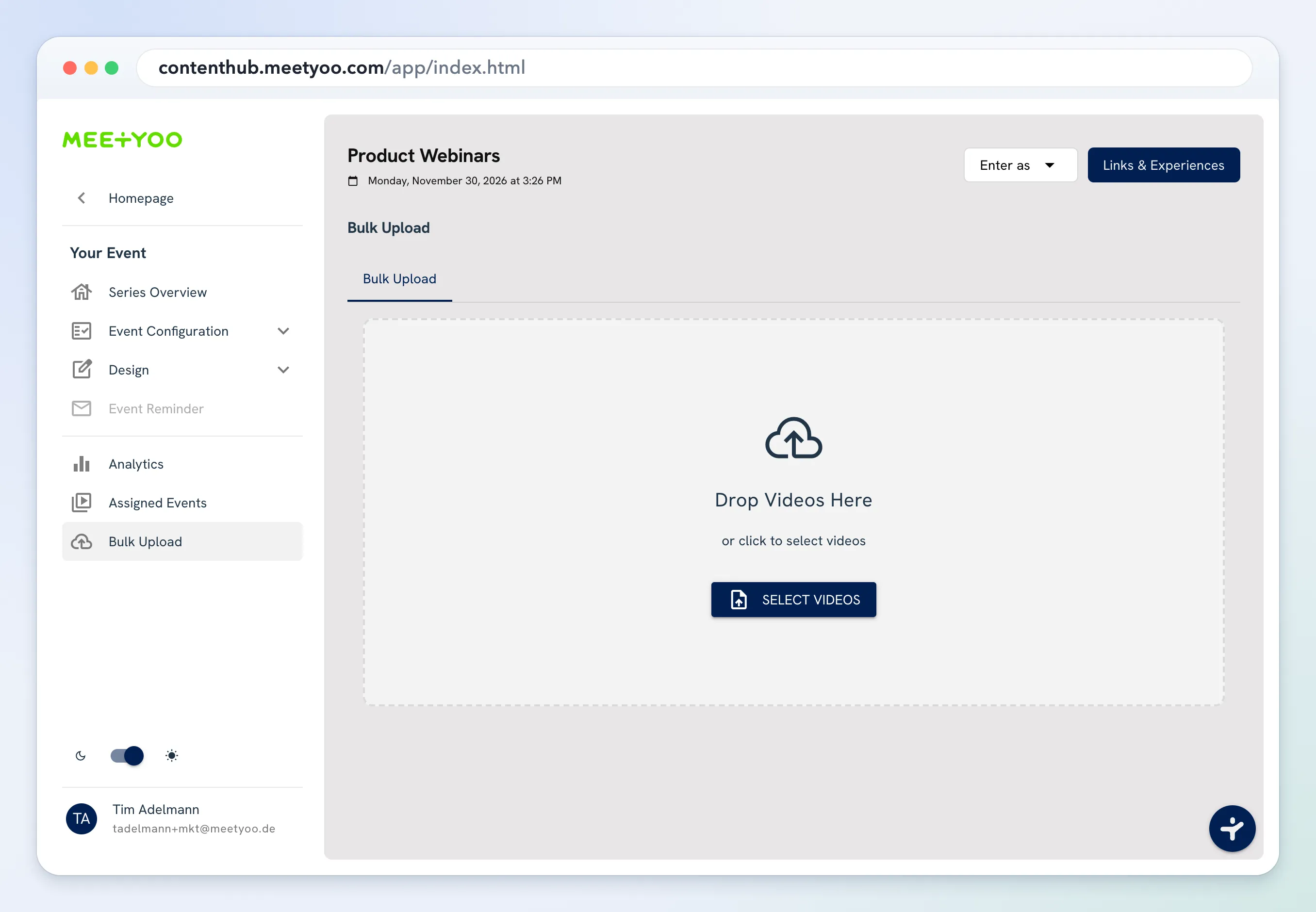
- To add many new videos at once, open Bulk Upload. Drop the files or choose Select Videos, then Start Upload. Each file becomes a video in this series. Attendees open those videos from the series.
Under Event Configuration, open General, then the Access tab, and set how people enter the series. Choose Save.
Choose Links & Experiences. Under Watch and Participate, copy the Attendee Link.