
HubSpot sync
Who can use this
ContentHub
Free
Managed Service
Included
HubSpot sync sends a webcast's registrations and live attendance to one connected HubSpot portal as a marketing event.
What is sent
Email, name, company, and job title are sent when they are stored on the participant. An email that exists only in the display name is not used.
After sync is turned on for that webcast, Content Hub sends registration, live attendance, and cancellation. The webcast is read about once a minute. Queued changes are sent about every 15 seconds.
What is not sent
Turning sync on does not import the past. Registrations and attendance from before that moment stay in Content Hub.
Recordings and on-demand views are not synced. No-show is counted in Content Hub after the live session ends. HubSpot is not sent a no-show state.
Hub staff are not sent. Excluded domains are not sent. A domain also covers its subdomains. Participants with no email address are not sent.
Contacts
Update existing contacts only skips a participant who has no matching HubSpot contact. Create contacts when they are missing creates the contact, then records the participation. Several HubSpot contacts with the same email are skipped.
Connection
One HubSpot portal connects to one hub. Hub admins connect the portal, disconnect it, and change the contact policy.
Turning sync off stops new transfers. A request HubSpot has already received can still finish. Disconnecting the portal skips transfers that have not been sent, turns the webcast switches off, and leaves contacts and marketing events that are already in HubSpot in place.
SSO registration and webhook registration register people into a webcast. HubSpot sync sends participation out to HubSpot.
Configure in ContentHub Admin
In ContentHub Admin, open Settings, then Integrations.
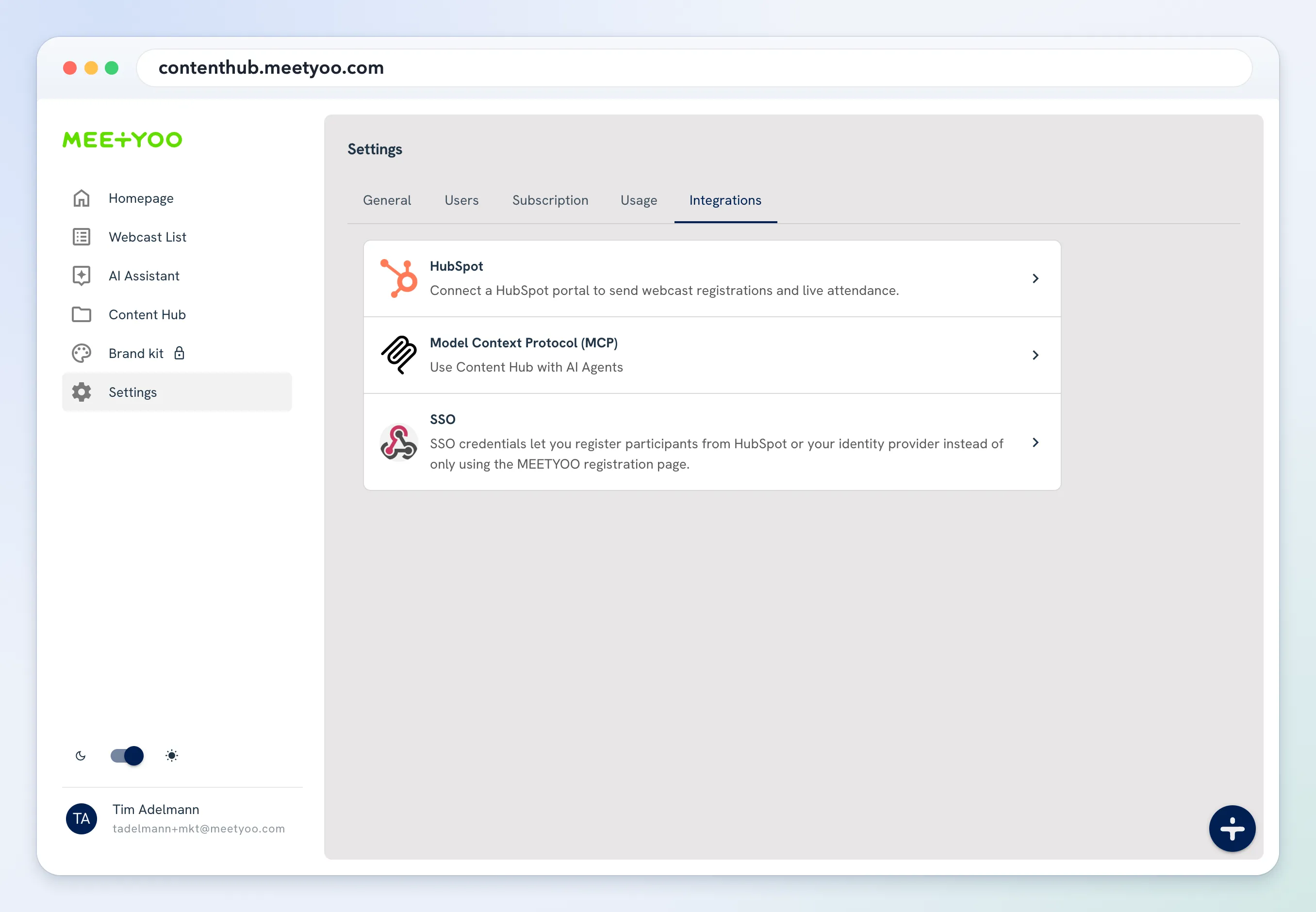
Open HubSpot.
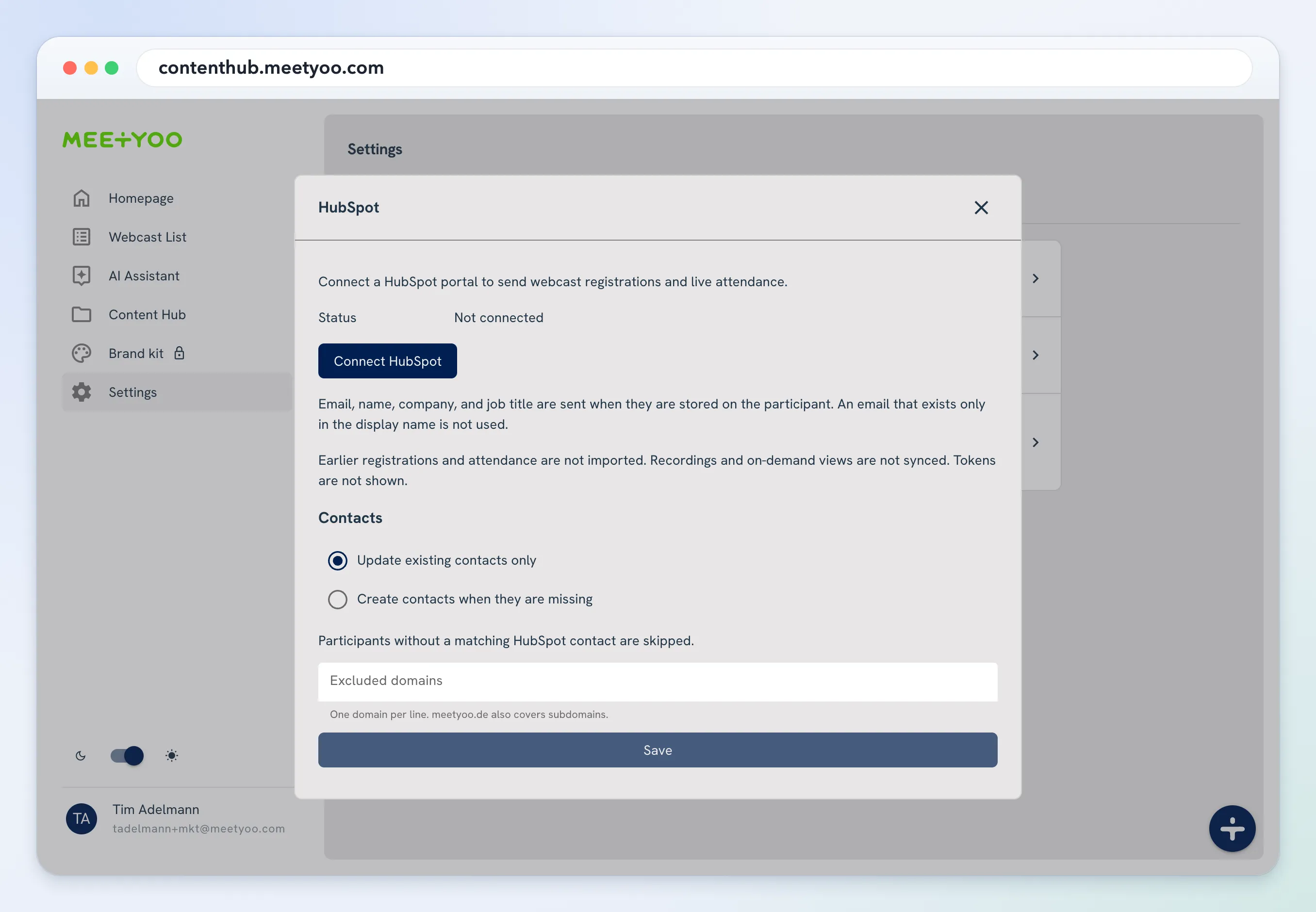
Select Connect HubSpot and approve the portal in HubSpot. When the connection is in place, the dialog shows the portal id.
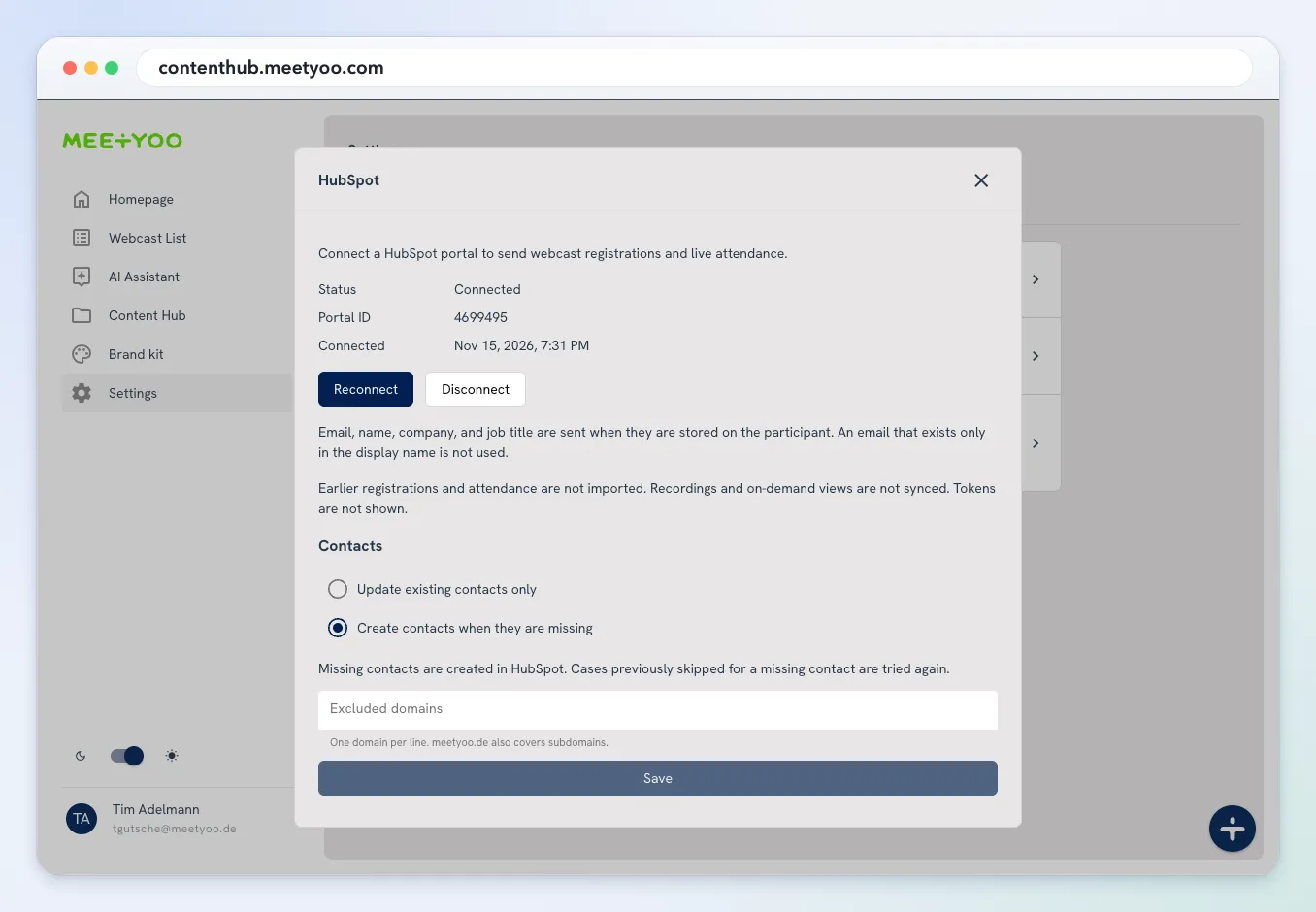
Under Contacts, choose Update existing contacts only or Create contacts when they are missing.
To skip company addresses, enter one domain per line under Excluded domains. meetyoo.de also covers subdomains. Save.
Connecting, disconnecting, and the contact policy require the admin or owner role in the hub.
Configure in ContentHub Admin
In ContentHub Admin, open the webcast. Under Event Configuration, open Integrations.
HubSpot sync stays off until you turn it on. If the hub has no HubSpot connection, the switch stays disabled.
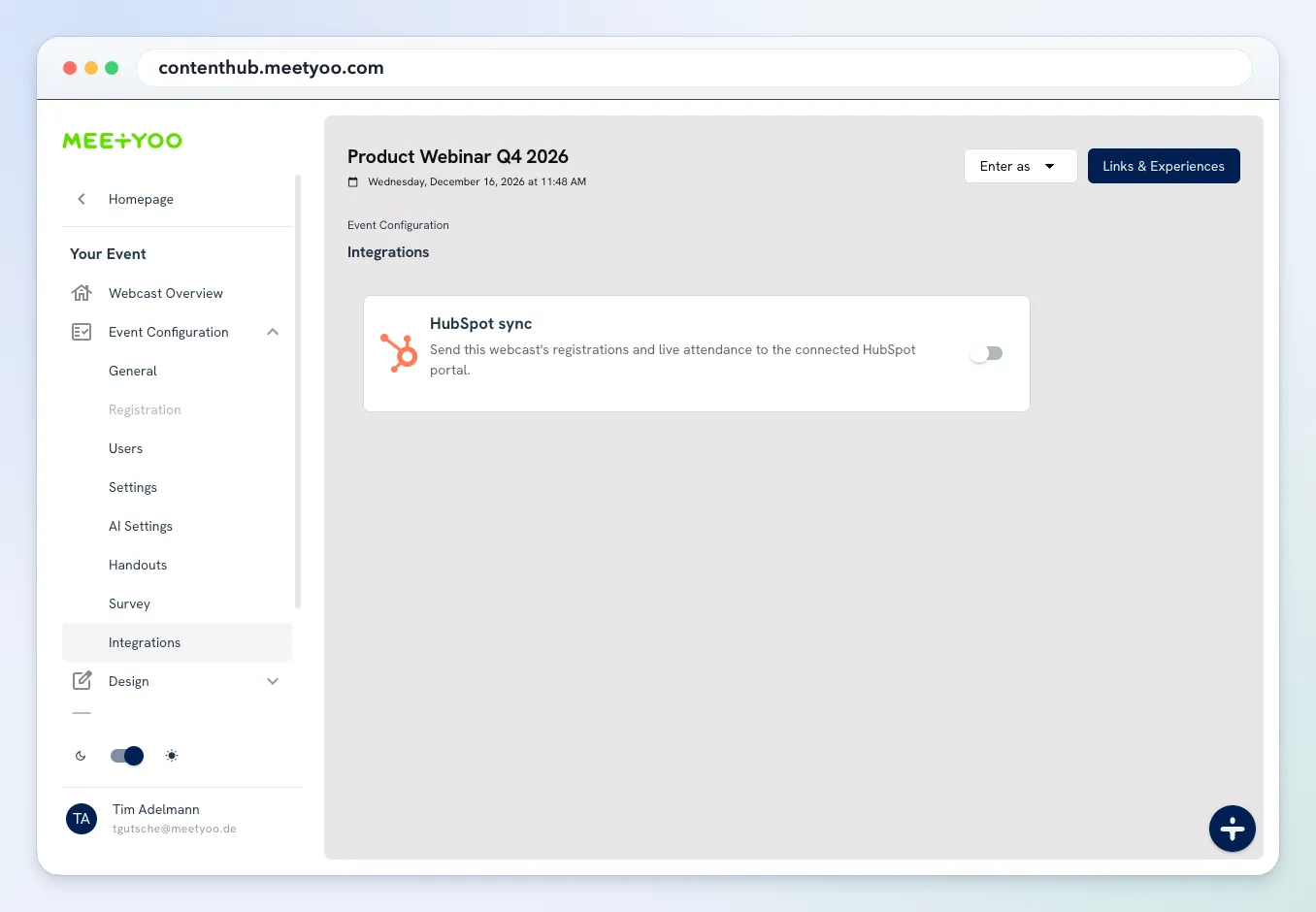
Turn on Sync this webcast to HubSpot. The card expands and shows the options and the delivery status.
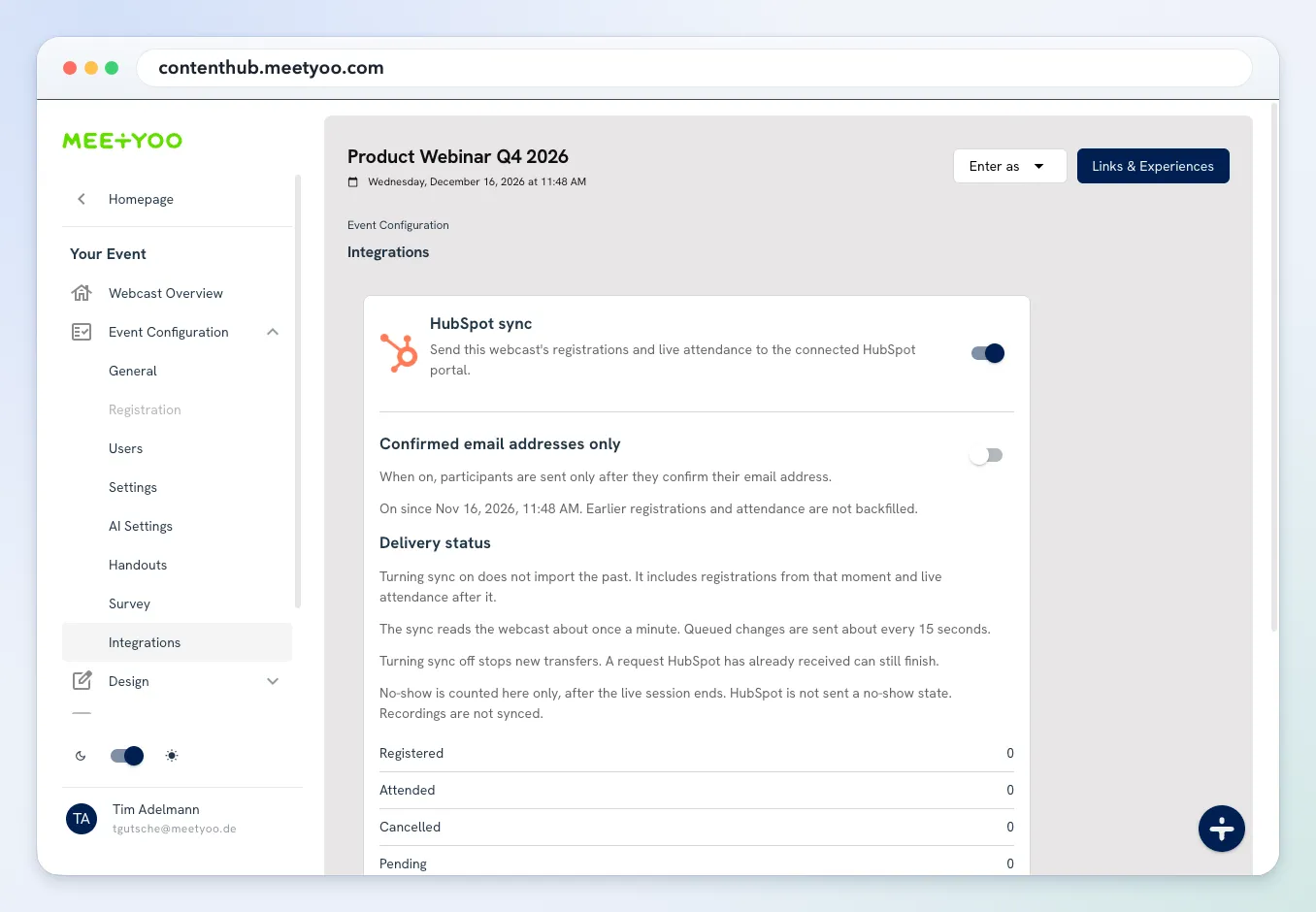
Optional: turn on Confirmed email addresses only. Participants are sent only after they confirm their email address.
The card shows when sync was turned on. It also shows counts for registered, attended, cancelled, pending, failed, and no-show. Retry on a failed transfer is available to hub admins.