
Handling Q&A as a presenter
Who can use this
ContentHub
Free
Managed Service
Included
During the session, presenters and Q&A moderators work incoming questions in the Questions panel. Open it from the right-hand toolbar — the badge is the number of questions waiting.
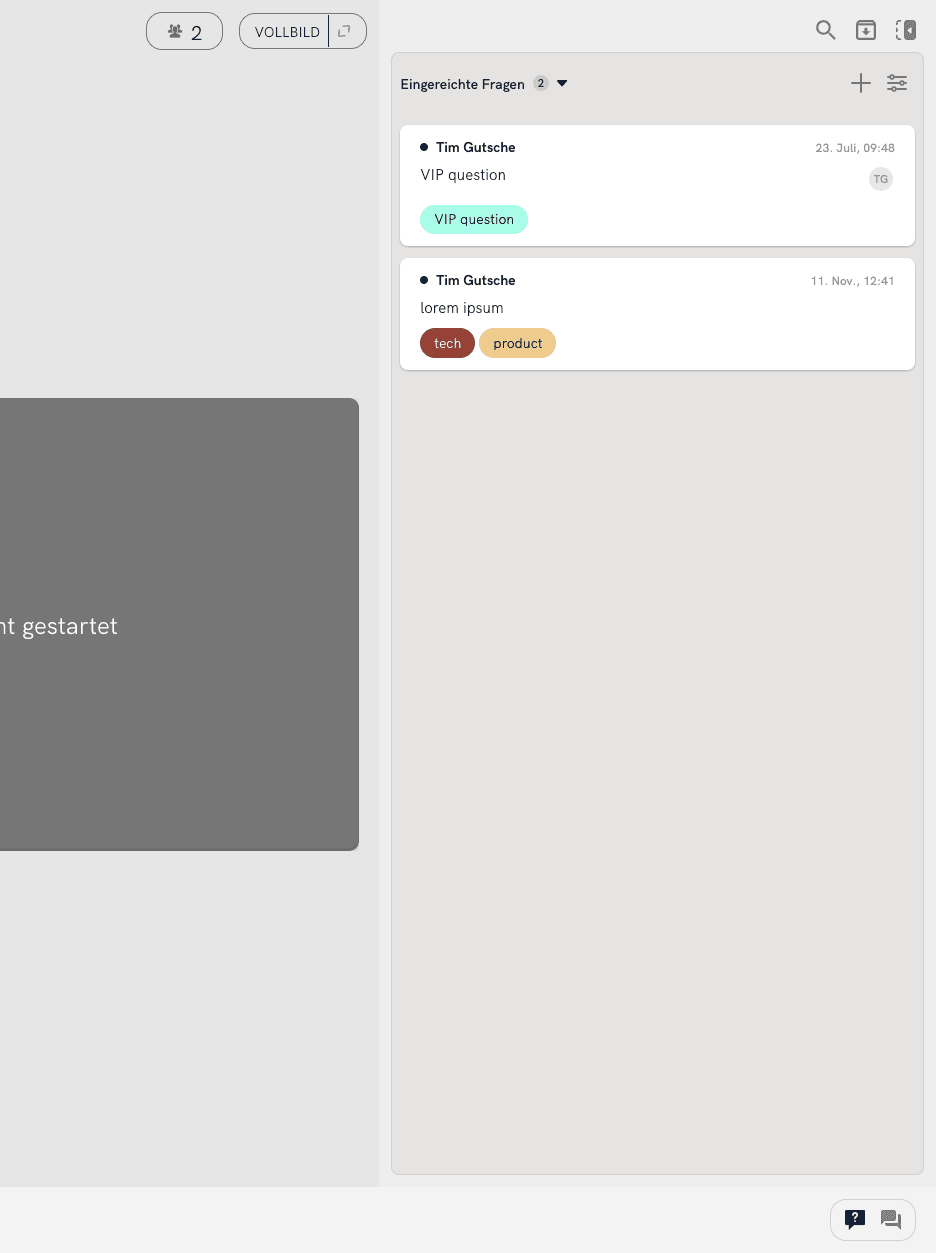
Participants ask from the player. They do not see Submitted or Prioritized. They only see questions you have enabled for voting, plus written answers you send back.
Columns
Expand the panel (toolbar, toggle size) to show columns side by side. In the compact view, switch columns from the column title.
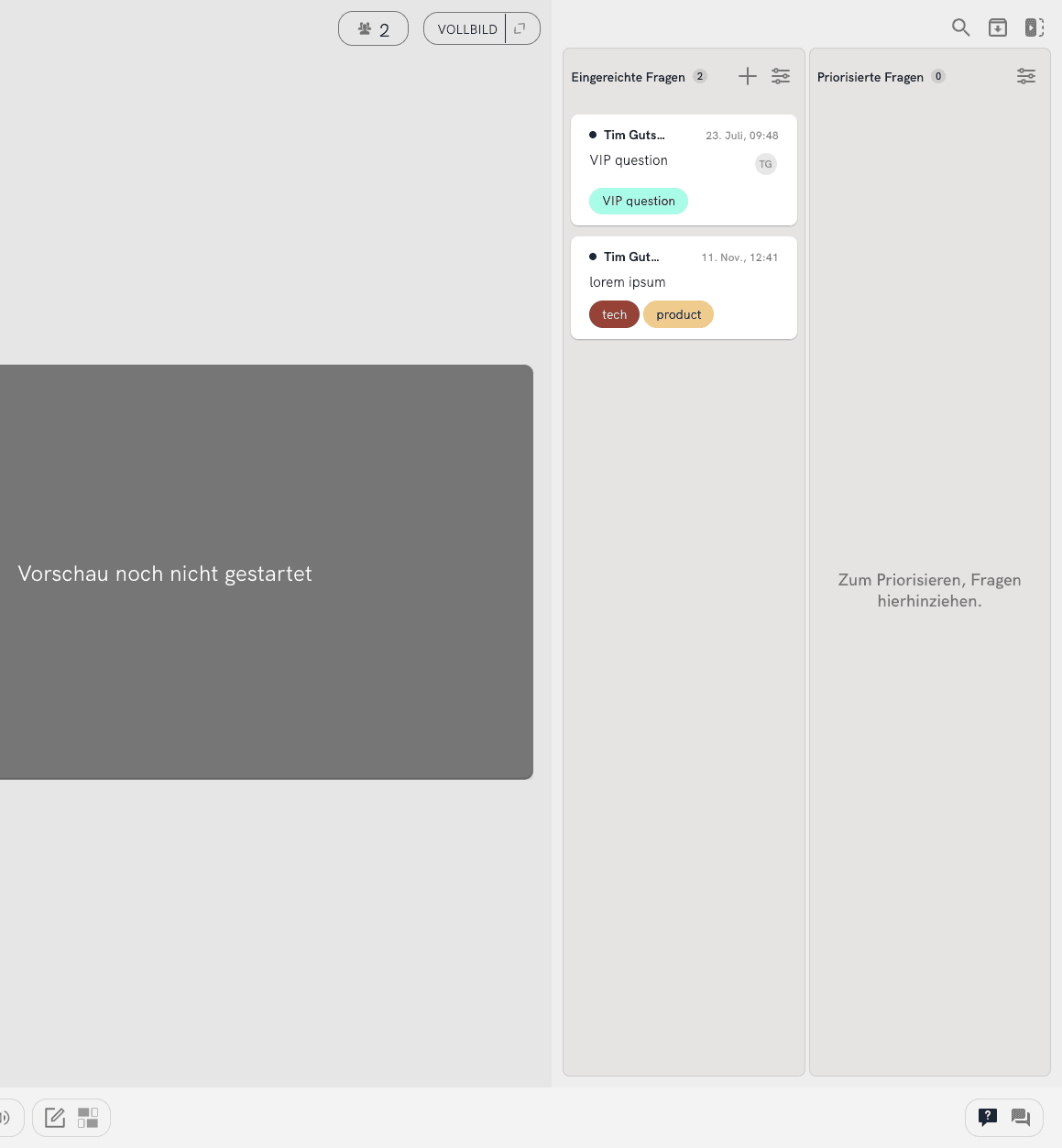
Submitted questions
New questions land here. Review them, add labels, assign a speaker, or move them on. Participants cannot see this column.
Use + to add a question yourself (for example a planted question).
Open for voting
This column appears when voting is enabled for the event. Choose Enable for voting on a submitted question so the audience can see it and upvote it. Vote counts then help you pick what to take live. Participants cannot vote on questions that stay in Submitted or Prioritized.
Voting modes (off / default / anonymized) are explained in Q&A voting.
Prioritized questions
Your shortlist for going live. Drag a question here, or choose Prioritize. Participants cannot see this column.
Archive
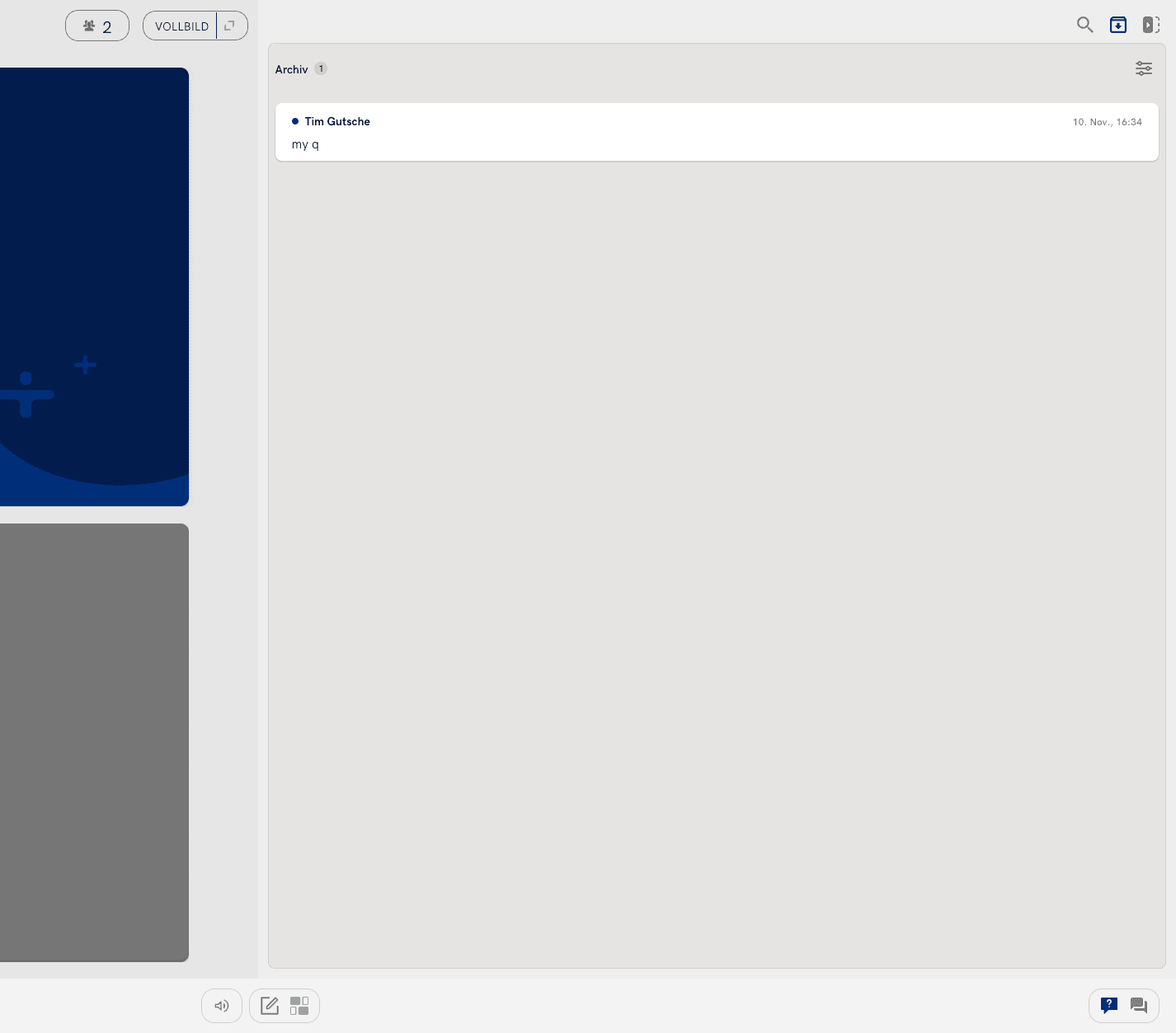
Answered or dismissed questions. Restore one with Back to submitted.
Actions on a question
Click a question to open its menu:
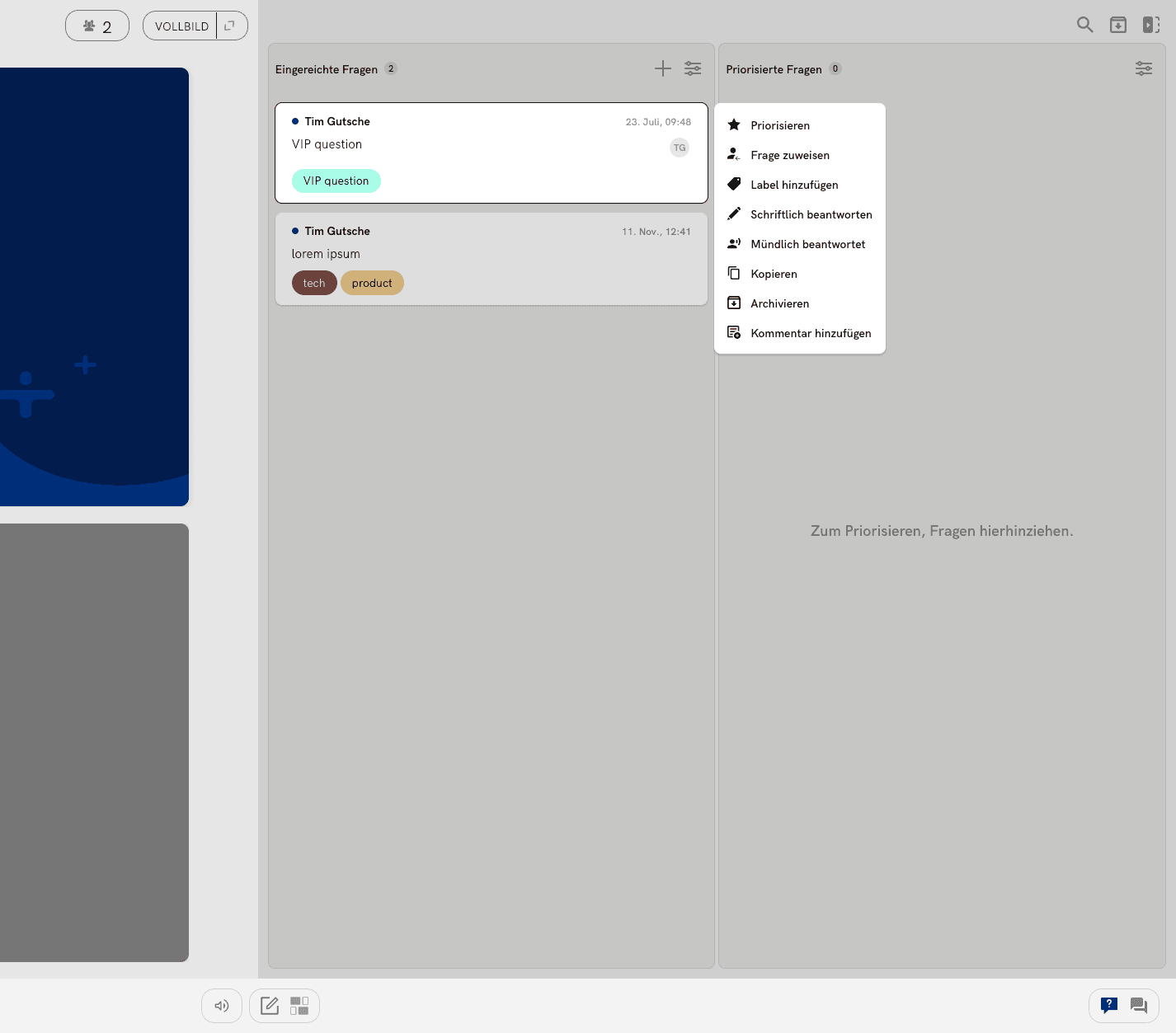
- Prioritize / Remove prio. — move to or from Prioritized
- Enable for voting / Disable for voting — only when voting is on
- Assign question to — give it to a speaker
- Add label — tag for filtering (for example topic or VIP)
- Write answer — send a written reply to the participant and archive the question. Anonymous questions cannot be answered in writing
- Answered verbally — mark as done without a written reply, then archive
- Copy — copy the question text
- Archive — file it without answering
- Add comment — a note only presenters and moderators see
- Broadcast — show the question to everyone; available when you are on air
Filter, sort, and search
The filter control sorts the list (newest or oldest; by votes in the voting column) and narrows it by label or assignee.
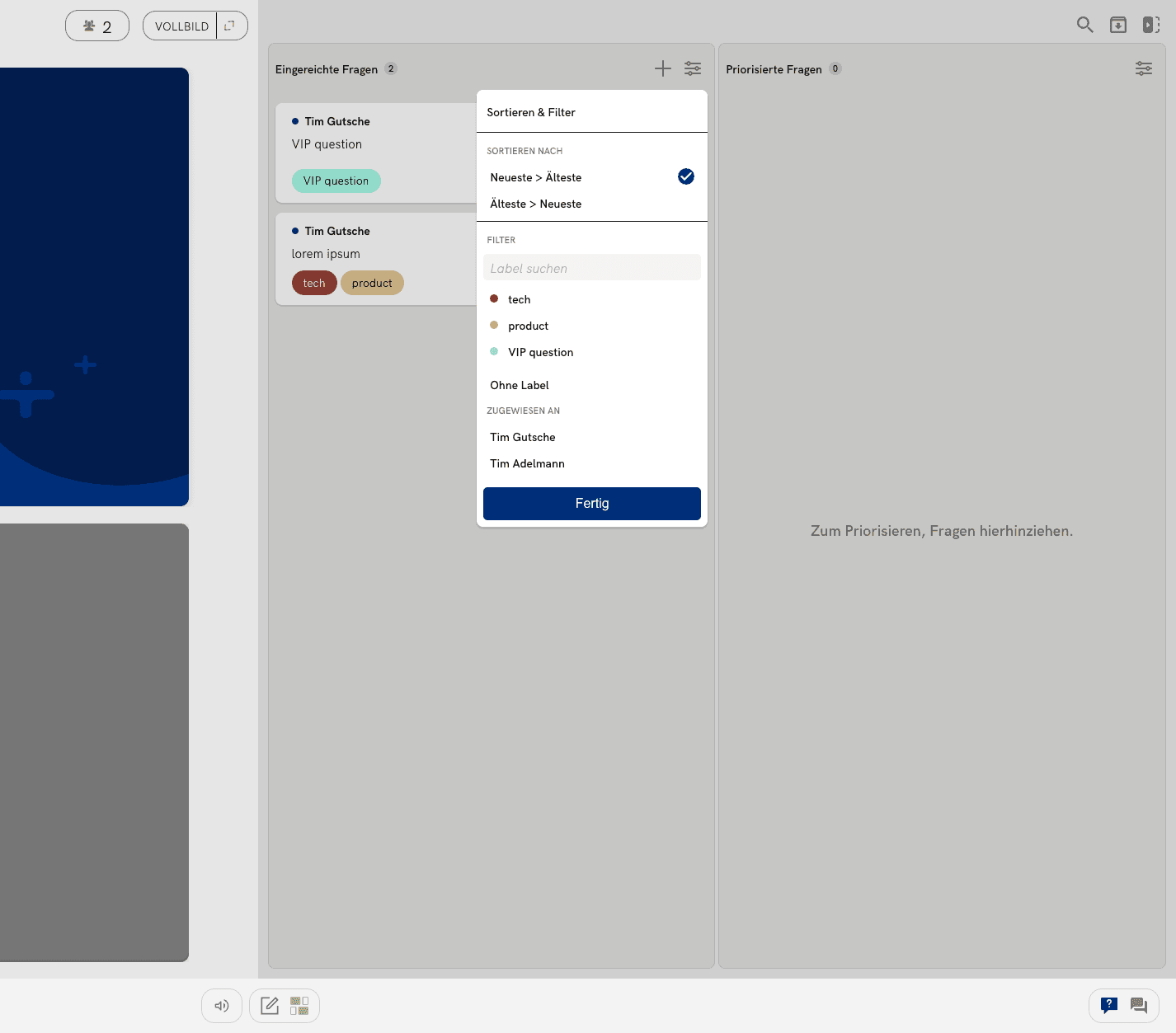
Search from the toolbar at the top of the panel.