

Your LinkedIn ad, your newsletter and your partner's banner all send people to the same webcast. Two weeks later the attendee list shows 400 names and no answer to the one question marketing asks: which campaign brought which person? Webinar tracking breaks at the handover. The UTM parameters sit in the URL, the attendee ends up in a profile, and nothing connects the two.
MEETYOO Show copies query parameters from the event URL into the attendee profile. It works at registration and at login with name and custom fields. You define the parameters once, and every attendee record carries its campaign source.
When you need webinar tracking with query parameters in the attendee profile
You need this as soon as more than one channel promotes the same event. Typical setups:
- Paid campaigns: LinkedIn, Google or Meta ads link straight to the registration page.
- Email and newsletters: every send or reminder carries its own
utm_content. - Partner and co-marketing links: each partner gets a URL with its own
utm_source. - Landing page to webcast: your own page collects the lead and forwards people to the event.
- CRM-first flows: people register in your CRM and receive a personal link to the webcast.
The core idea: the campaign parameter travels in the link, and MEETYOO writes it into the attendee profile. When you export the attendee list, source, medium and campaign sit next to name and email.
Which parameters to plan
Start with the five standard UTM parameters and add your own where your reporting needs them. Decide the list before you configure anything, because only parameters you define are stored.
| Parameter | Example value | Question it answers |
|---|---|---|
utm_source | linkedin | Where did the click come from? |
utm_medium | paid | Which channel type? Paid, email, social, partner |
utm_campaign | q3-webinar | Which campaign? |
utm_content | cta-banner-a | Which ad, link or variant? |
utm_term | webinar-tracking | Which keyword (paid search)? |
Custom, e.g. partner_id | acme | Anything your CRM needs, such as partner, region or sales owner |
A complete campaign link then looks like this: your event URL followed by ?utm_source=linkedin&utm_medium=paid&utm_campaign=q3-webinar.
Two entry points: registration or login with custom fields
An event has one access mode. You set it under Event configuration > General in the tab Access. The mode depends on where the attendee registers.
| Registration | Login with name and custom fields | |
|---|---|---|
| Where people sign up | On the MEETYOO registration page | In your own system, for example your CRM or a landing page |
| How people reach the webcast | Campaign link to the registration page | Link to the event login |
| Where you define the fields | Event configuration > Registration, sub-tab Custom fields | Event configuration > General, tab Access |
| Field type for the parameter | Query parameter field | Query parameter (hidden) |
| What you configure per parameter | The query parameter name | The query parameter name |
Both paths cover campaign tracking. Both are available in all plans, including the permanently free Forever Free plan.
A note on login with custom fields: this mode has no double opt-in. Use it when registration and consent already happened in your own system and attendees arrive through a personal link. If you want MEETYOO to handle registration, choose the registration mode. Our guide to registration and access modes compares the options.
Set up tracking with the registration mode
Choose this path when attendees register on the MEETYOO registration page.
- Open Event configuration > General, go to the tab Access and set the access mode to Registration.
- Open Event configuration > Registration and switch to the sub-tab Custom fields.
- Add a new custom field and select the type Query parameter field.
- Enter the query parameter, for example
utm_campaign. That is the only input the field needs. - Repeat for
utm_source,utm_mediumand every other parameter on your list.
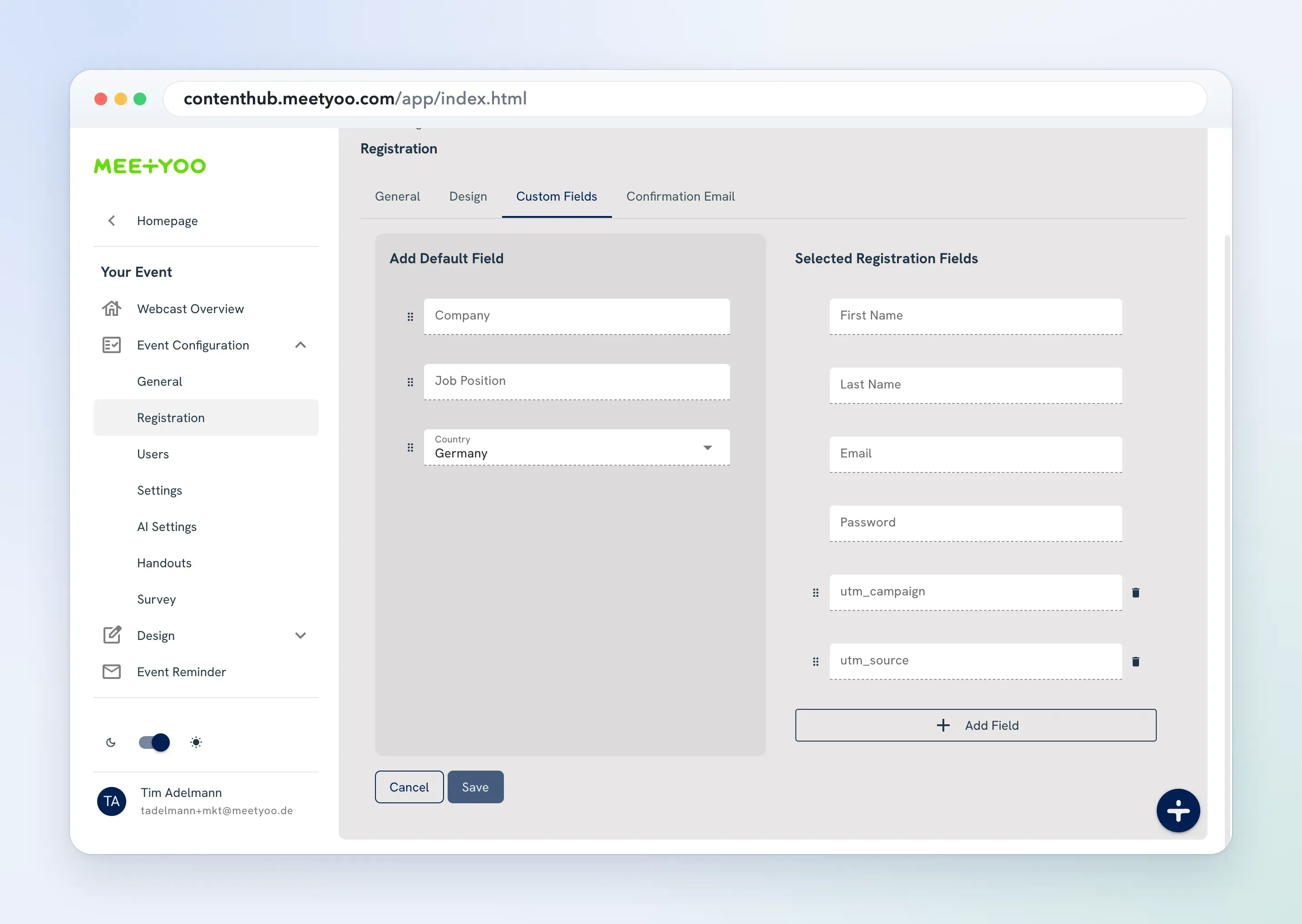
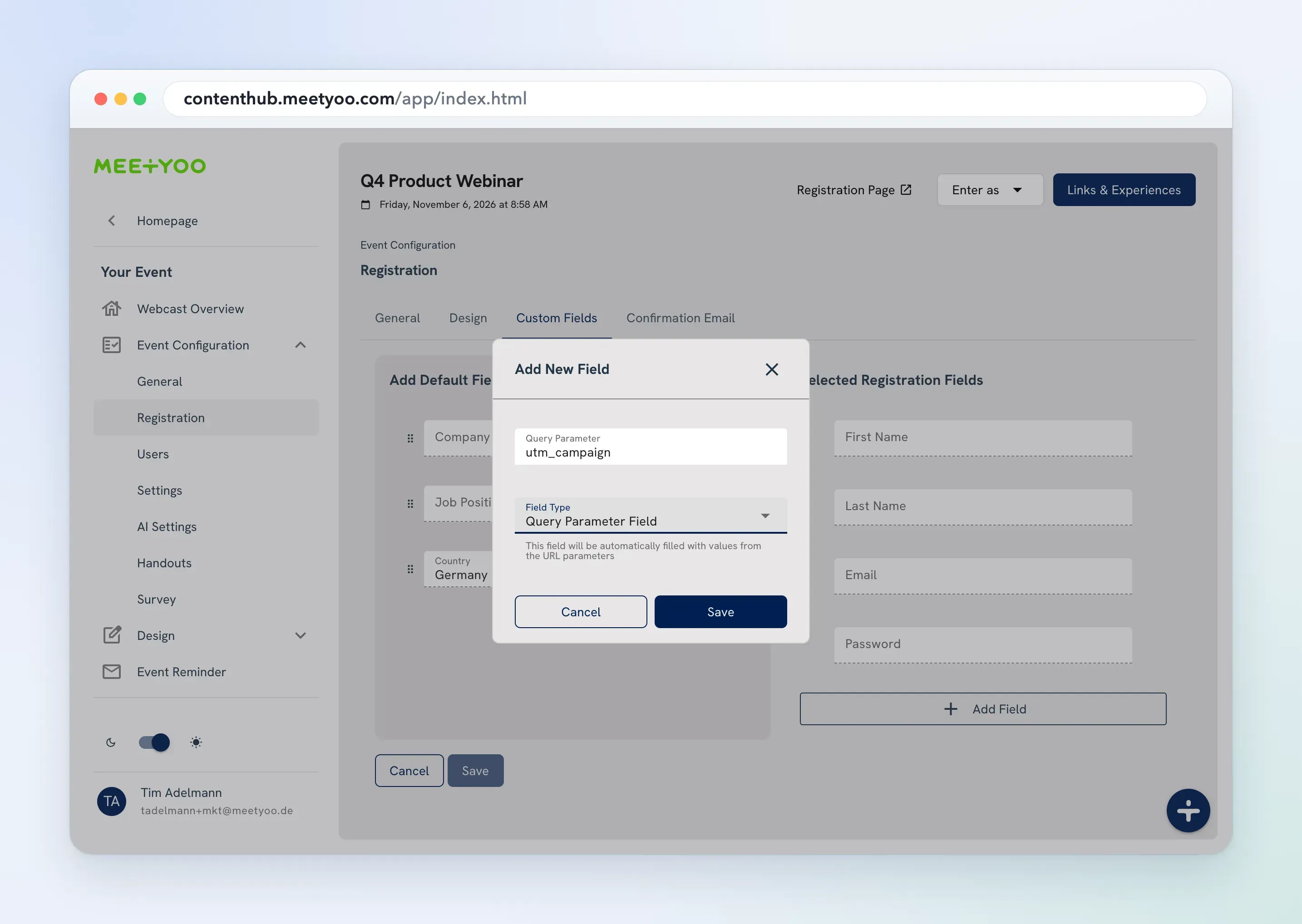
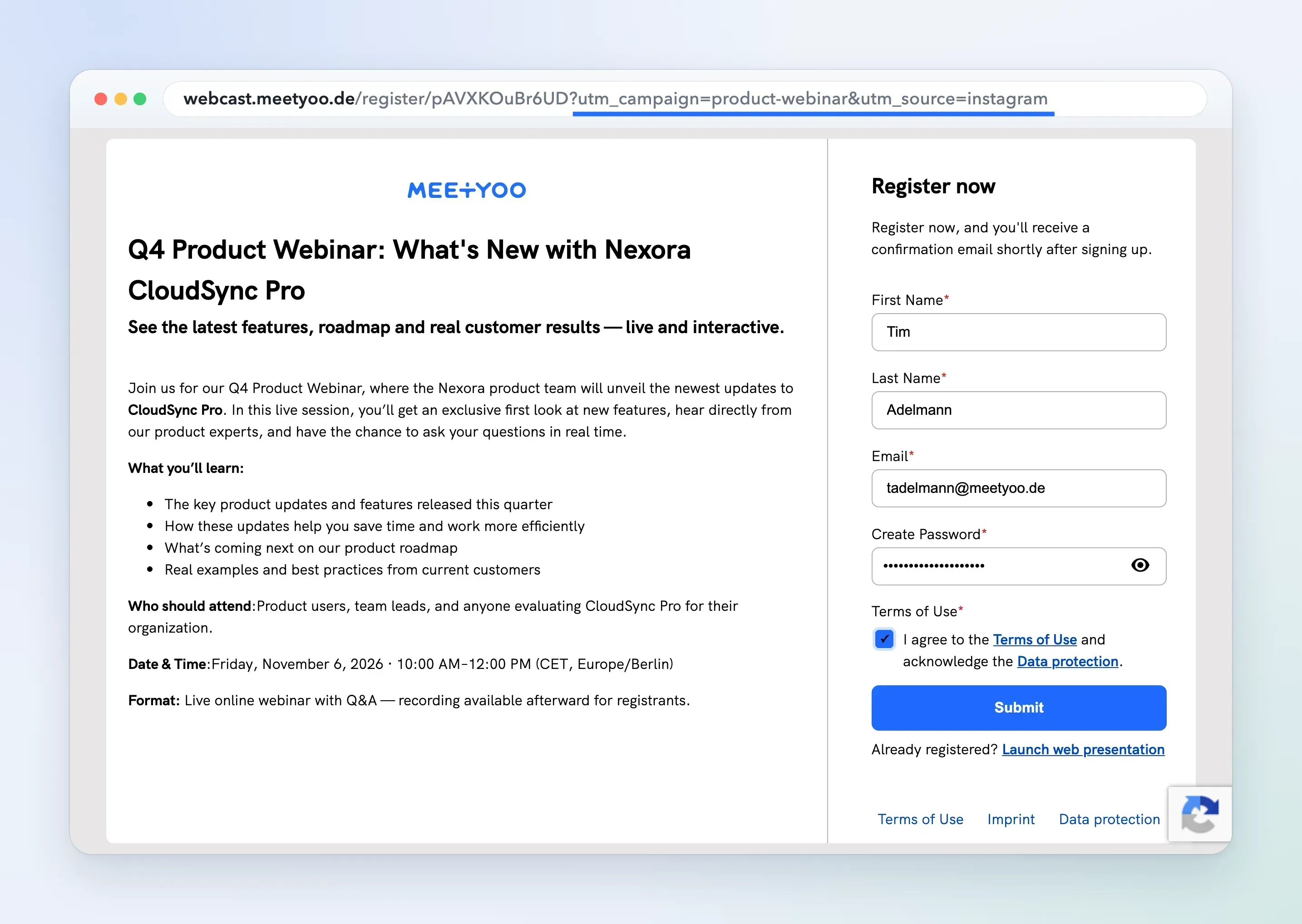
Attendees do not need to do anything. They open your campaign link, fill in the regular form, and MEETYOO stores the parameter values with the registration. The annotated screenshot below shows the URL with the parameter (underlined) and the filled form.
Set up tracking in the custom-fields login mode
Choose this path when the registration happens somewhere else and people come to MEETYOO through a link.
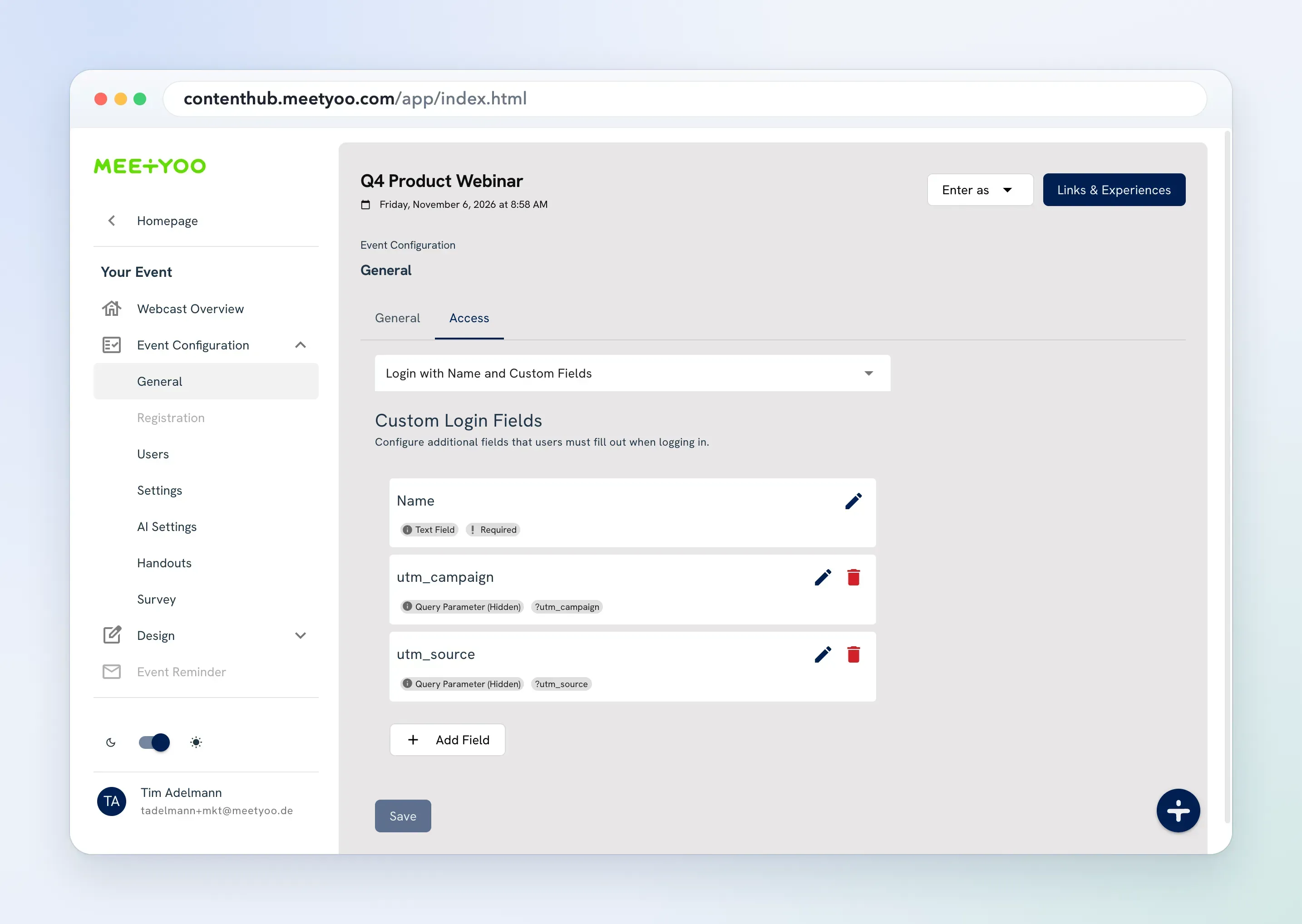
- Open Event configuration > General, go to the tab Access and set the access mode to Login with name and custom fields.
- Define your custom fields directly in this tab. You can also ask for the email address as a further field.
- Add a field of the type Query parameter (hidden).
- Enter the query parameter, for example
utm_campaign. Again, that is the only input needed. - Repeat for every parameter on your list.
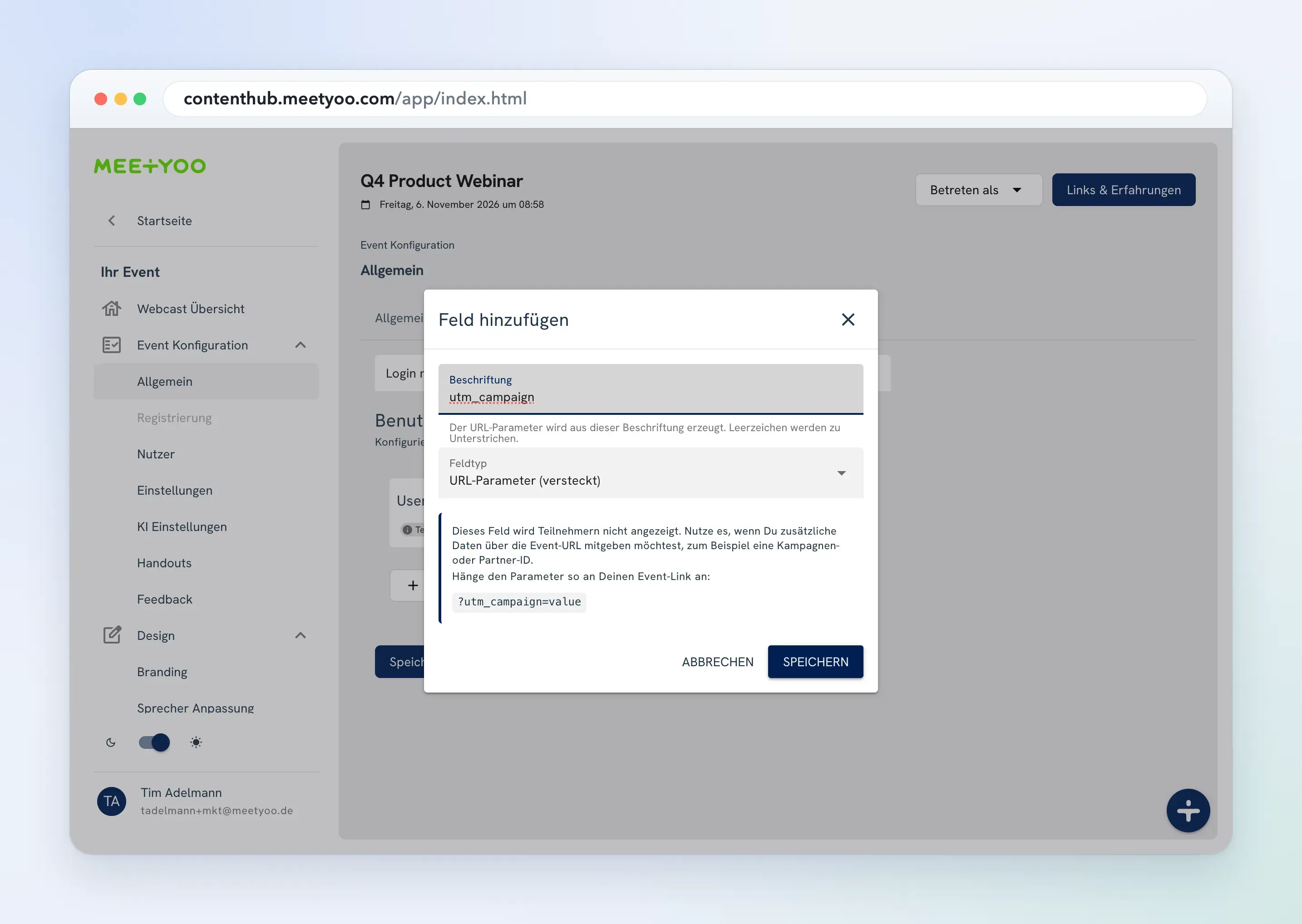
The field type is hidden, so attendees never see it in the login form. The value arrives with the link and lands in the profile.
How to test your webinar tracking with a test URL
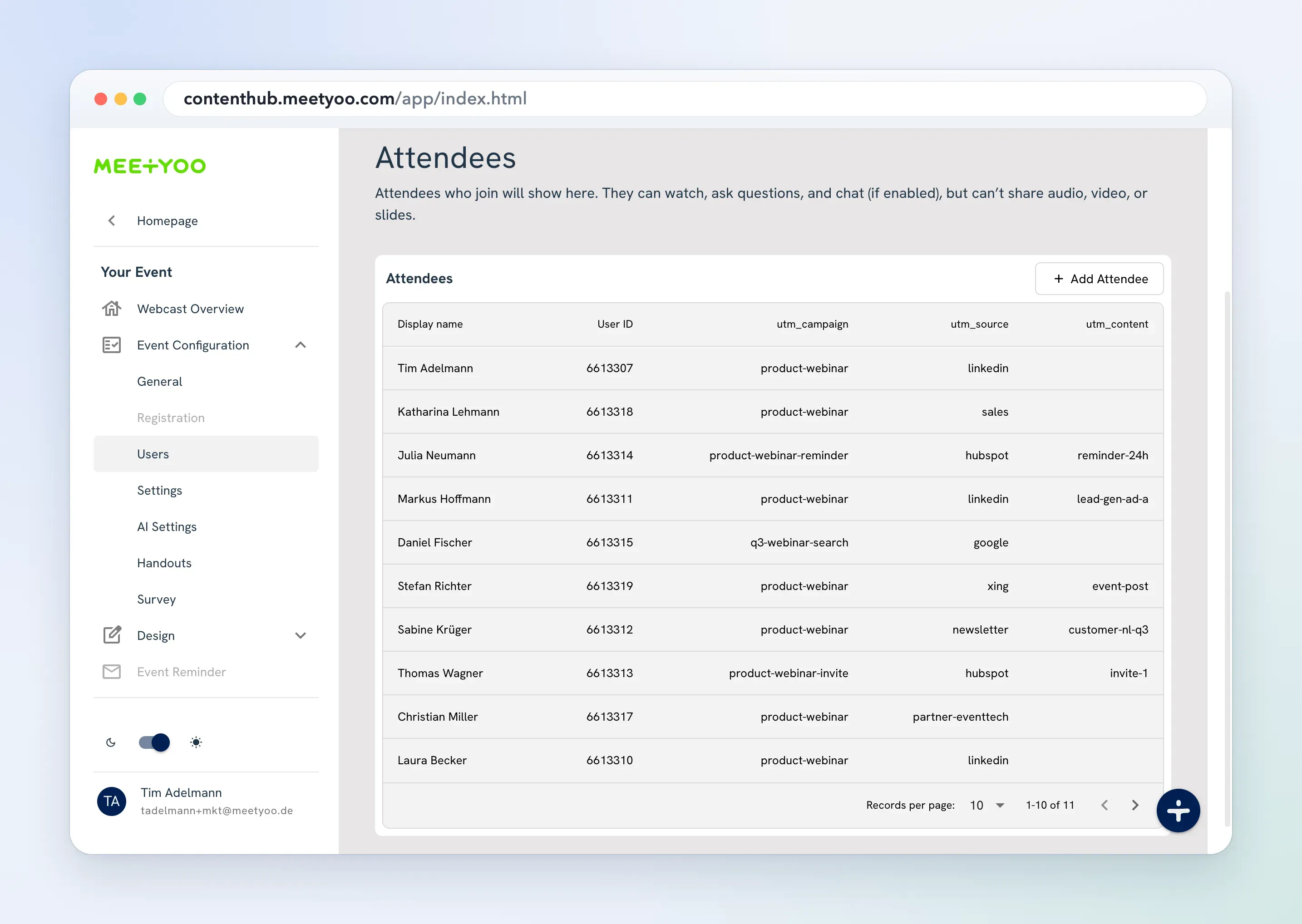
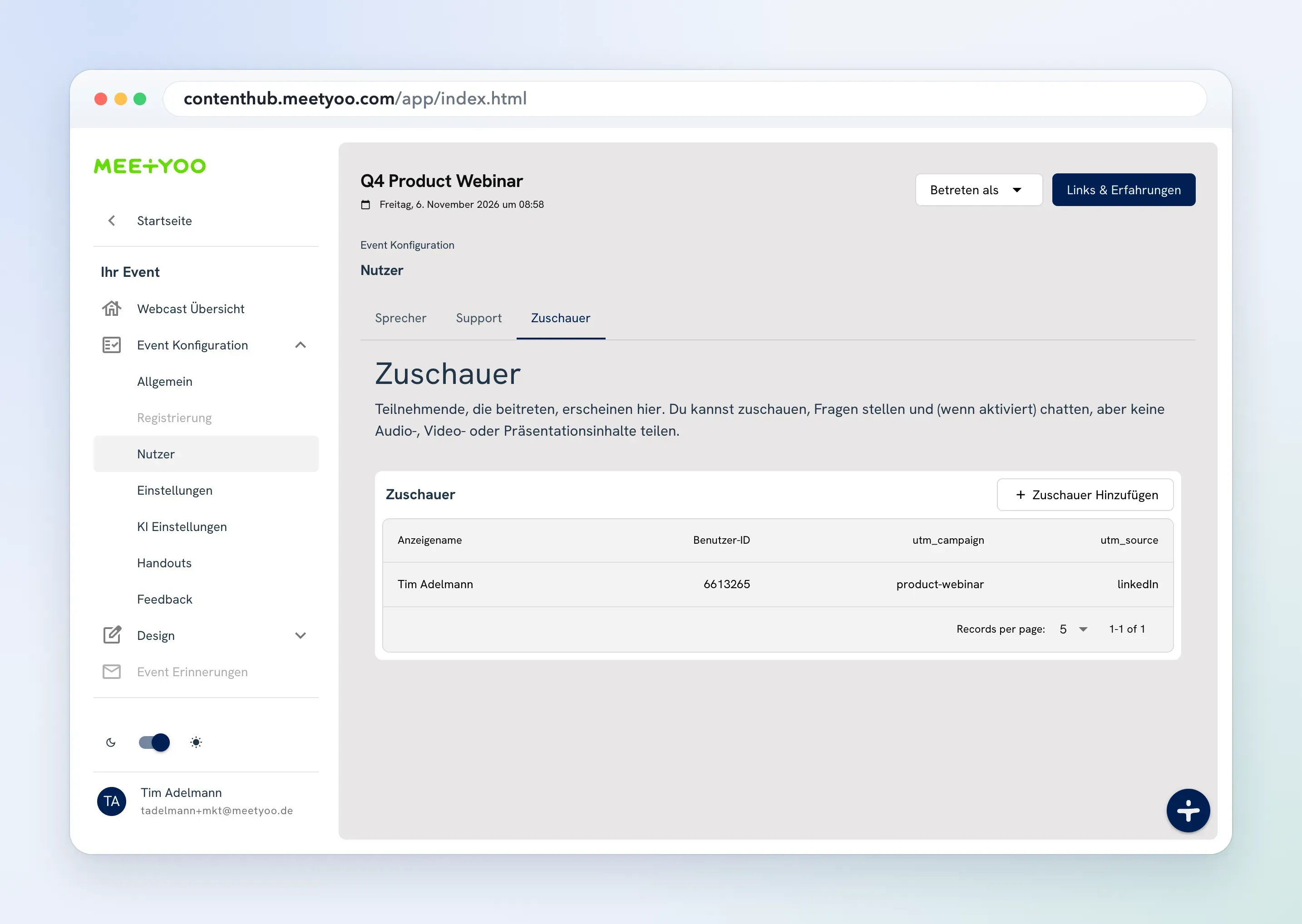
Test every event before you send the first campaign link. The test takes about five minutes. In both modes the values appear in the attendee list of the event. Check that each column shows exactly what you put into the URL.
Registration mode
Open your registration page with a test query string, for example ?utm_source=linkedin&utm_medium=paid&utm_campaign=q3-webinar. Fill in the form with a test person and submit it. Then open the attendee list.
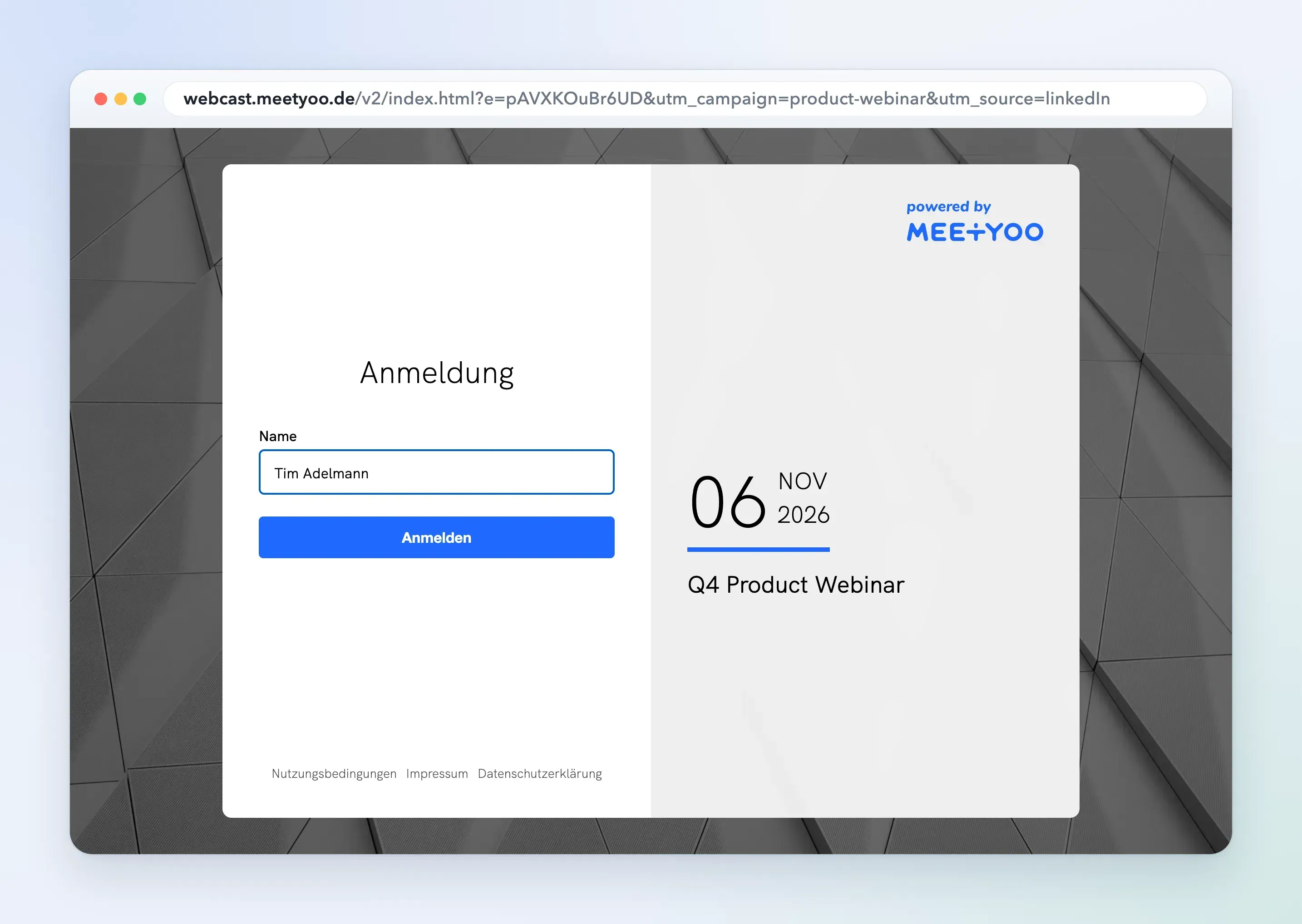
Login mode
Open the event login with a different query string, for example ?utm_source=newsletter&utm_medium=email&utm_campaign=q3-reminder. Enter a test name and log in. The name is typed in manually, the campaign value comes from the link.
After you submit the form, the test person shows up in the attendee list with the values from the URL.
Rules that save you from empty columns
- Case matters.
utm_campaignandUTM_Campaignare two different parameters. The name in the URL must match the name in the field exactly. - Only defined parameters are stored. MEETYOO ignores everything else in the URL. That keeps your data lean and supports data minimisation under GDPR.
- Missing parameters leave the field empty. Attendees who arrive without a campaign link still register or log in. Their field stays blank.
- Forwarding keeps the query string. If a landing page or redirect sits in front of the event, check that it passes the full query string on.
Naming conventions and checklist before going live
Consistent values make the exported list usable. Agree on lowercase, hyphens instead of spaces, and one pattern for campaign names, for example q3-webinar-launch. Write the pattern into a shared sheet that marketing, partners and agencies use.
Checklist before go-live
- Parameter list agreed and written down
- Access mode set correctly for the event
- One field per parameter, names identical to the URL (case included)
- Test link opened, test registration or login completed
- Values visible and correct in the attendee list
- Landing pages and redirects pass the query string on
- Final campaign links built with a shared URL builder
Hand the data to your CRM
The simplest route is the direct download of the attendee list. Import the file into your CRM or marketing automation, and source, medium and campaign are available for segmentation and follow-up. If you prefer an automated route, a custom CRM integration receives all attendee fields, your campaign parameters included. Read how the open API connects webcast data to your CRM.
For the step after the import, our B2B follow-up playbook shows how to segment by engagement. To judge which campaign pays off, combine the campaign column with the KPIs from our webinar ROI guide.
If registration runs in your CRM, build the personal link there and add the campaign parameters to it. MEETYOO writes them into the profile at login.
FAQ
Can MEETYOO track UTM parameters at registration and at login?
Yes. In the registration mode you add a Query parameter field under the custom fields of the registration page. In the login mode with name and custom fields you add a Query parameter (hidden) field in the Access tab. Both store the parameter values in the attendee profile.
Which query parameters can I capture?
Any parameter you define as a field. The five UTM parameters are the usual choice. You can add your own, such as partner_id or region.
Does MEETYOO store parameters I did not define?
No. Only defined parameters are stored. This follows the principle of data minimisation.
Is the parameter name case sensitive?
Yes. The field must use the same spelling as the URL. utm_campaign and UTM_Campaign count as different parameters.
What happens when a parameter is missing in the URL?
The field stays empty. The attendee can still register or log in.
Where do I see the captured values?
In the attendee list of the event, in both access modes. You can download the list directly.
Do I need a paid plan?
No. The feature is available in all plans, including the Forever Free plan, which is permanently free with no expiry date and no credit card required.
Make every campaign euro traceable
Query parameters connect the click, the registration and the follow-up. With MEETYOO Show you set this up in minutes, for registration on our platform and for login from your own system. Book a demo or start with the Forever Free plan.


