
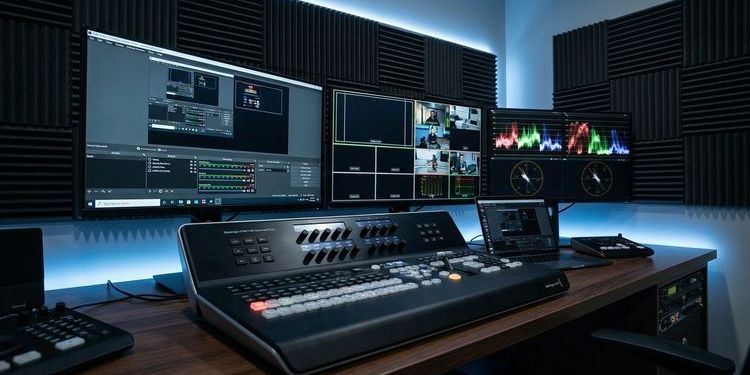
Professional webcasts are not built in a browser tab. The difference between a compelling corporate event and a generic video call lies in the production chain behind it: the switcher managing scenes, the encoder processing the signal, and the failover that kicks in invisibly when things go wrong.
This guide is for event teams, AV studios and IT consultants connecting MEETYOO to external production equipment — Blackmagic ATEM, OBS, or a combination of both. You will learn why the virtual camera is the simpler, recommended connection for most OBS setups — and when RTMP remains the right choice.
The key difference: virtual camera vs. RTMP
Before the setup guides, the most important conceptual distinction:
Virtual camera (recommended for OBS → MEETYOO) OBS has had a built-in virtual camera since version 26.1. This makes OBS appear in the system like a real webcam — and MEETYOO, running in the browser, picks up that signal directly as a camera source. No RTMP URL, no stream key, no port configuration, no firewall consideration. OBS processes the signal with all its scenes, overlays and sources — MEETYOO sees the finished, professional picture, just like a webcam.
RTMP (for hardware encoders and failover) RTMP remains the right choice when a hardware encoder without OBS is sending the signal, when OBS and the browser run on separate machines, or when a redundant backup stream is needed for failover — there, RTMP is mandatory.
The rule of thumb: Is OBS running on the same machine as your browser? → Virtual camera. Hardware encoder or distributed setup? → RTMP. For failover, always: RTMP with two different endpoints.
Setup 1: OBS virtual camera → MEETYOO (recommended starting point)
This is the simplest and, for most event setups, the recommended approach. OBS processes all sources, overlays and scenes — MEETYOO receives the finished picture directly via the virtual camera.
Requirements:
- OBS Studio 26.1 or later (virtual camera is built in from this version — no plugin needed)
- OBS and the browser running MEETYOO on the same machine
- Current browser (Chrome, Edge, Firefox — all support virtual camera sources)
Step 1 — Start the virtual camera in OBS
In OBS, click "Start Virtual Camera" in the bottom toolbar. OBS now appears in the system as a camera source called "OBS Virtual Camera".
Step 2 — Select OBS as the camera in MEETYOO
In MEETYOO, open the event → camera settings → select "OBS Virtual Camera" from the list. MEETYOO now shows exactly what OBS outputs as its programme signal — including all scenes, lower thirds, screen captures and media playback.
Step 3 — Set up audio
OBS Virtual Camera transmits video only. For audio, there are two options:
- Virtual audio cable (recommended): A virtual audio cable (e.g. VB-Cable) routes the OBS audio mix as a system audio device — MEETYOO selects this as the microphone source.
- Direct microphone: Select the microphone directly in MEETYOO and disable the audio mix in OBS.
Why virtual camera is better than RTMP here: No port 1935 to open in the firewall. No stream key to manage. No keyframe interval to configure. Less configuration means fewer failure points — and faster production readiness.
Setup 2: ATEM + OBS virtual camera → MEETYOO (recommended professional setup)
The most stable and recommended setup for business-critical events with multiple cameras: the ATEM handles production and switching at broadcast level, OBS processes the output further — and delivers it to MEETYOO via virtual camera.
Signal chain:
Cameras → ATEM (switching, graphics, audio mix) → USB → OBS (overlays, scenes) → Virtual Camera → MEETYOO
Connecting ATEM and OBS:
The ATEM Mini appears on the connected streaming PC automatically as a USB video device. In OBS, add a new video source → "Video Capture Device" → select ATEM as the source. OBS now receives the complete ATEM programme signal including all cuts and graphics.
Start virtual camera and select it in MEETYOO:
As in Setup 1: "Start Virtual Camera" in OBS → select "OBS Virtual Camera" as the camera source in MEETYOO. Done.
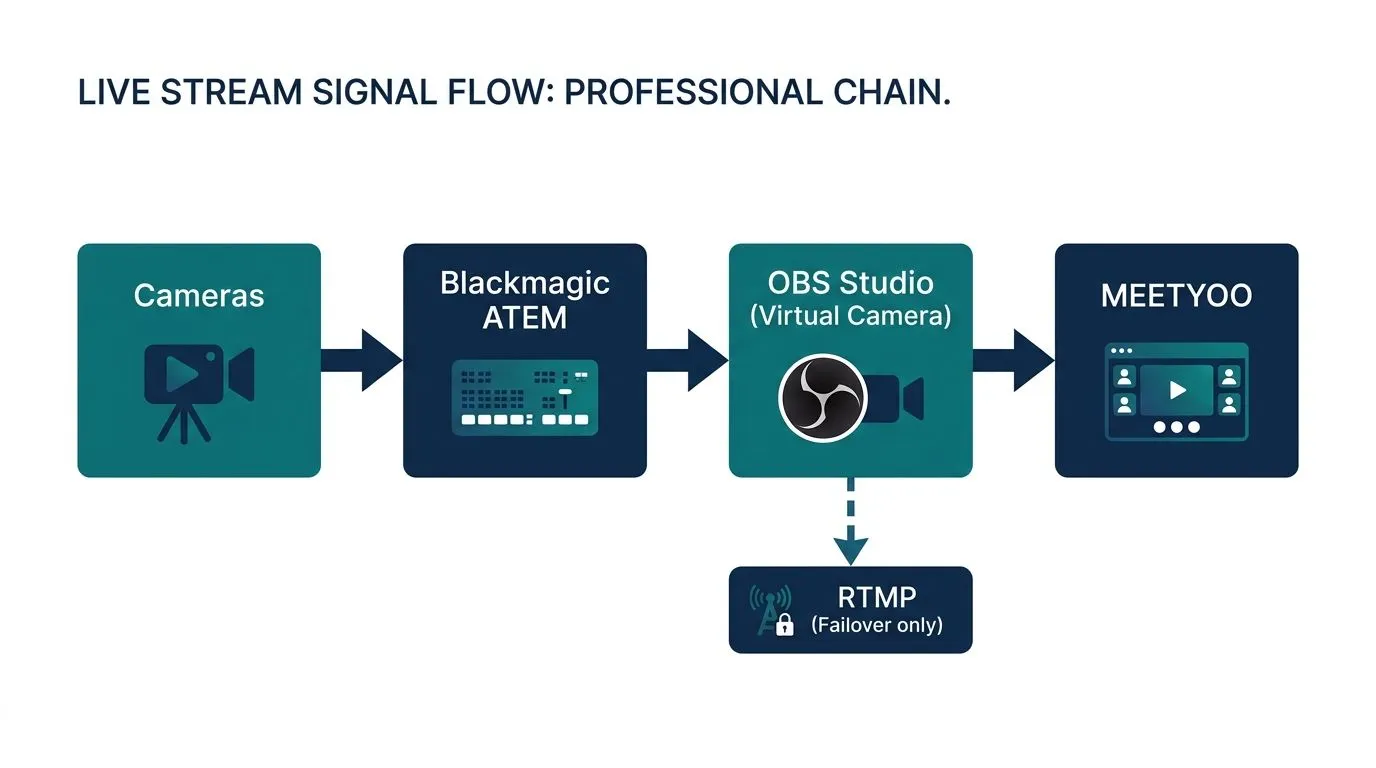
When does adding OBS to this setup make sense? The ATEM already delivers an excellent programme signal. OBS adds value when you need additional layers: browser-based sources (live tickers, social media feeds), OBS-specific effects — or when you want to use the virtual camera instead of RTMP as the output and avoid network configuration entirely.
Setup 3: Blackmagic ATEM direct → RTMP → MEETYOO
This is the right setup when there is no dedicated streaming PC and the ATEM is used as an all-in-one solution without OBS.
Requirements:
- ATEM Mini Pro, ATEM Mini Pro ISO or ATEM Mini Extreme (the base ATEM Mini has no direct streaming function)
- ATEM Software Control version 8.6.1 or later
- Ethernet connection — no Wi-Fi for live streaming
- Upload bandwidth: at least 10 Mbit/s for 1080p30
Step 1 — Get RTMP URL and stream key from MEETYOO
In your MEETYOO account, open the relevant event → "Encoding" → copy the RTMP URL and stream key.
Step 2 — Configure the Streaming.xml file
The ATEM Mini Pro reads an XML configuration file for RTMP URLs. Download the template, open it in a text editor and replace the placeholders for name, server URL and stream key.
XML file location:
- macOS:
~/Library/Application Support/Blackmagic Design/ATEM Software Control/ - Windows:
C:\Users\[Username]\AppData\Roaming\Blackmagic Design\ATEM Software Control\
After saving, the entry appears in ATEM Software Control under Output → Streaming → Custom RTMP.
Step 3 — Configure in ATEM Software Control
Output tab → Streaming → "Custom RTMP". Set resolution to 1080p25 or 1080p30, bitrate to 6,000–8,000 kbps.
Step 4 — Run a test stream
Start a test stream at least 30 minutes before the event — check stability especially during static slides.
Known ATEM limitation: The ATEM Mini Pro encodes without constant bitrate (CBR). During extended slide phases, the bitrate can drop and interrupt the stream. Fix: use Setup 2 (ATEM + OBS) — OBS enforces CBR and eliminates this problem.
Decision matrix: virtual camera or RTMP?
| Scenario | Recommended method | Why |
|---|---|---|
| OBS solo, browser on same machine | Virtual camera | Simplest connection, no network configuration |
| ATEM + OBS, browser on same machine | Virtual camera | Simpler than RTMP, same quality |
| ATEM without OBS (all-in-one) | RTMP direct | ATEM has no virtual camera |
| OBS on separate PC, MEETYOO on different machine | RTMP | Virtual camera only works locally |
| Failover / backup stream | RTMP | Two different RTMP endpoints mandatory |
| Hardware encoder (vMix, Wirecast, Blackmagic HW encoder) | RTMP | These encoders have no virtual camera |
| Studio with SDI infrastructure | RTMP | SDI hardware has no virtual camera |
Failover: still RTMP — and for good reason
Even though virtual camera is recommended for the primary connection, failover requires RTMP — and that does not change.
The critical requirement: two different RTMP URLs
Failover only works if the primary and backup encoders send to two different RTMP endpoints. If both point to the same URL, there is no real backup — the platform cannot distinguish between them.
This is also why the failover feature in Microsoft Teams Town Hall fails in many production setups: typical Blackmagic configurations send primary and backup to the same URL.
MEETYOO provides two independent endpoints for every event:
- Primary encoder (e.g. ATEM + OBS) → Primary RTMP URL
- Backup encoder (e.g. OBS on a second laptop) → Backup RTMP URL
Combined setup for maximum reliability: Primary production via virtual camera, backup encoder running in parallel via RTMP. If the primary connection fails, the RTMP backup takes over seamlessly. You get the simplicity of virtual camera for normal operation — and the security of RTMP failover for when it matters.
Use case: one centre produces, many locations watch
This scenario is typical for organisations with distributed infrastructure: one production centre streams, dozens or hundreds of locations watch simultaneously — on their own screen or projector.
MEETYOO delivers consistent latency of 15–30 seconds via adaptive HLS streaming — regardless of whether the connection to the platform was established via virtual camera or RTMP. Each location can access via its own protected link, with tracking of which location watched and for how long. On-site, a single browser tab is all that is needed — no app installation, no IT setup required.
→ Webcast access control: SSO, registration or unique link?
→ Microsoft Teams for events: where Town Hall hits its limits
Troubleshooting: the most common problems and solutions
OBS virtual camera not appearing in MEETYOO Cause: Virtual camera not started in OBS, or the browser was opened before OBS virtual camera was started. Solution: Click "Start Virtual Camera" in OBS first, then reload the camera list in MEETYOO or refresh the browser tab.
Virtual camera picture is delayed or stuttering Cause: CPU overload. Solution: Disable the OBS preview (right-click → disable preview). Alternatively enable GPU encoding (NVENC).
No audio from the virtual camera Cause: OBS Virtual Camera transmits video only. Solution: Configure audio separately — virtual audio cable for the OBS audio mix, or select a microphone directly in MEETYOO.
Stream drops during static images (ATEM direct RTMP) Cause: ATEM Mini Pro encodes without CBR. Bitrate falls with static content. Solution: Add OBS as an intermediate stage (Setup 2). OBS enforces CBR.
RTMP connection error in OBS Cause: Incorrect URL formatting, missing stream key or port 1935 blocked by firewall. Solution: Enter URL without trailing slash; enter stream key separately; open port 1935/TCP in firewall. For RTMPS: port 2935.
Failover does not trigger Cause: Primary and backup send to the same RTMP URL. Solution: Ensure both encoders send to different endpoints (Primary URL ≠ Backup URL in MEETYOO).
Before every major event: Run a full test — including a failover test. Deliberately disconnect the primary encoder from the network and verify that the backup takes over within 10–15 seconds.
Conclusion
The virtual camera is the more direct, simpler and recommended path to MEETYOO for most OBS setups — less configuration, fewer failure points, same quality. RTMP remains essential for hardware encoders without a virtual camera, distributed setups, and — unchanged — for the failover backup stream.
MEETYOO receives the signal and adds what production software cannot provide: enterprise access control, moderated Q&A, analytics and a searchable on-demand archive — GDPR-compliant, on EU servers.
→ Explore all production and branding features
FAQ
What is the difference between OBS virtual camera and RTMP for MEETYOO?
With the virtual camera, OBS outputs its programme signal directly as a system camera source — MEETYOO selects it in the browser like a webcam. With RTMP, OBS encodes the signal and sends it over the network to a streaming endpoint. Virtual camera is simpler and has fewer failure points, but only works when OBS and the browser are on the same machine. RTMP is needed for separate systems, hardware encoders without a virtual camera, or for the failover backup stream.
Does OBS virtual camera also transmit audio?
No. OBS Virtual Camera transmits video only. Audio must be configured separately: either via a virtual audio cable (e.g. VB-Cable) that routes the OBS audio mix as a system device — or directly via microphone in MEETYOO.
Which Blackmagic models support direct RTMP streaming?
ATEM Mini Pro, ATEM Mini Pro ISO, ATEM Mini Extreme and ATEM Mini Extreme ISO can stream directly via Ethernet. The base ATEM Mini has no built-in streaming function but can be used as a USB video source in OBS — and from there via virtual camera to MEETYOO.
Can I run ATEM + OBS without RTMP?
Yes — and that is the recommended setup. The ATEM programme signal comes into OBS via USB, OBS outputs it to MEETYOO via virtual camera. RTMP only comes into play in this setup if you also want to run a parallel failover backup stream.
What bandwidth do I need for RTMP streaming at 1080p?
For 1080p30 with H.264 at 6,000–8,000 kbps, at least 10 Mbit/s upload — with headroom for fluctuations. With virtual camera, this question does not apply: the signal path runs locally on the machine, not over the network.
Why isn't my failover working even though I have a backup encoder?
The most common reason: both encoders are sending to the same RTMP URL. Failover only works if primary and backup send to two different endpoints. MEETYOO provides two independent RTMP URLs for every event.
How do I set up a backup encoder for failover?
Install OBS on a second laptop, enter the backup RTMP URL from MEETYOO, run a test stream. The backup encoder must be running before the event starts (hot standby). MEETYOO only plays out the backup stream when the primary encoder fails.


