

What is an Event Series?
An Event Series is essentially a content hub that collects multiple individual videos or events. You can add as many webcast events to a series as you like, and flexibly in three variants:
- Future live events that are still being planned
- Past live events that are made on-demand afterwards
- Already finished videos (e.g. MP4) that are simply uploaded and set to on-demand
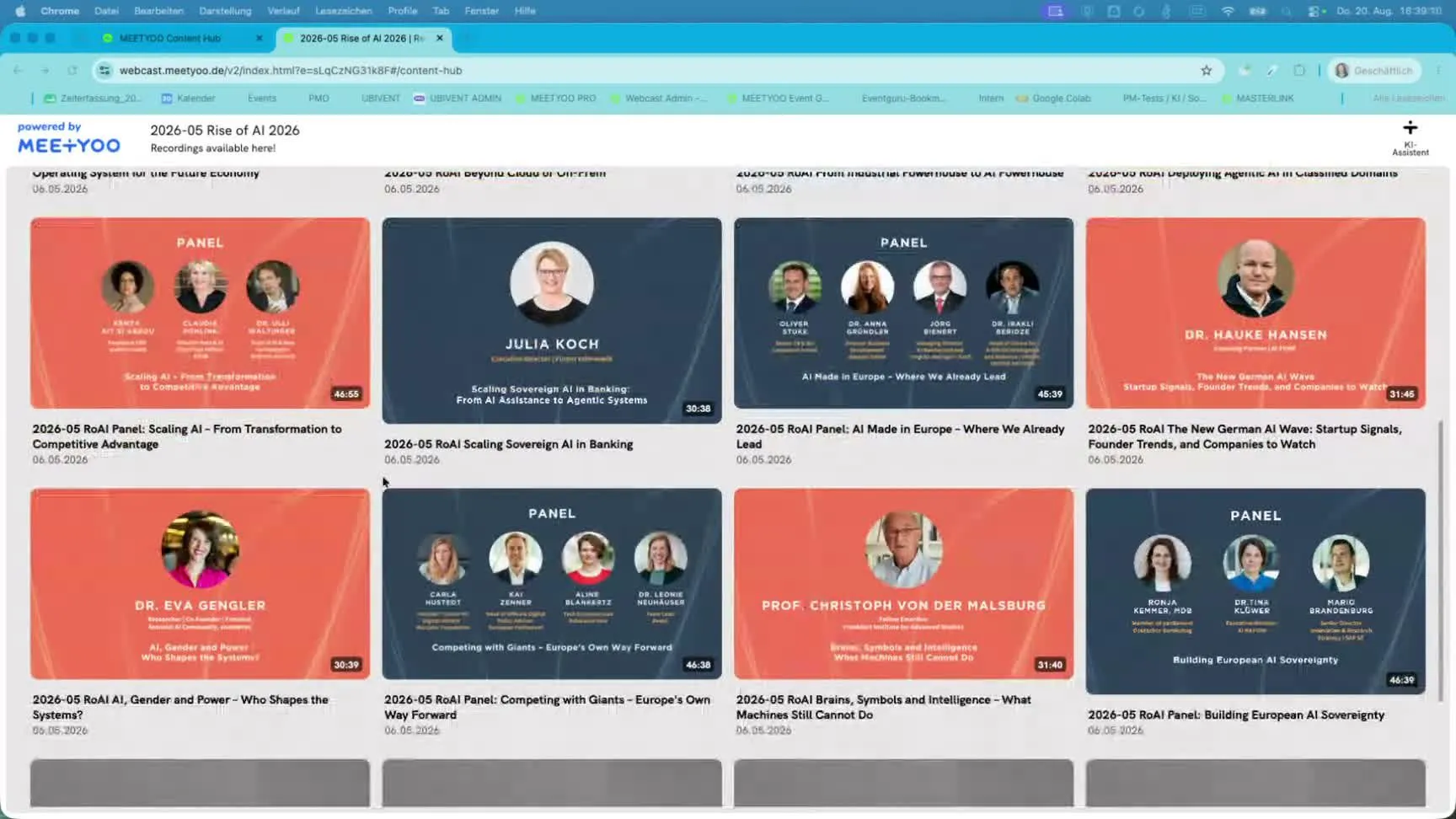
The result is a content hub with many individual videos that attendees can browse in one central place, like the "Rise of AI" conference example, whose entire talk program is available as an Event Series in the MEETYOO Content Hub.
Tip: An Event Series doesn't replace individual webcast events. It bundles them under one shared access point, without giving up granular reporting per event.
The key advantage: one access point for everything
The biggest value of an Event Series lies in the user experience:
- Attendees register or log in once via exactly one link
- You freely choose the access type: registration, login with name, login with custom fields, or fully open (just like with a single event)
- After logging in once, attendees see all videos/events that have been added to the series
As the organizer, you keep full granular control:
- Each live event runs technically isolated in its own webcast, with its own access credentials for speakers and support
- Each event has its own reporting: you can see exactly who watched which video, who attended live, and who watched the recording
- Speakers and support get their individual links per event, attendees, however, always get the same series link
In short: convenience for attendees, full transparency for you.
| Access type | Description | When it fits |
|---|---|---|
| Registration | Attendees provide name, email, and optionally more fields | Lead capture, proof of attendance (e.g. compliance training) |
| Login with name | Only a name is required, no email needed | Internal formats with a known attendee group |
| Login with custom fields | Freely defined fields, e.g. employee ID or department | Audience segmentation in reporting |
| Open | No login required | Publicly accessible formats with minimal access friction |
Which formats benefit most from an Event Series?
An Event Series makes sense whenever the same group of attendees repeatedly or permanently needs access to content. Typical use cases:
- Internal communication & training: Collect training videos on a product, software, or service so employees can quickly access all content
- Recurring Q&A formats: e.g. a new live Q&A on a topic every two weeks, always the same link, no confusion for attendees
- Internal town halls: Recurring formats with the same group of attendees, all recordings in one place
- Conference re-use: Turn one on-site live event with many talks into a searchable content hub afterwards, including AI features
- Customer information formats: Recurring product or software updates for the same customer list, while reporting still shows who watched what and when
- Knowledge storage: Build a permanent archive that can be accessed again and again
Tip: An Event Series already pays off with just two connected events. Setting up the series link takes the same effort whether you bundle two recordings or twenty.
The highlight: one AI assistant across all videos in the series
Every video added to an Event Series can be transcribed, and the AI assistant reads these transcripts. The result: attendees can ask the AI assistant questions in any language about all videos in the series, not just a single one. The underlying AI features of MEETYOO Show process each recording individually and combine the results across the whole series.
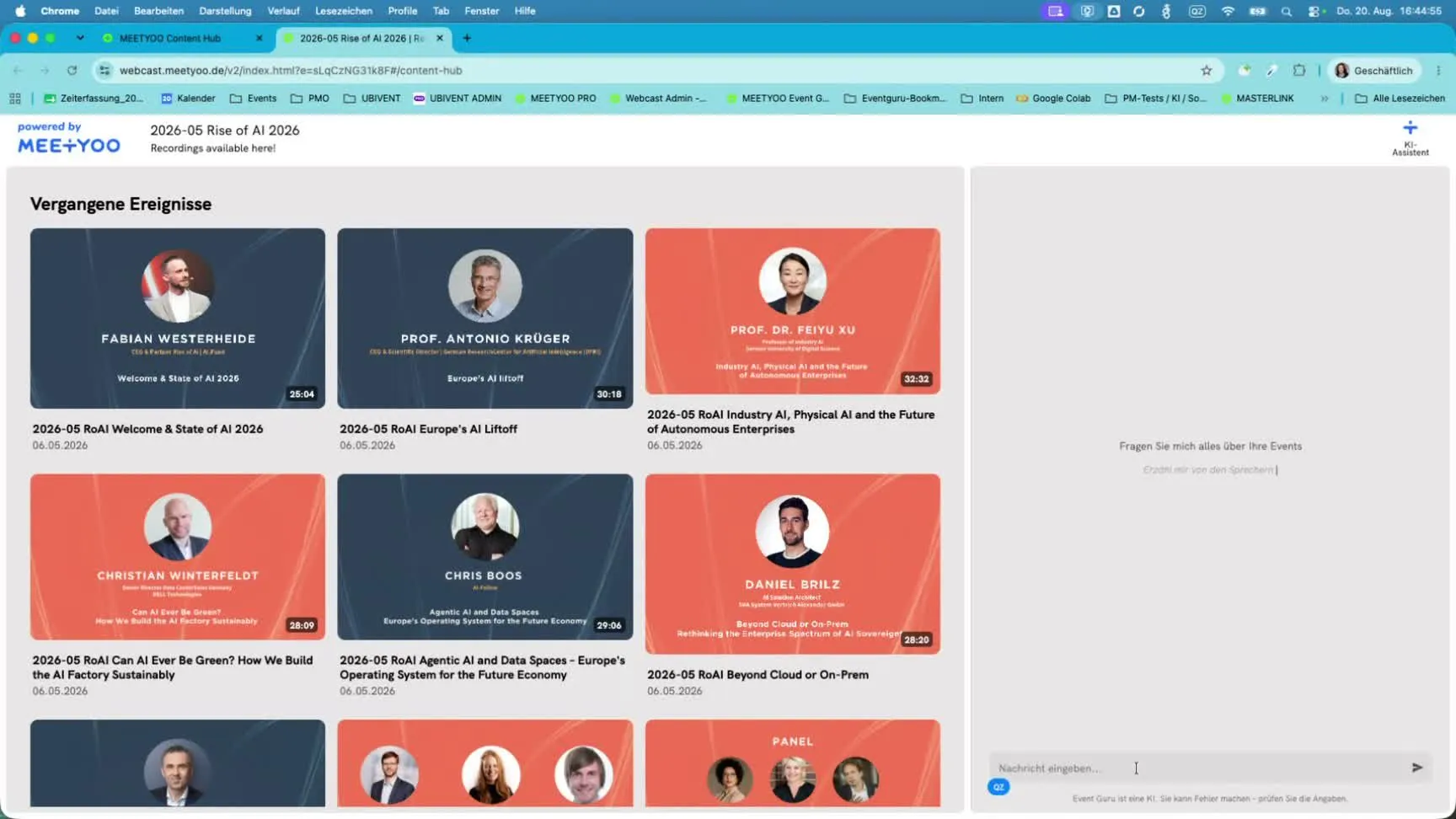
A practical example: When asked "In which videos is AI agents discussed?", the assistant automatically searches all sessions in the series, suggests the most relevant videos, cites its sources, and lets you jump straight to the relevant videos.
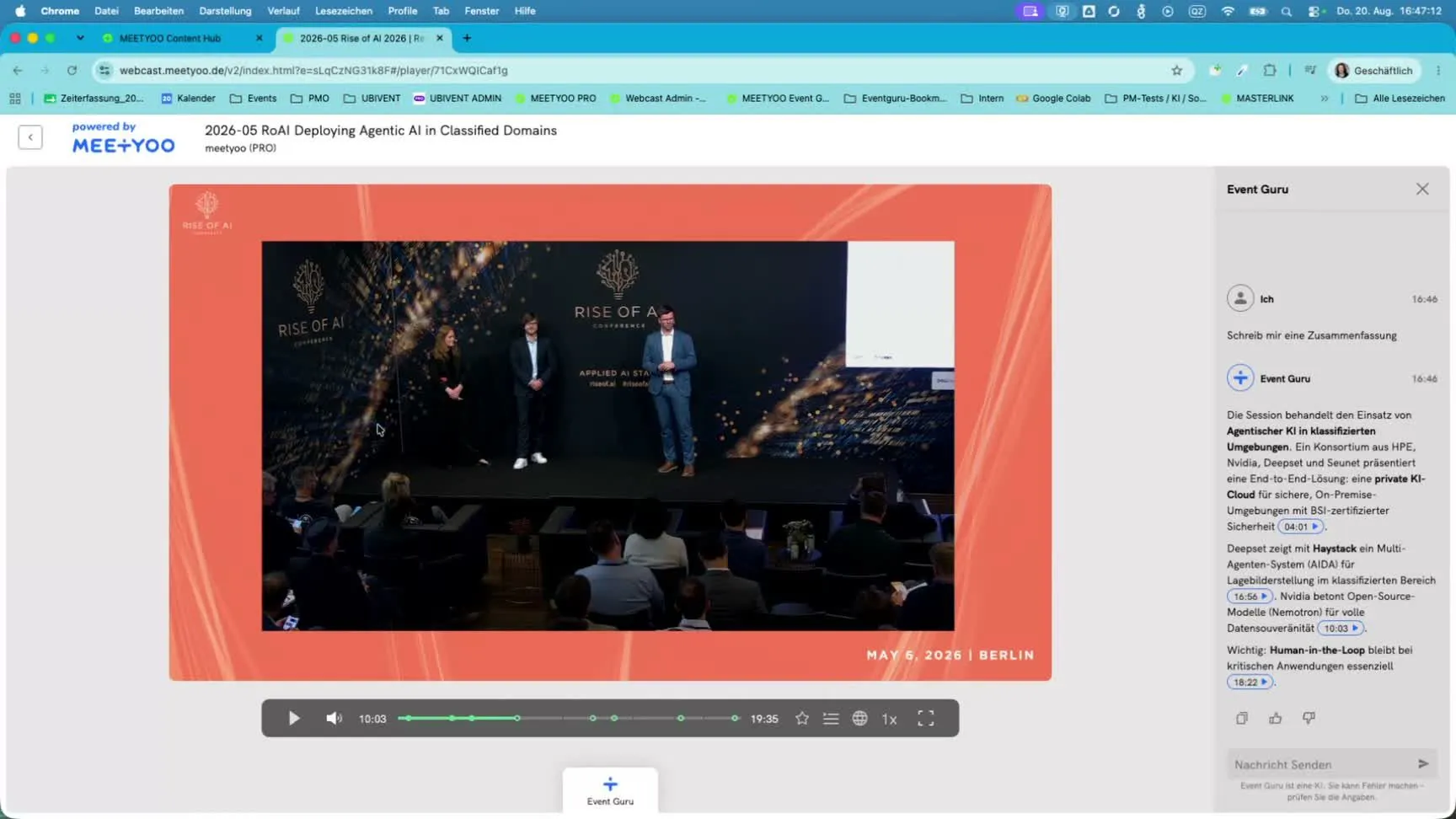
Within a single video in the series, the assistant is also available: creating summaries, finding highlights, setting chapters/key moments, or even generating a social media post about the content. This way, attendees find the right answer in seconds instead of manually searching through dozens of recordings.
Note: All AI processing across the series runs GDPR-compliant on MEETYOO's ISO 27001-certified EU data centers. Even series-wide transcription never leaves the EU.
How to create an Event Series in the Content Hub
Step 1: Create the Event Series
On your Content Hub homepage, next to "Create new webcast" you'll also find the "Create Event Series" tile.
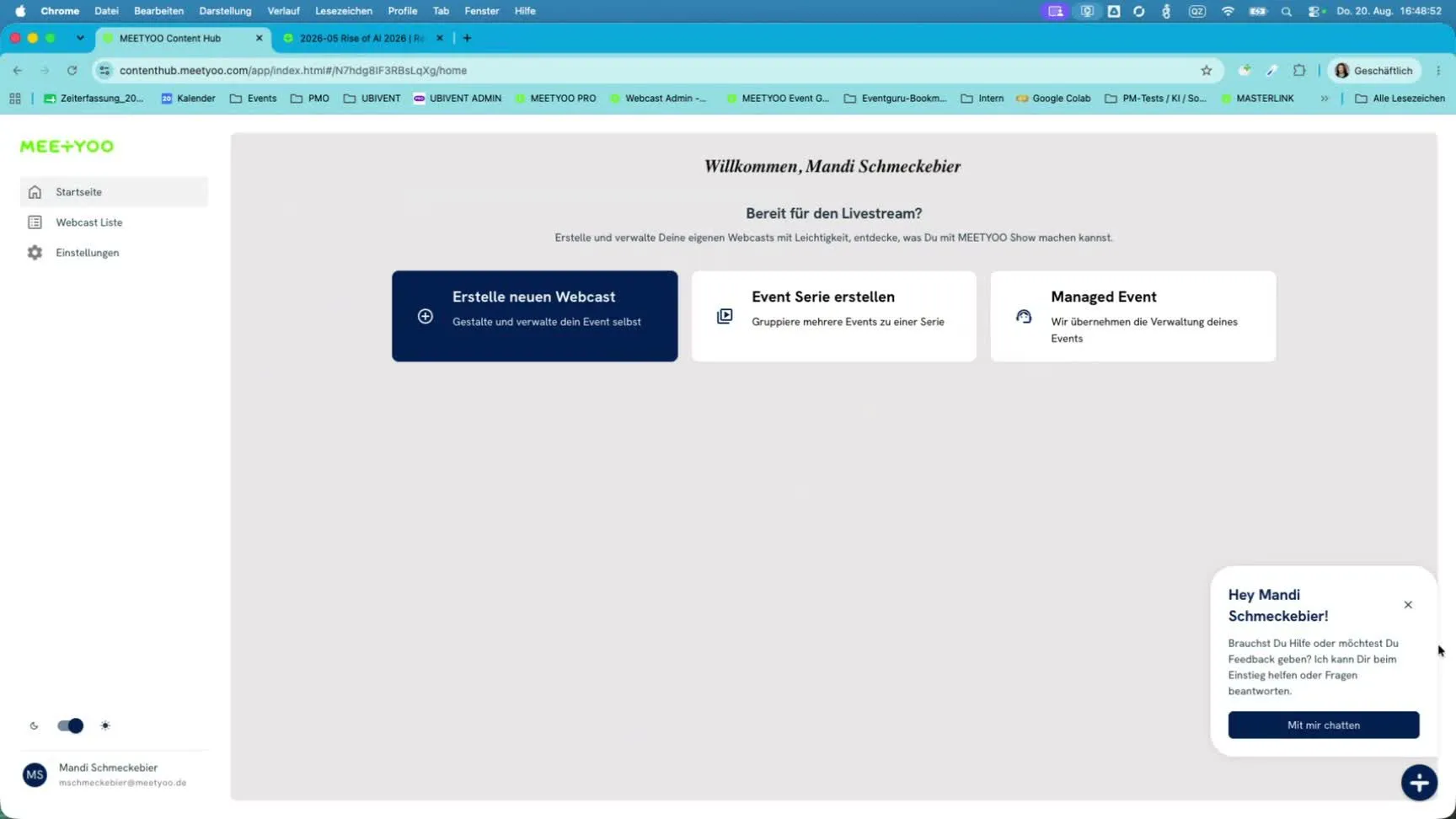
Give it a name (e.g. "Town Halls"), a start time, and optionally a short description.
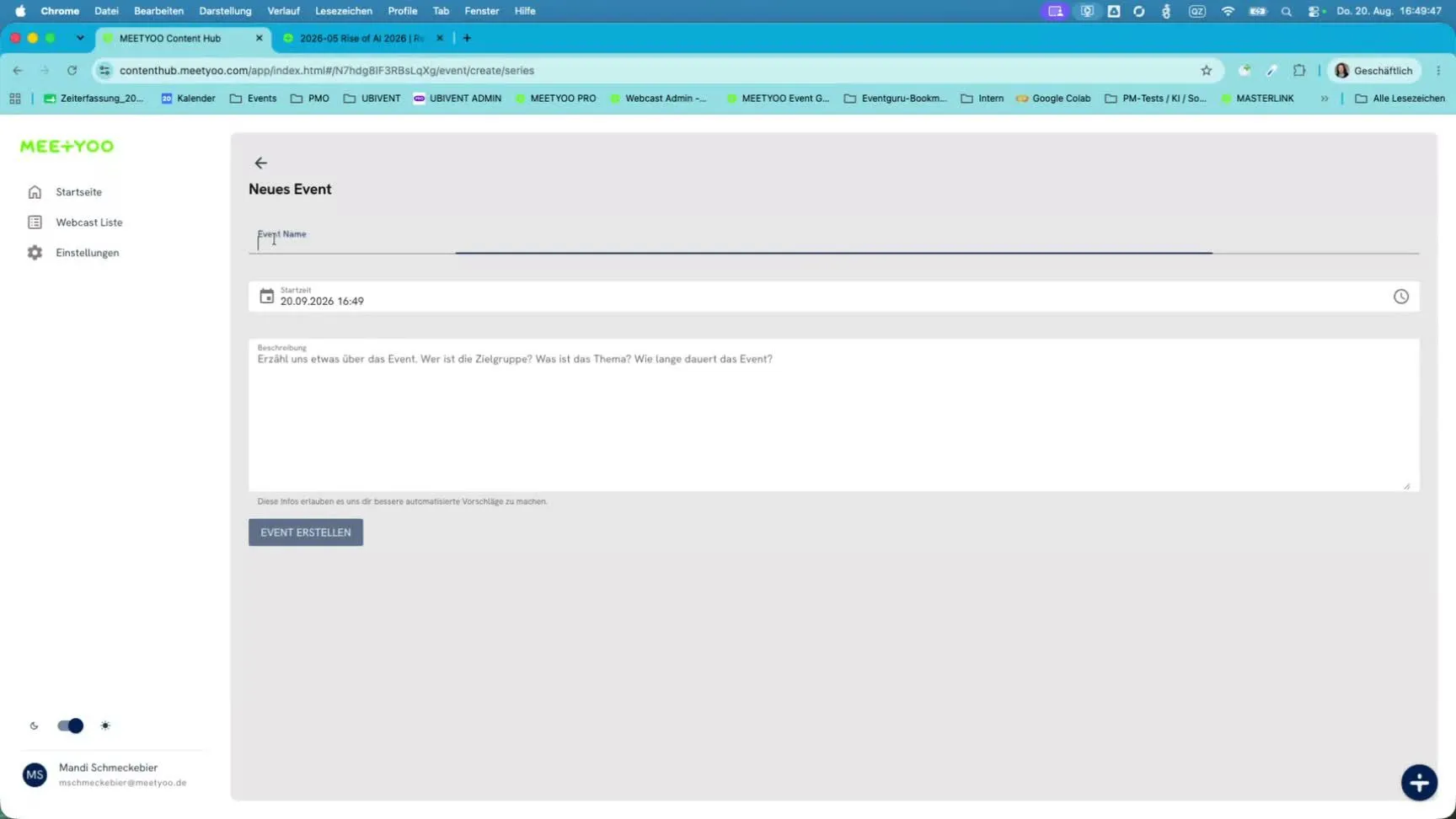
Step 2: Upload content or assign existing events
In the series overview, you have two ways to add content:
- Upload content: Use bulk upload to load new videos directly into the series
- Assign events: Assign existing webcast events from your webcast list to the series
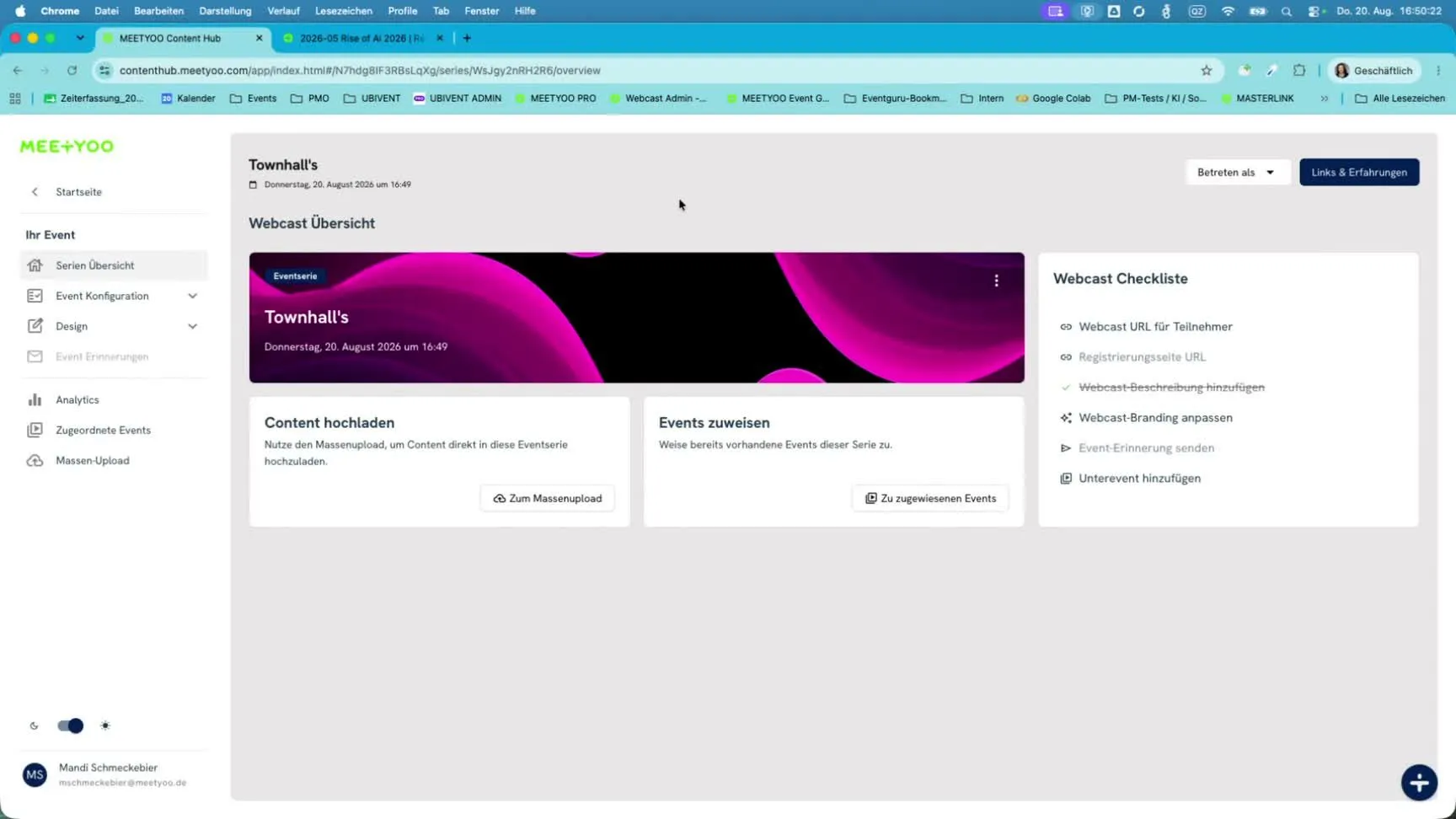
With bulk upload, you can drag and drop multiple videos at once:
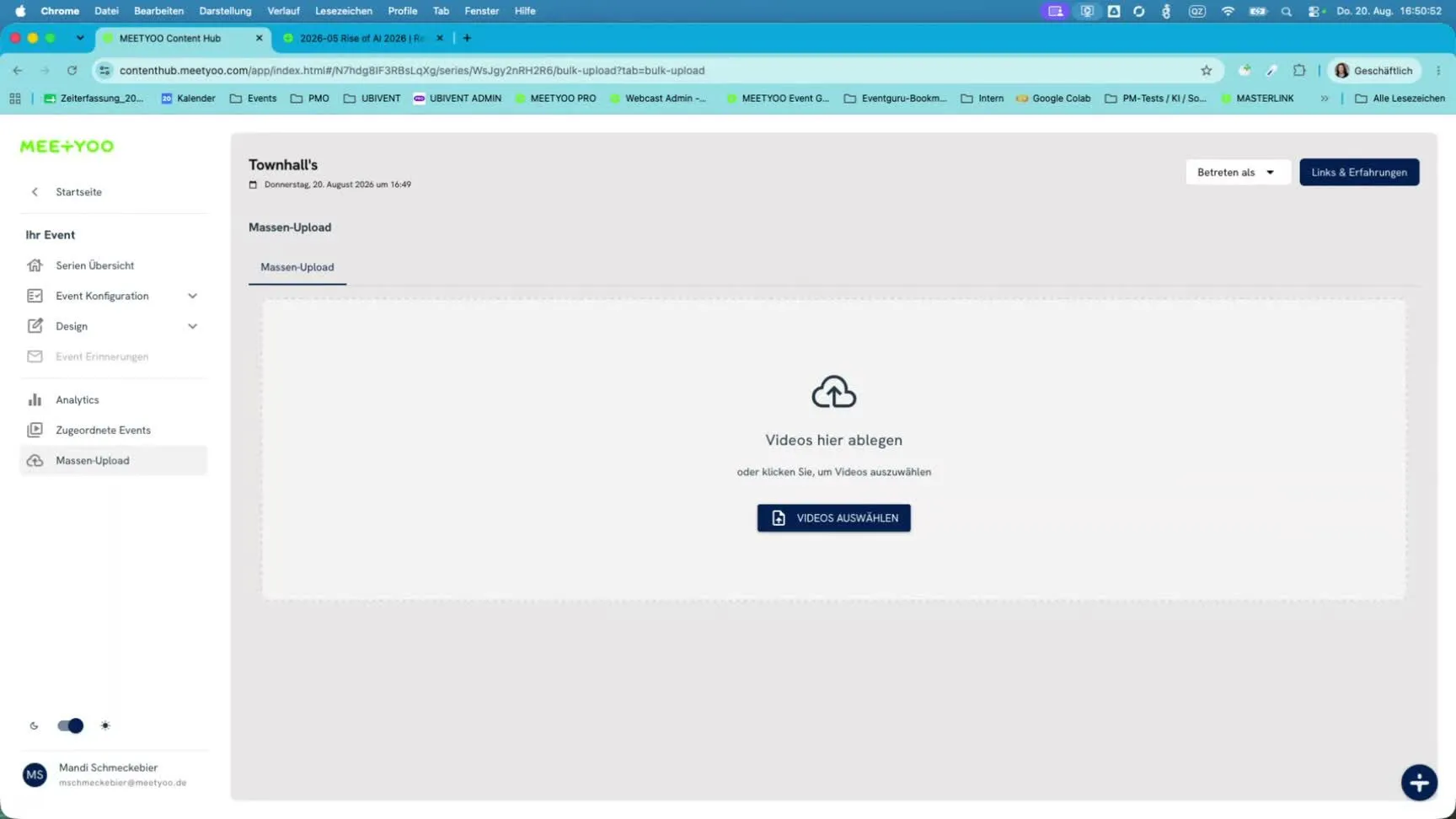
To assign existing events, simply pick them from your list of existing events:
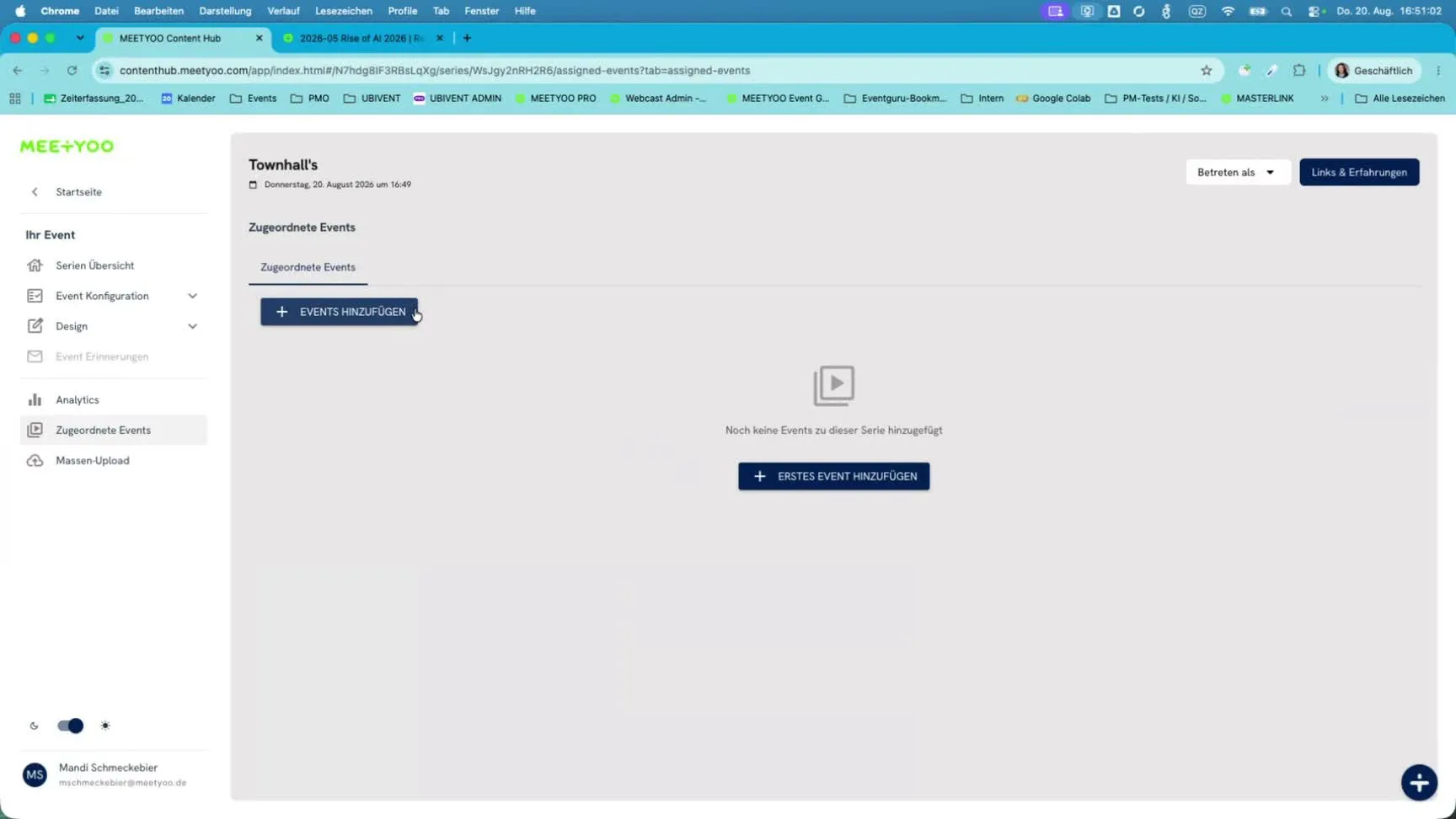
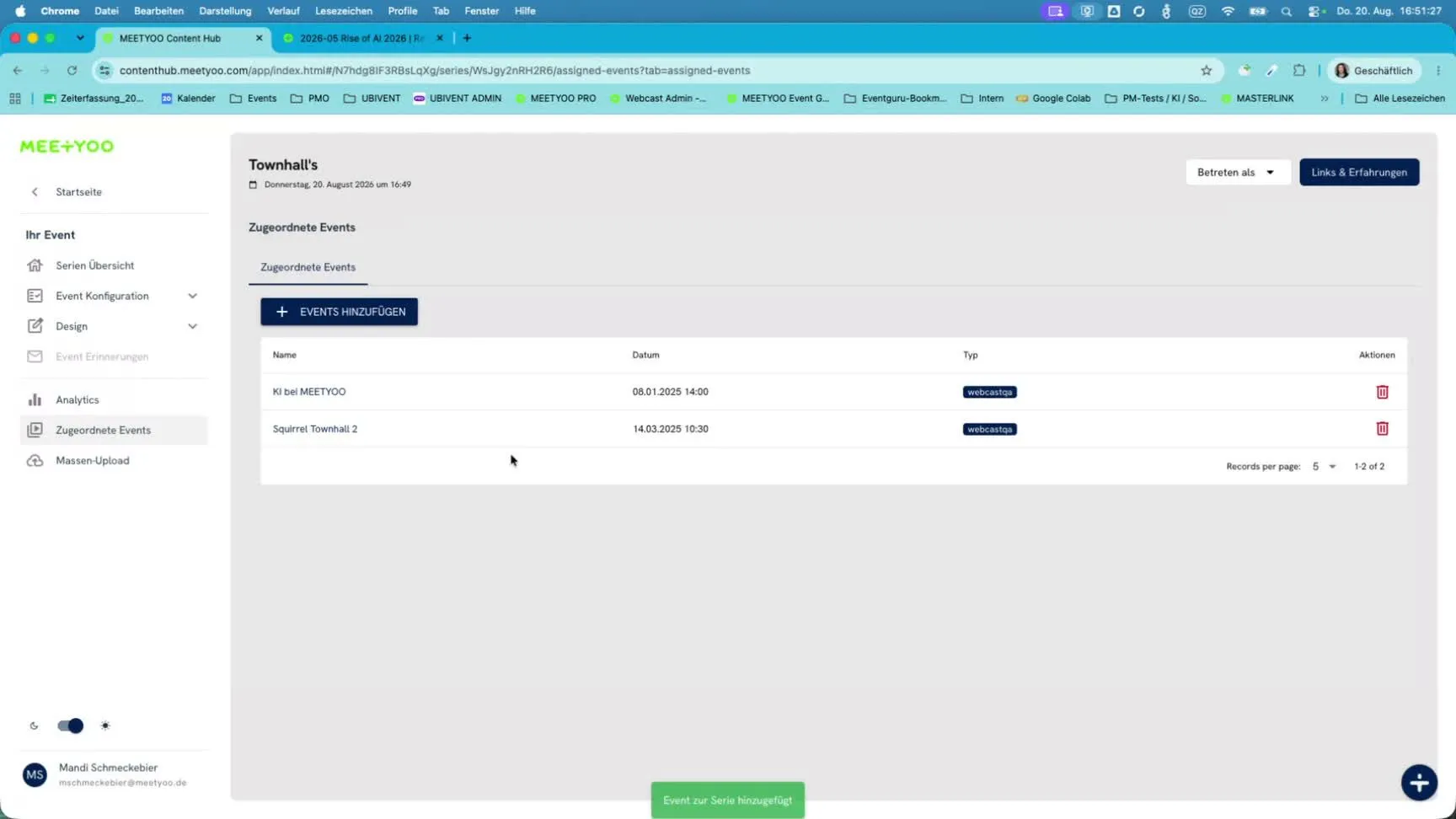
Once events are assigned, you'll see them clearly listed with name, date, and type:
Step 3: Configure access, branding & AI settings
Just like with a single event, you can define for the whole series whether access is via registration, login with name, login with custom fields, or open. Branding can also be customized, so the series consistently reflects your company's visual identity.
Important: for attendees to be able to chat with the entire series content, "Allow chat with webcast" must be enabled in the AI settings, and the recordings of the assigned events must be transcribed.
Step 4: Share the series attendee link
The key difference from a single event: the link you share with attendees is always the series link, not the link of an individual event within it. Speakers and support still get their individual, event-specific access details directly within each event.
MEETYOO Event Series vs. alternatives
Generic webinar tools create a separate, isolated recording for every event. Anyone running several connected formats, such as a training series or monthly town halls, ends up sending a new link for each event and maintaining several separate attendee lists. Searching or asking questions across the whole series simply isn't built into that category of tool.
MEETYOO solves this at the platform level: one series link replaces any number of individual links, reporting stays granular per event, and the AI assistant searches across every assigned video together. For organizations with compliance requirements, the entire processing, including series-wide transcription, runs GDPR-compliant on ISO 27001-certified EU data centers, something many US platforms cannot offer in the same way.
Conclusion
The Event Series combines the best of both worlds: the convenience of a single access point for attendees and full control with granular reporting per individual event for organizers. Combined with the AI assistant that makes every video in the series searchable, a collection of recordings becomes a real, self-explanatory knowledge base, ideal for internal training series, recurring Q&A formats, town halls, or repurposing large conferences. Add engagement tools like Q&A and polls, and every individual event within the series stays interactive too.
Frequently asked questions
How many events can I add to an Event Series?
There's no fixed limit. You can assign any number of live events, past recordings, or uploaded videos to the same series.
Can attendees see how many events are in the series overall?
Yes. After logging in once via the series link, attendees see every video and event assigned to the series in a clear card view.
Do I need to set up separate registration for every event in the series?
No. You define the access type (registration, login with name, login with custom fields, or open) once for the entire series.
Does the AI assistant still work if only some of the videos are transcribed?
The assistant can only search across videos whose recordings have been transcribed. Videos without a transcript are excluded until transcription is complete.
Can speakers support multiple events within the same series?
Yes. Speakers and support still get their own event-specific access details for each event, independent of the shared attendee link for the series.
Is an Event Series available on the Forever Free plan?
MEETYOO's Forever Free plan is permanently free, with no expiry date and no credit card required. For the exact feature limits of the Event Series on your plan, check the current pricing overview or talk to our team.
Can I add more events to an existing Event Series later?
Yes. You can assign additional live events or upload more videos via bulk upload at any time, even after the series is already in active use.


