
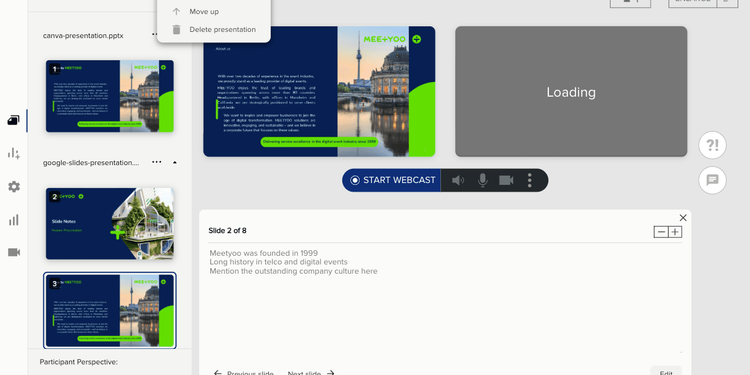
Presenter notes are your secret weapon for delivering confident, professional webcasts—but only if they actually work when you need them. In this guide, you'll learn why presenter notes matter, how to avoid the most common pitfalls, and how to seamlessly use notes from PowerPoint, Canva, and Google Slides in your live presentations.
Why Presenter Notes Are Critical for Professional Webcasts
The Hidden Cost of Winging It
92% of webinar attendees expect a polished, professional presentation. Yet many presenters still try to "wing it" without proper notes—leading to:
- Lost train of thought during critical moments (especially during Q&A transitions)
- Missed key messages that were supposed to differentiate your product
- Unprofessional pauses while searching for the right words
- Inconsistent messaging across multiple presenters
Industry Insight: According to presentation experts, speakers who use structured notes maintain 34% better audience engagement compared to those who improvise.
When Presenter Notes Fail: The 5 Most Common Problems
Based on our research and customer feedback, here are the technical nightmares that plague presenters:
1. Notes Appear on the Audience Screen
The #1 complaint: Using Zoom or Teams screen sharing in "Presenter View" accidentally broadcasts your notes to everyone. Embarrassing and unprofessional.
2. Font Size Too Small to Read
You've prepared detailed notes, but during the live webcast, you're squinting at 10pt text. By the time you decipher your own handwriting, you've lost momentum.
3. Notes Don't Sync Across Tools
You created your slides in Canva, but your webcast platform doesn't recognize the notes field. Now you're copy-pasting into a separate document—wasting precious prep time.
4. No Way to Edit Notes During the Presentation
Your CEO just told you to skip slide 7. But your notes are locked in a PDF. You're now reading outdated cues that confuse your delivery.
5. Dual-Screen Setup Chaos
Google Slides requires extended display mode. PowerPoint needs specific keyboard shortcuts. By the time you've configured everything, your audience is already bored.
How to Structure Presenter Notes That Actually Help
Before we dive into the technical setup, let's talk about what to write in your notes.
The Golden Rules of Effective Speaker Notes
1. Use Keywords, Not Scripts
- ❌ Bad: "Hello everyone, today I'm going to talk about our new AI feature that helps you..."
- ✅ Good: "AI feature → 3 benefits → demo"
2. Optimize for At-a-Glance Reading
- Use 14pt font minimum (you'll thank yourself during the live event)
- Add plenty of white space between sections
- Use bold for critical talking points
3. Include Timing Cues
- "Slide 5: 2 min max"
- "Pause for poll here"
- "Transition to Q&A at :45"
4. Tailor Notes to Your Role
- CEO/Executive: High-level talking points only
- Product Expert: Technical details, data references
- Moderator: Timing, transitions, housekeeping reminders
Pro Tip: Print a backup copy of your notes. If your screen sharing fails or your laptop crashes, you'll still have a lifeline.
How to Export Presenter Notes from Canva (Step-by-Step)
Canva is a popular design tool, but many users don't realize it supports presenter notes. Here's how to add and export them:
Step 1: Add Notes to Your Canva Presentation
Open your presentation in Canva and look for the notes panel at the bottom of each slide. Click to add your speaker notes.
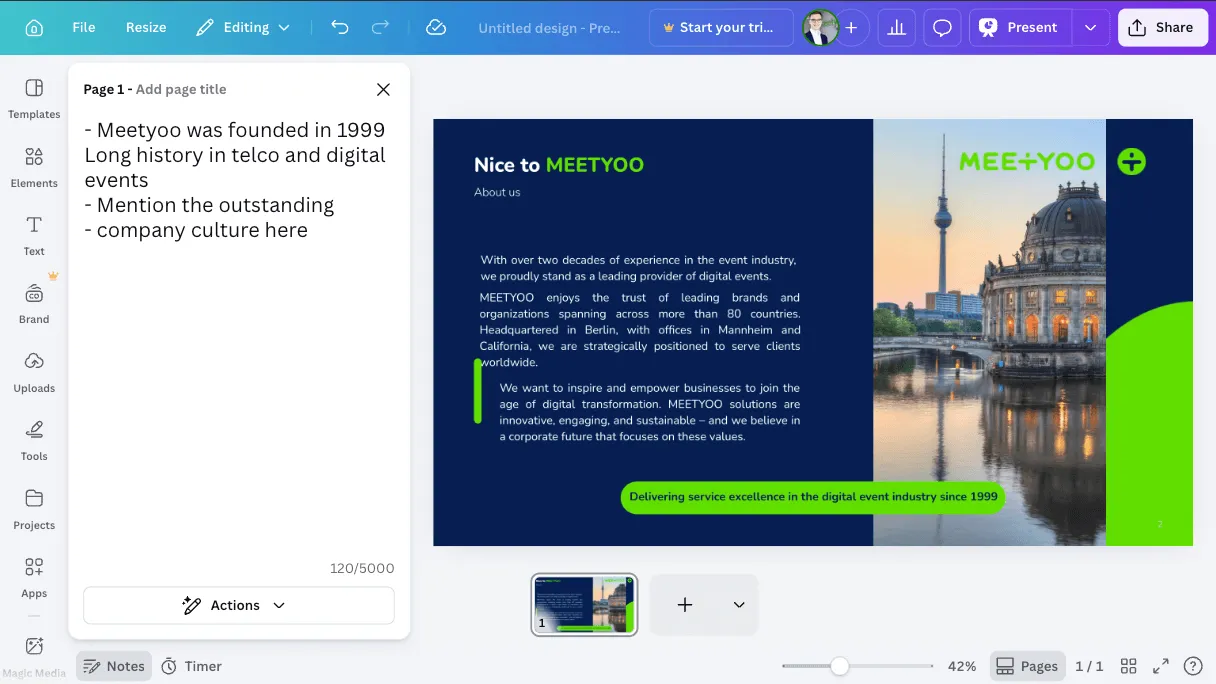
Type your notes directly into the field. Canva will save them automatically.
Step 2: Export as PowerPoint (PPTX) Format
When you're ready to export, click Share → Download and select PowerPoint (.pptx) as the file format.
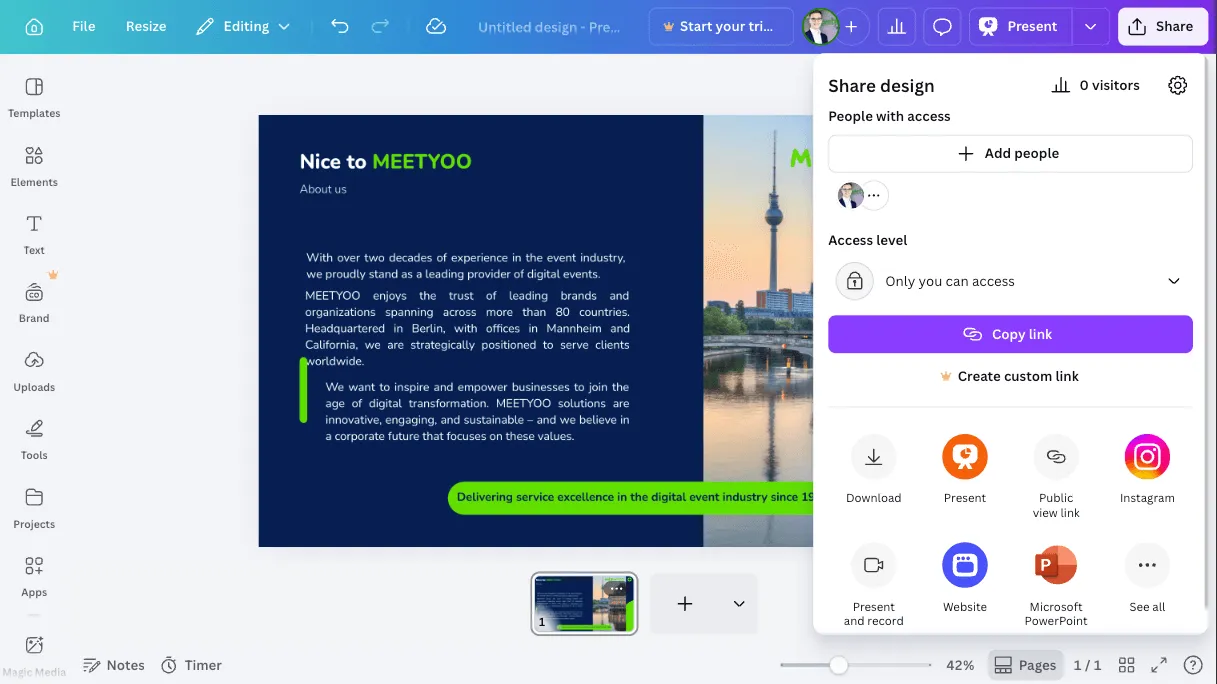
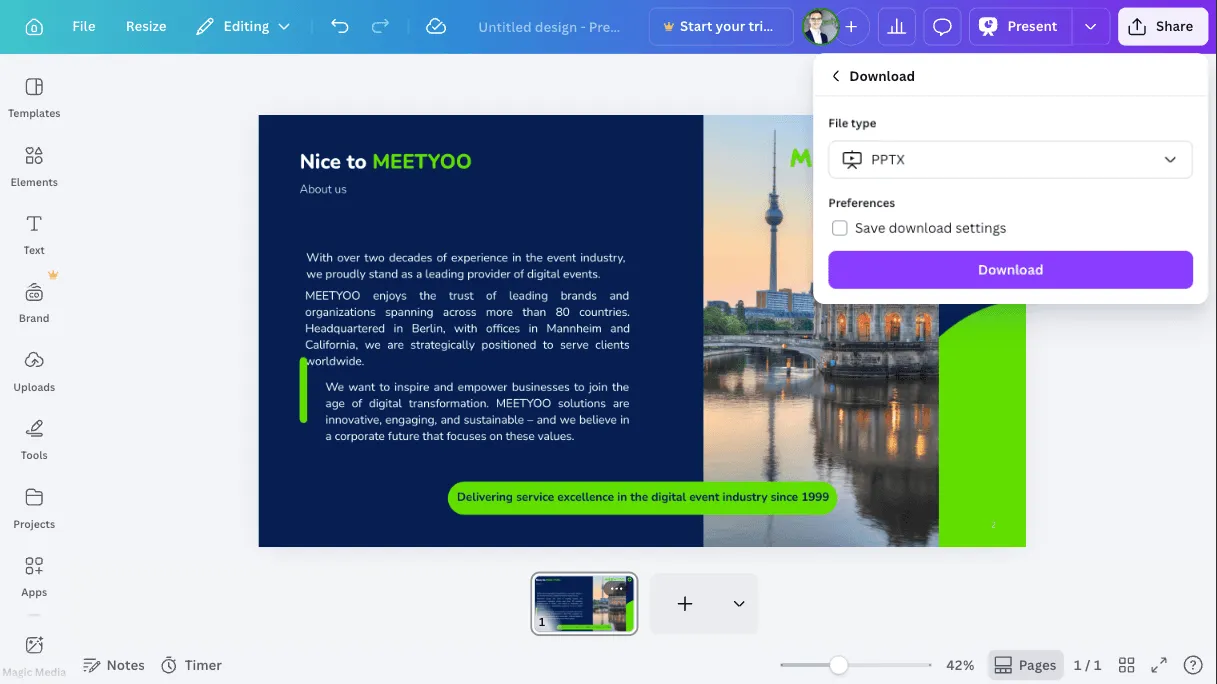
Important: Only the PPTX format preserves your notes. If you export PNG, your notes will be lost. Exporting as PDF merges the notes and the slides, which is also unusable.
How to Export Presenter Notes from Google Slides
Google Slides has a built-in notes feature, but the export process has a few quirks.
Step 1: Add Notes in Google Slides
Open your presentation and look for the Speaker notes section below each slide. Click to expand and type your notes.
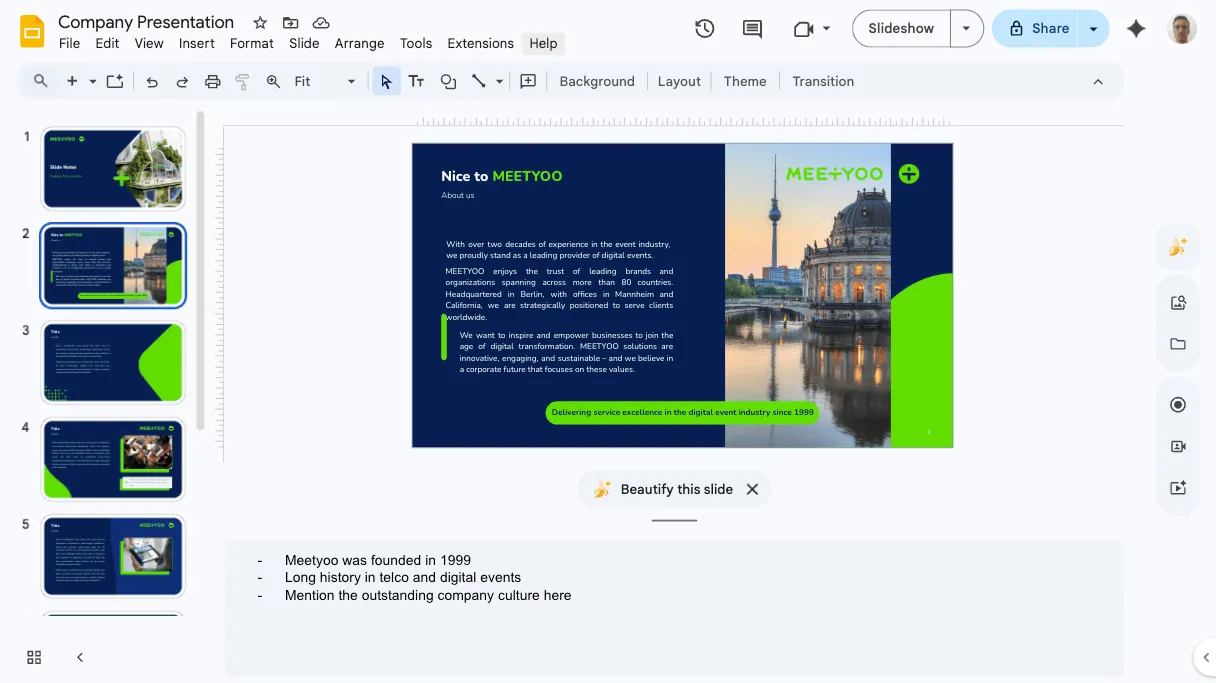
Step 2: Export as PowerPoint Format
Go to File → Download → Microsoft PowerPoint (.pptx).
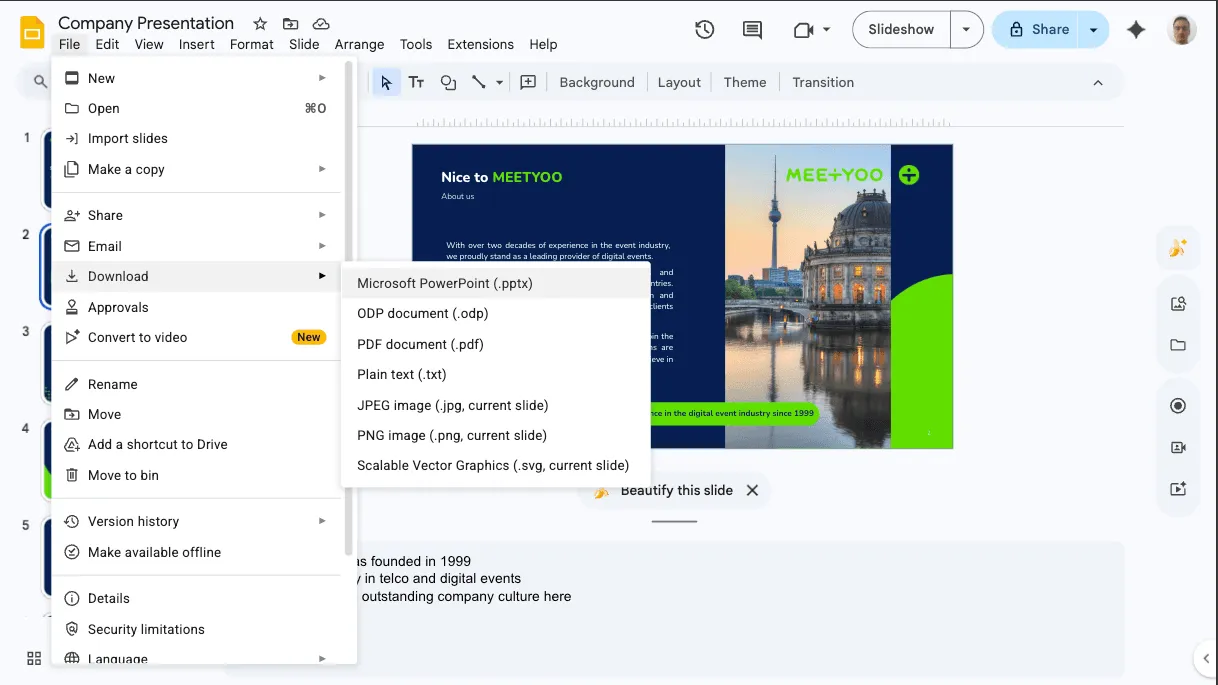
Common Mistake: Don't use "Publish to web" or "Present" mode for exporting—these don't include notes. Always use the Download option.
Google Slides will convert your presentation and preserve all speaker notes in the PPTX file.
How to Use Presenter Notes in Your Webcasting Tool
Now comes the magic: importing your notes into a professional webcasting platform that actually makes them usable during live presentations.
The MEETYOO Presenter Notes Feature
Unlike Zoom or Teams (which require complex dual-screen setups), MEETYOO automatically extracts notes from your PPTX file and displays them in a clean, readable interface.
Key Features:
- ✅ Automatic import from PowerPoint, Canva, and Google Slides
- ✅ Editable during the presentation (no more locked PDFs)
- ✅ Adjustable font size for optimal readability
- ✅ Private to the presenter (never visible to the audience)
Watch It in Action
Here's a quick video showing how to activate and use presenter notes in MEETYOO:
What You'll See:
- Upload your PPTX file to MEETYOO
- Display Notes via the context menu.
- Adjust font size with one click
- Edit notes in real-time if needed
- Navigate through slides while keeping notes visible
Why This Matters: You can focus on your audience instead of wrestling with technology. Your notes are always visible, always readable, and always under your control.
Presenter Notes Best Practices for Different Scenarios
For Investor Relations (IR) Calls
- Include exact financial figures (don't rely on memory)
- Add regulatory disclaimers as reminders
- Note anticipated questions from analysts
For Product Demos
- List feature names (avoid fumbling terminology)
- Include demo credentials (username/password)
- Add fallback talking points if the demo breaks
For Internal Townhalls
- Reference employee names for shout-outs
- Include policy updates verbatim
- Add transition cues for multiple speakers
For Sales Webinars
- Highlight pain points to emphasize
- Include competitor comparisons (if appropriate)
- Add CTA reminders ("Don't forget to mention the discount code")
Why Zoom and Teams Fall Short for Presenter Notes
Let's be honest: Zoom and Microsoft Teams weren't designed for professional webcasting. Here's why their presenter note solutions are problematic:
Zoom's Presenter View Problem
- Requires screen sharing in "Presenter View" mode
- Risk: One wrong click and your notes are visible to everyone
- No font size adjustment
- Can't edit notes during the presentation
Microsoft Teams Limitations
- Requires extended display setup (confusing for non-technical users)
- Notes often don't sync properly with PowerPoint Online
- No mobile support for presenter notes
The Professional Alternative
A dedicated webcasting platform like MEETYOO solves these issues by:
- Separating presenter view from audience view (by design, not by accident)
- Providing native note editing and formatting
- Working seamlessly across devices
Troubleshooting Common Presenter Notes Issues
"My notes didn't import from Canva"
Solution: Make sure you exported as PPTX, not PDF. Only PowerPoint format preserves notes.
"The font is too small to read"
Solution: Use the font size adjustment feature in your webcasting tool.
"I need to change my notes during the presentation"
Solution: Use a platform that allows real-time editing (like MEETYOO). Avoid locked PDFs.
"My notes are showing on the audience screen"
Solution: Never use screen sharing in Presenter View mode. Use a dedicated webcasting tool with separate presenter/audience views.
Conclusion: Presenter Notes Are Your Competitive Advantage
Professional presenters don't memorize scripts—they use smart tools to stay on track. By properly preparing, exporting, and displaying your presenter notes, you'll:
- Deliver more confident, polished presentations
- Reduce stress and cognitive load during live events
- Maintain consistent messaging across your team
- Recover gracefully from unexpected technical issues
Ready to experience presenter notes that actually work? Try MEETYOO's webcasting platform and see how easy it is to import, edit, and display your notes during live presentations.
Frequently Asked Questions
Q: What's the ideal length for presenter notes? A: Aim for 3-5 bullet points per slide. If you need more, consider splitting the slide.
Q: Should I write full sentences or keywords? A: Keywords are better for experienced presenters. Full sentences work well for scripted content (like legal disclaimers).
Q: Can multiple presenters share the same notes? A: Yes, but it's better to customize notes for each presenter's style and role.


