
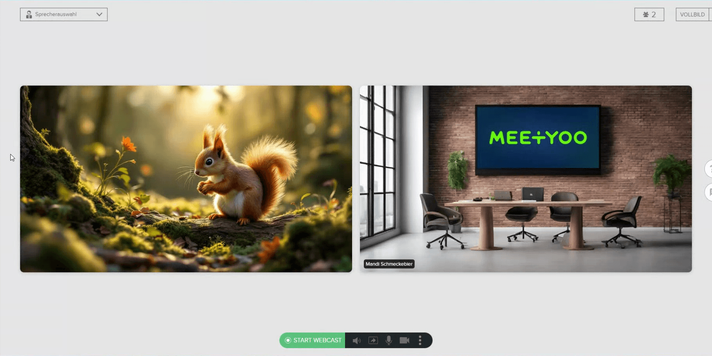
Passive watching is the silent enemy of every webcast. If you want to truly engage your audience, you need moments where attendees actively respond — not just consume. Live polls are the most direct tool for this: one question, five seconds of voting, instant result. Engagement levels rise noticeably, and you gain valuable real-time feedback at the same time.
In MEETYOO Show, live polls are part of the engagement features, which give you everything you need for an interactive event — from moderated Q&A sessions to live polls. Here, you will learn how to create such a survey, launch it live, and cleverly bridge the transmission latency.
1. Preparing the Live Poll
The most important tip first: Always create your poll before you go live with the webcast. This ensures that everything runs smoothly during the stressful live event.
How to create a new survey:
- Navigate to the Poll Area: In the webcast environment, you'll find the area for polls on the left side. Click on the corresponding icon (often a bar chart) or select the area. You can enlarge or minimize the workspace as needed.
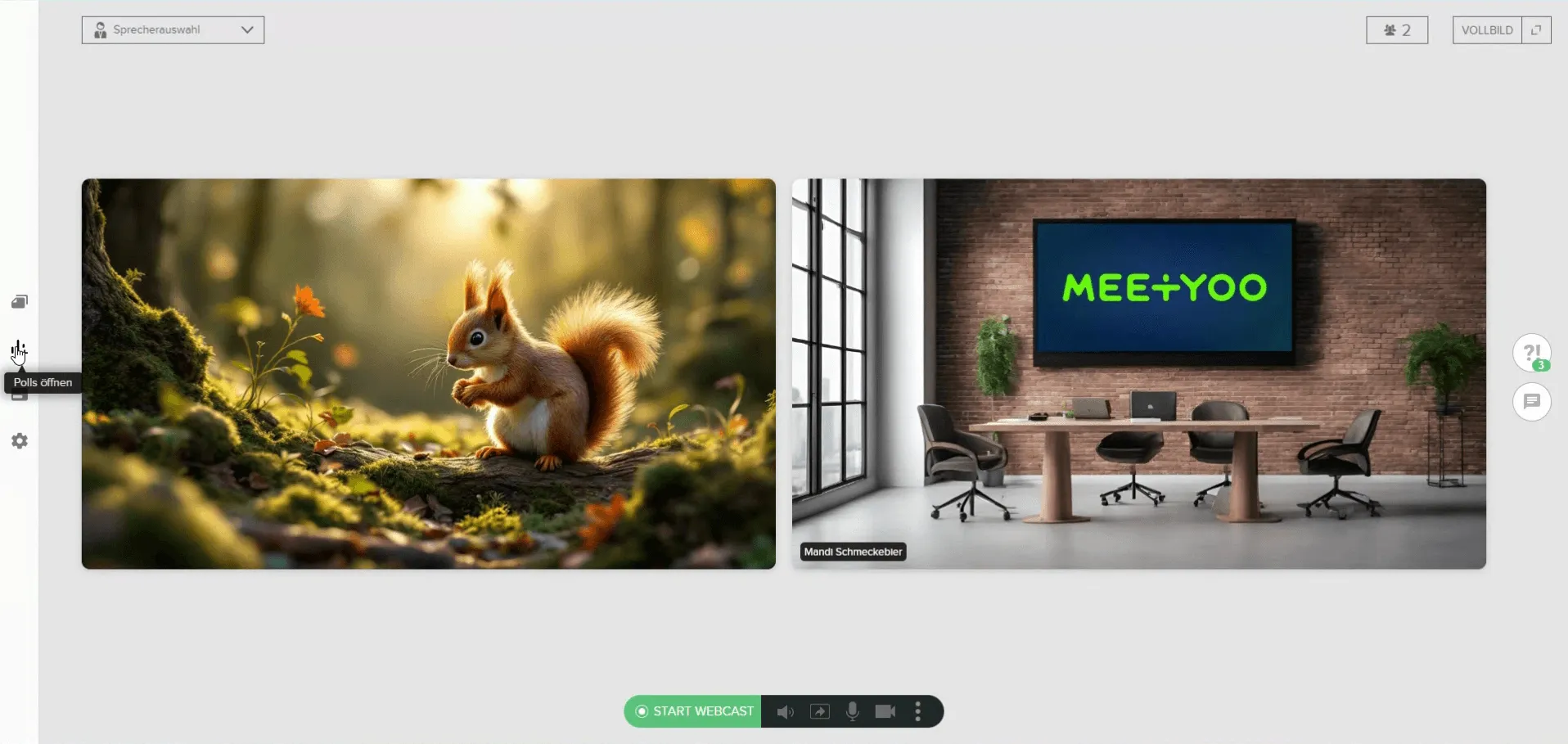
Bereich für die Polls anzeigen - Start a New Survey: Click the "+ Umfrage erstellen" (Create Poll) button.
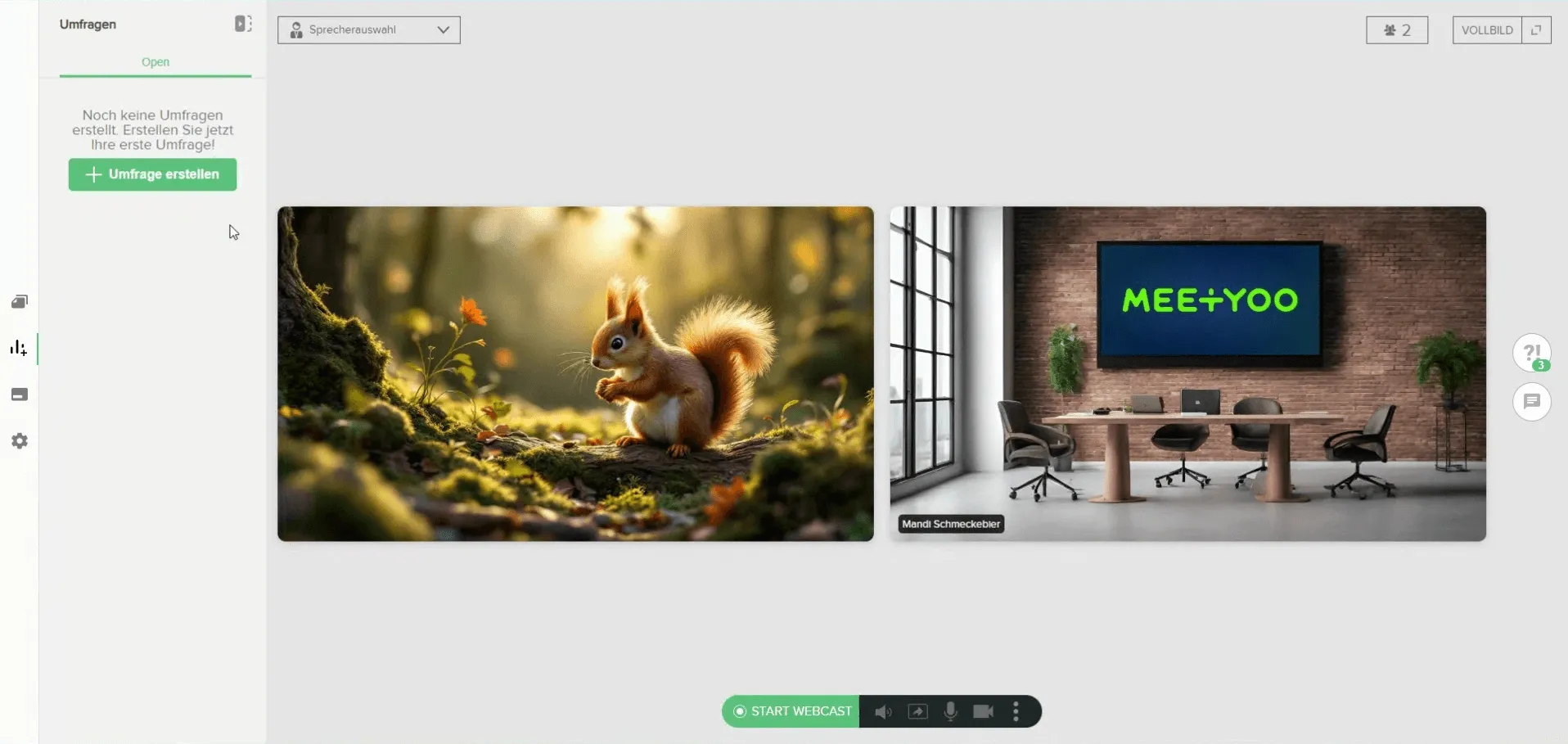
Umfrage erstellen Button - Formulate the Question: Enter your question in the "Frage" (Question) field. Note that the question should not exceed 150 characters to remain easily readable. (In the example: "How is the weather with you?")
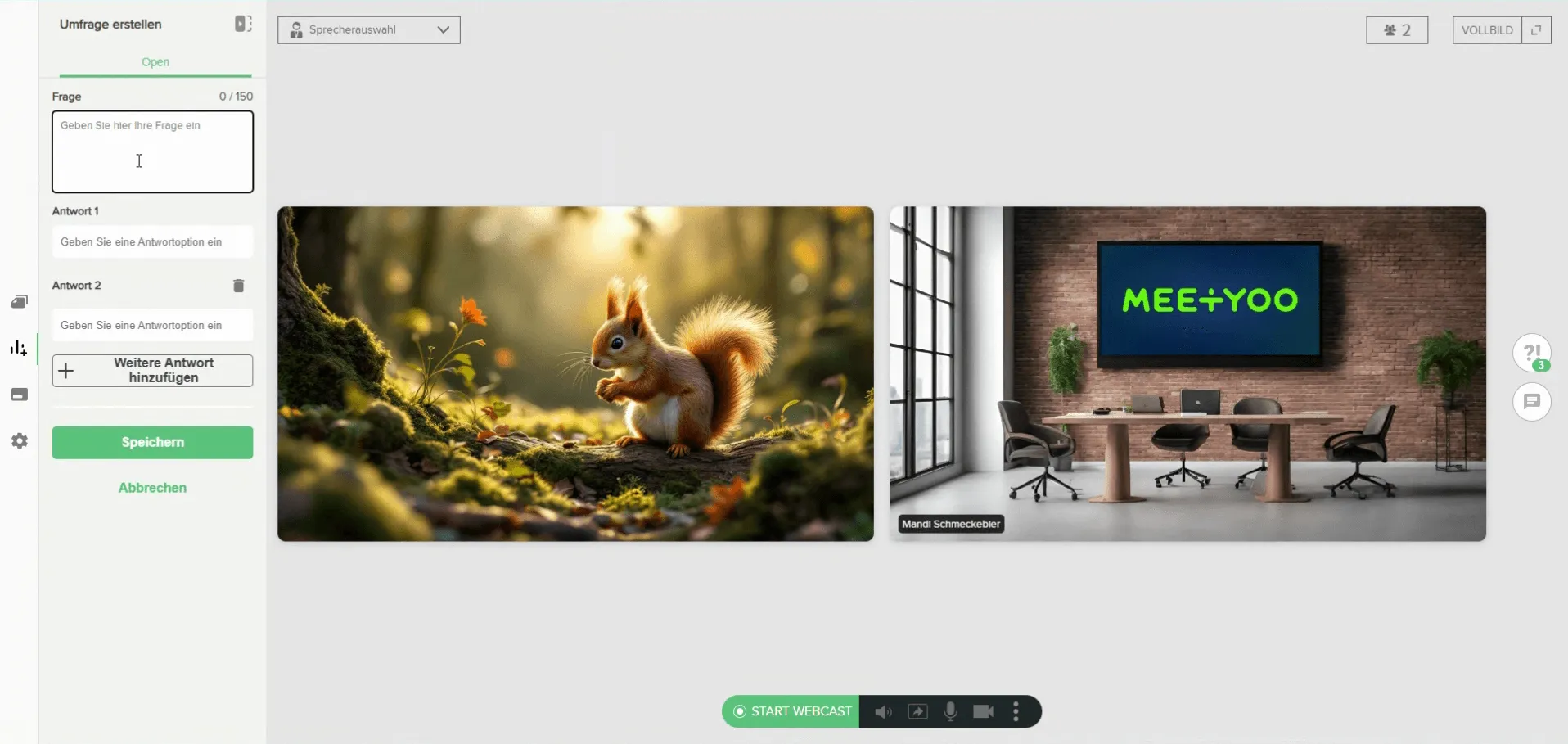
Frage und Antwortmöglichkeiten eingeben - Define Answer Options: You can add up to five answer options. Note that this is a Single-Choice Poll – the audience can only select one answer.
- Keep the answer options short and concise so participants can quickly grasp them.
- You can add more answers via "+ Weitere Antwort hinzufügen" (Add another answer).
- Delete unnecessary answers using the trash bin icon.
- Save: Once you have made all entries, click "Speichern" (Save).
Your created survey now appears in the overview and is ready for live use. Through the three-dot menu, you can edit, duplicate, or delete it at any time, as long as you have not yet gone live.
2. Best Practice: Dealing with Transmission Latency (Delay)
This point is crucial for the successful use of Live Polls!
Important: A Live Poll can only be started when the webcast is live. If you are still in preparation mode (Status: "STOPPED"), the start button is disabled.
When you are live and launch the poll, there is usually a latency (delay) in the video transmission in most webcast systems – often around 20 seconds. This means:
- You see the poll immediately in your backend.
- Your audience sees the poll with a delay (about 20 seconds later).
How to bridge the latency optimally:
- Start your Webcast Live. (Press the green "START WEBCAST" button).
- Launch the survey in the backend (Click the "Umfrage starten" (Start Poll) button).

Live Poll starten - Bridge the waiting time (approx. 20 seconds): As soon as you have started the poll, a small green bar begins to run at the top. Use this time, while the video is still playing, to prepare the participants for the upcoming survey:
- Read the question aloud.
- Go through the answer options and briefly explain them.
- Ask participants to already consider an answer.
Rule of thumb: The survey becomes visible to the audience once the green bar reaches about halfway. At this point, your moderation is complete, and participants can vote.
3. Evaluating and Sharing Results
Once the survey has reached the audience, participants can make their selection (Single Choice).
- Real-time Feedback: In the backend, you see the distribution of votes in real-time as percentages and the total number of votes cast.
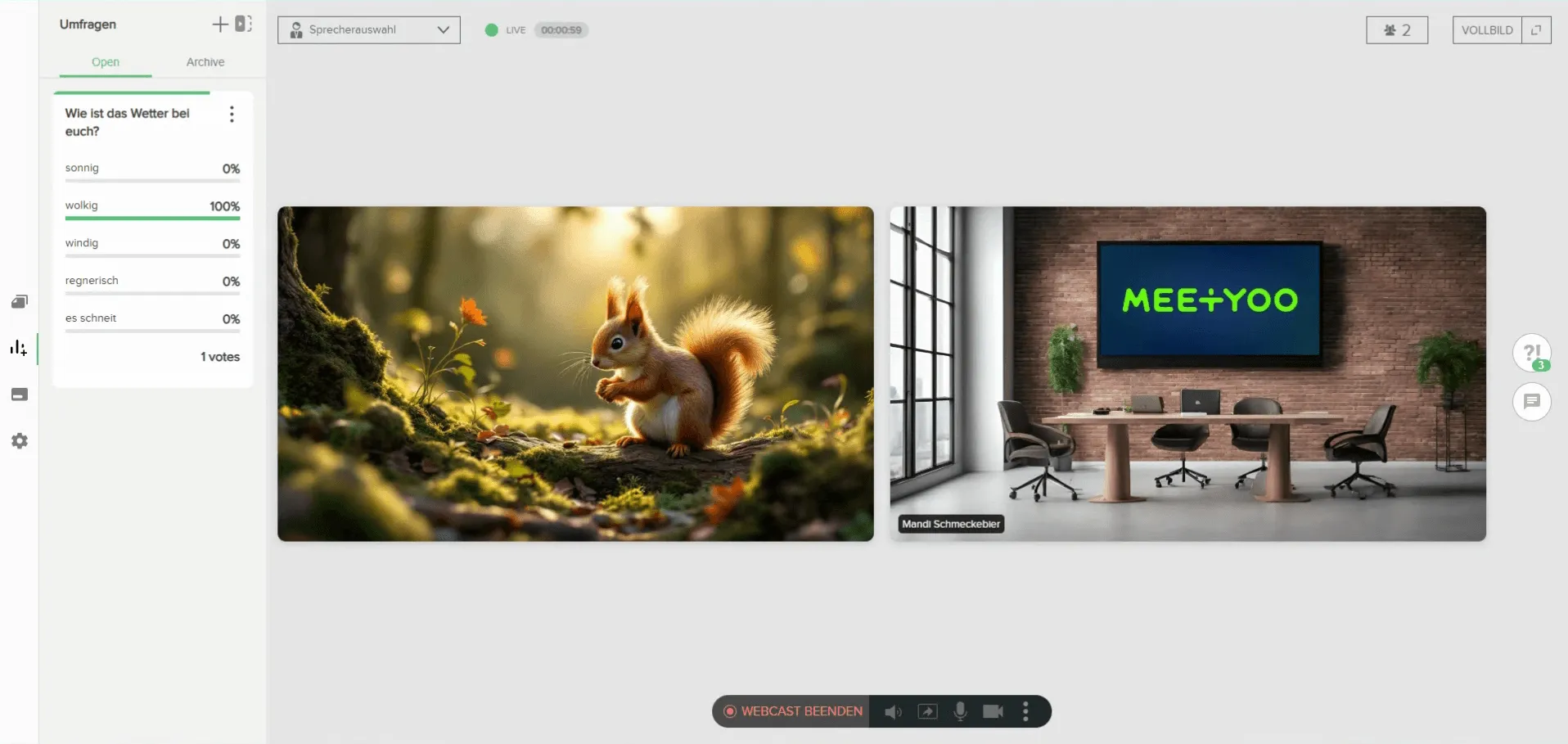
Echtzeit-Ergebnisse - Send Results: When the voting is complete, you have the option to send the results to all participants. Click on "Ergebnisse an Teilnehmer senden" (Send results to participants). The results are then prominently displayed for everyone to see.
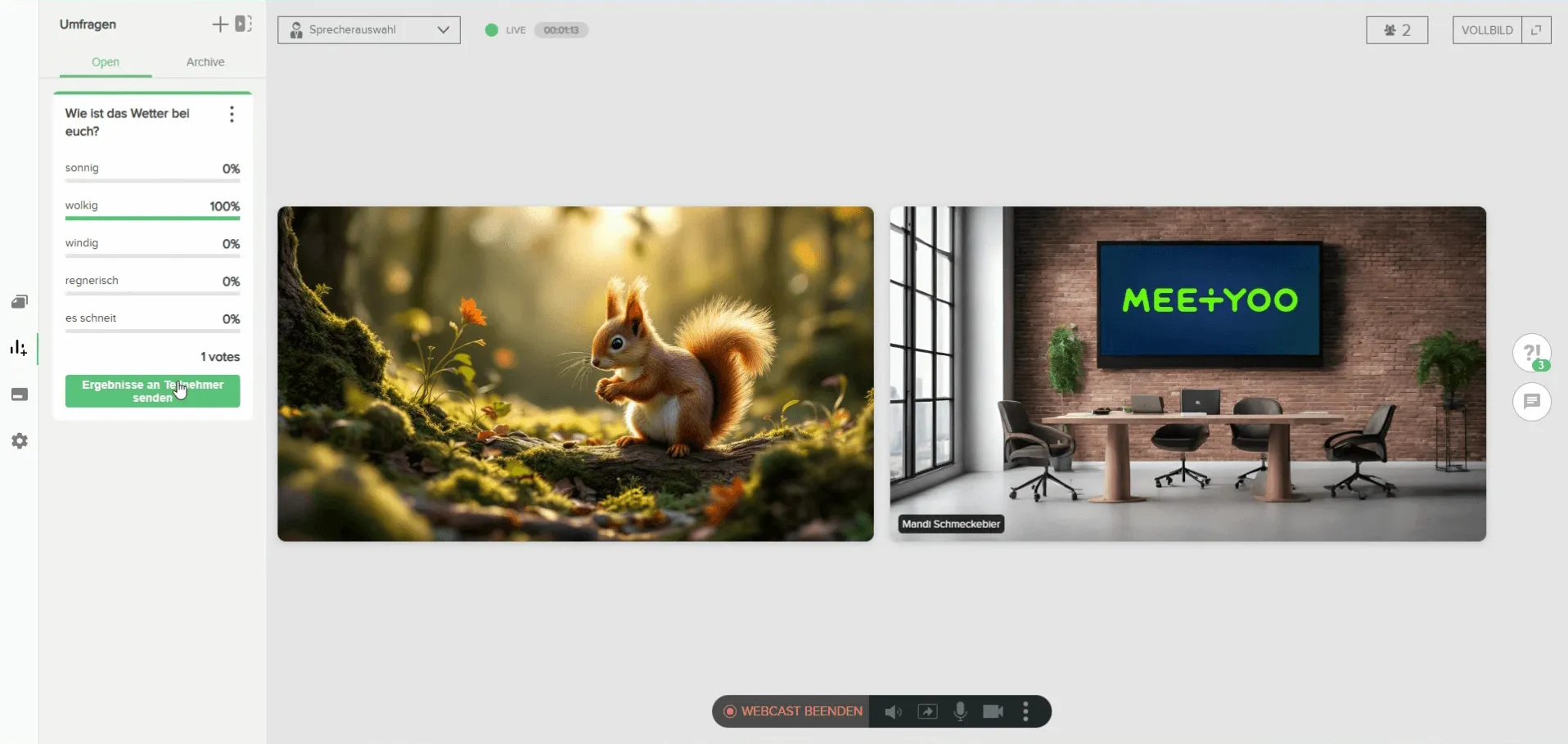
Ergebnisse an Teilnehmer senden - Hide Results: Alternatively, you can stop the display of results at any time by clicking "Ergebnisse nicht mehr anzeigen" (Do not show results anymore).
With these steps, you will succeed not only in setting up Live Polls correctly but also in using them strategically to take the attention and interaction in your webcast to the next level.

