

Webcast Q&A and chat settings that aren't deliberately configured lead to two familiar problems: either complete silence because attendees don't know where to ask questions — or unmanageable chaos because everything is active at once and nobody can keep up. MEETYOO Show gives you full control: you decide before each event which interaction formats are active, how questions are managed, and whether live translations run alongside.
Here, you will learn how to make the settings in the backend and which best practices will help you get the most out of the features.
Interaction Options: Q&A and Public Chat
You have the option to activate a Q&A section and/or a Public Chat for your participants. You can choose both options or decide on just one.
Making the Settings
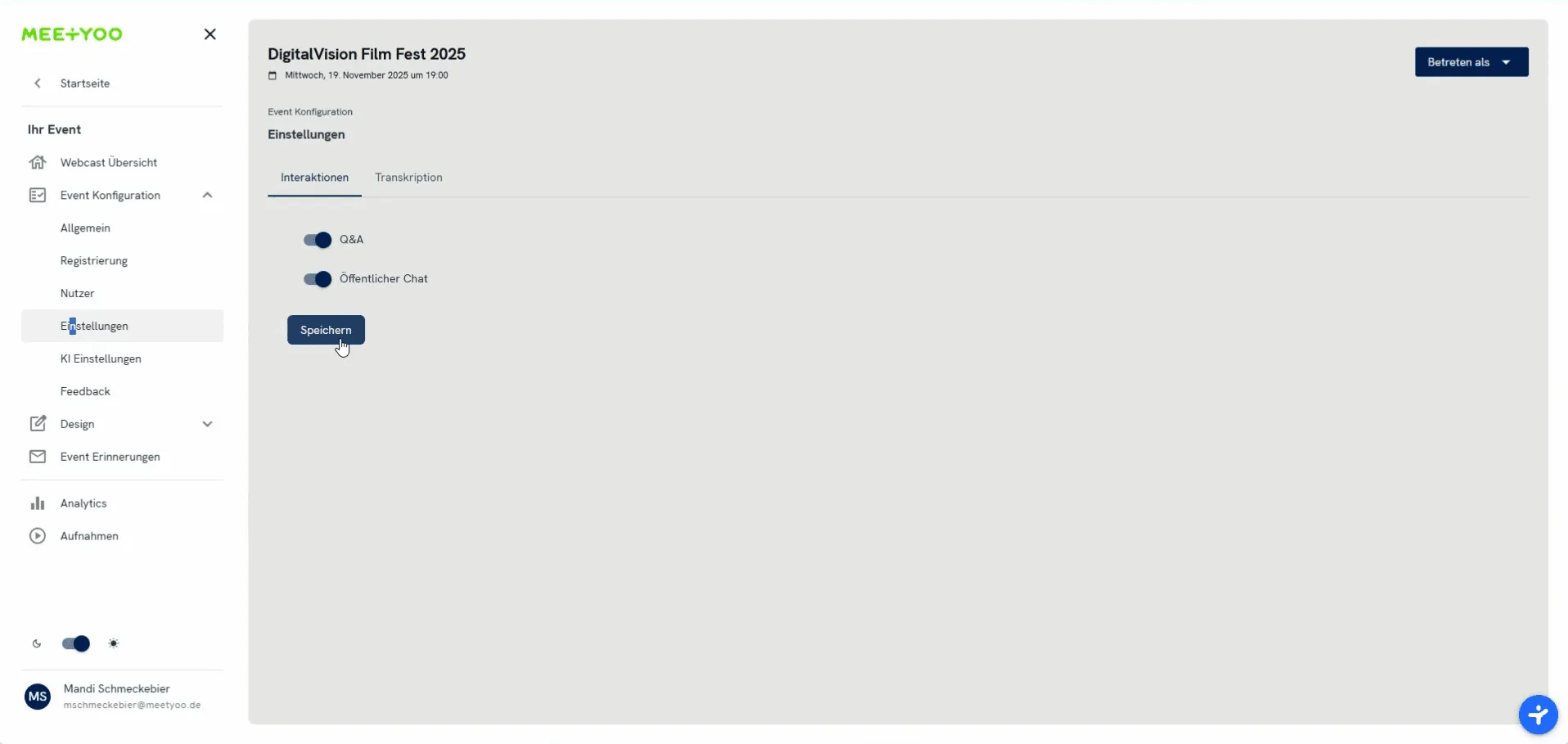
You can find the settings for interaction and transcription by navigating in your event backend to "Event Configuration" and then "Settings." There, you select the "Interactions" tab and activate the desired functions by clicking the slider. Don't forget to click "Save" afterward.
Public Chat vs. Q&A: What are the Differences?
The two interaction options serve different goals and offer various advantages:
| Function | Goal / Purpose | Advantages | Disadvantages / Notes |
|---|---|---|---|
| Q&A | Direct answering of questions; Structured collection of feedback. | Questions are only visible to you in the backend and cannot be seen by other participants. | Less direct interaction between participants. |
| Public Chat | Open communication, dialogue among participants, general feedback. | Promotes interaction and dialogue among participants. You see all comments and can communicate with them. | Questions become less clear in the chat flow. No direct prioritization or labeling possible. |
Best Practices for Q&A Management
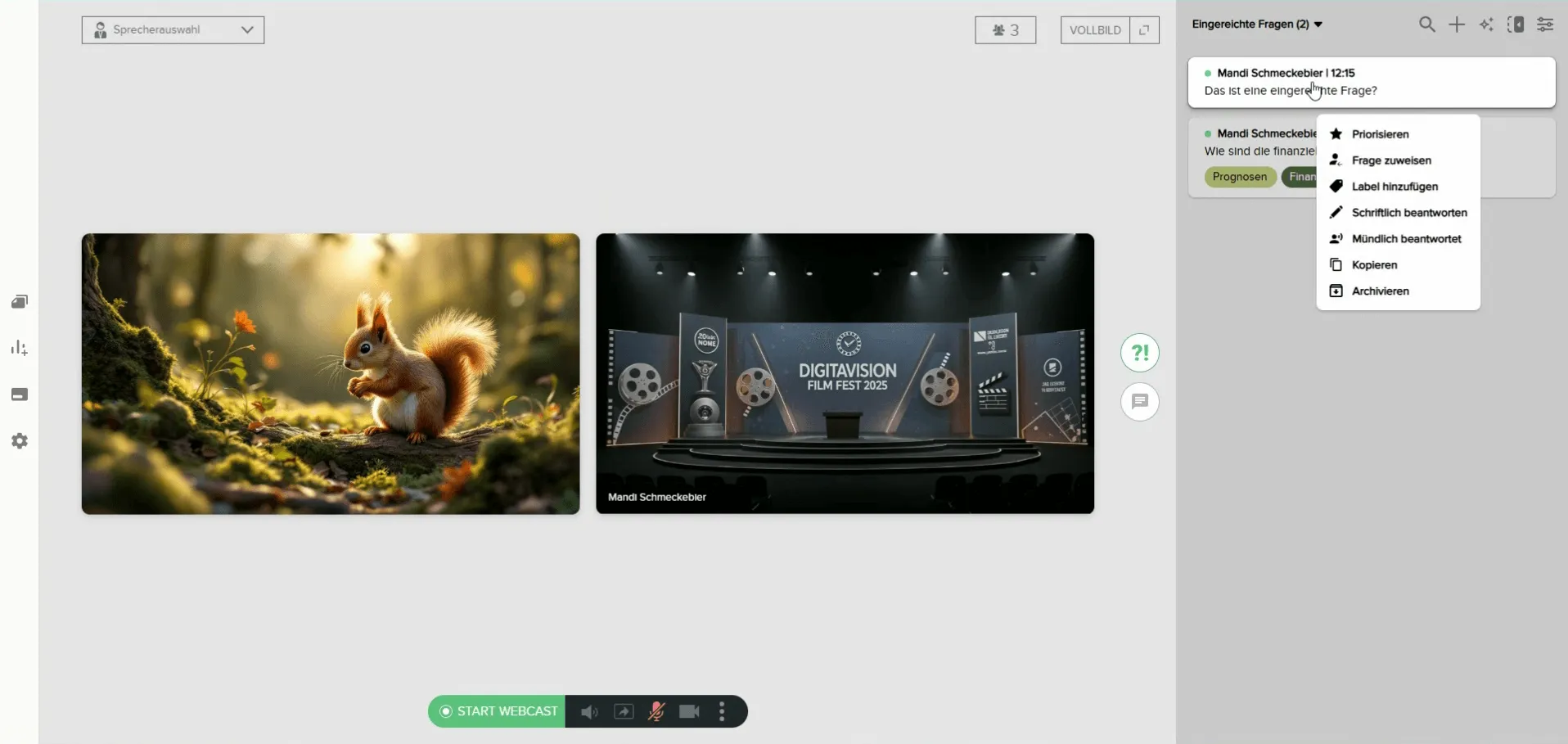
The Q&A section is ideal if you expect many questions and want to manage them efficiently. In the backend (Moderator/Speaker view), you can process the submitted questions as follows:
- Labeling: Assign questions to categories (e.g., "Finance," "Product") to group them thematically.
- Prioritizing: Mark particularly important questions to keep an overview of the most urgent topics.
- Answering: You can decide which questions you answer verbally and which you answer in writing.
Tip: If you expect many questions, activate the Q&A function and actively instruct your participants to use it for their questions.
Best Practices for the Public Chat
The Public Chat is the best choice if you want participants to interact heavily with each other and you are interested in how opinions and discussions evolve.
Note: The Public Chat is public. All messages that are sent there are visible to all participants.
Activating Transcriptions and Translations
With the transcription function, you increase the reach and accessibility of your webcast. You can activate up to three additional languages for translations.
Transcription Settings
You can find this function under "Event Configuration" > "Settings" > "Transcription."
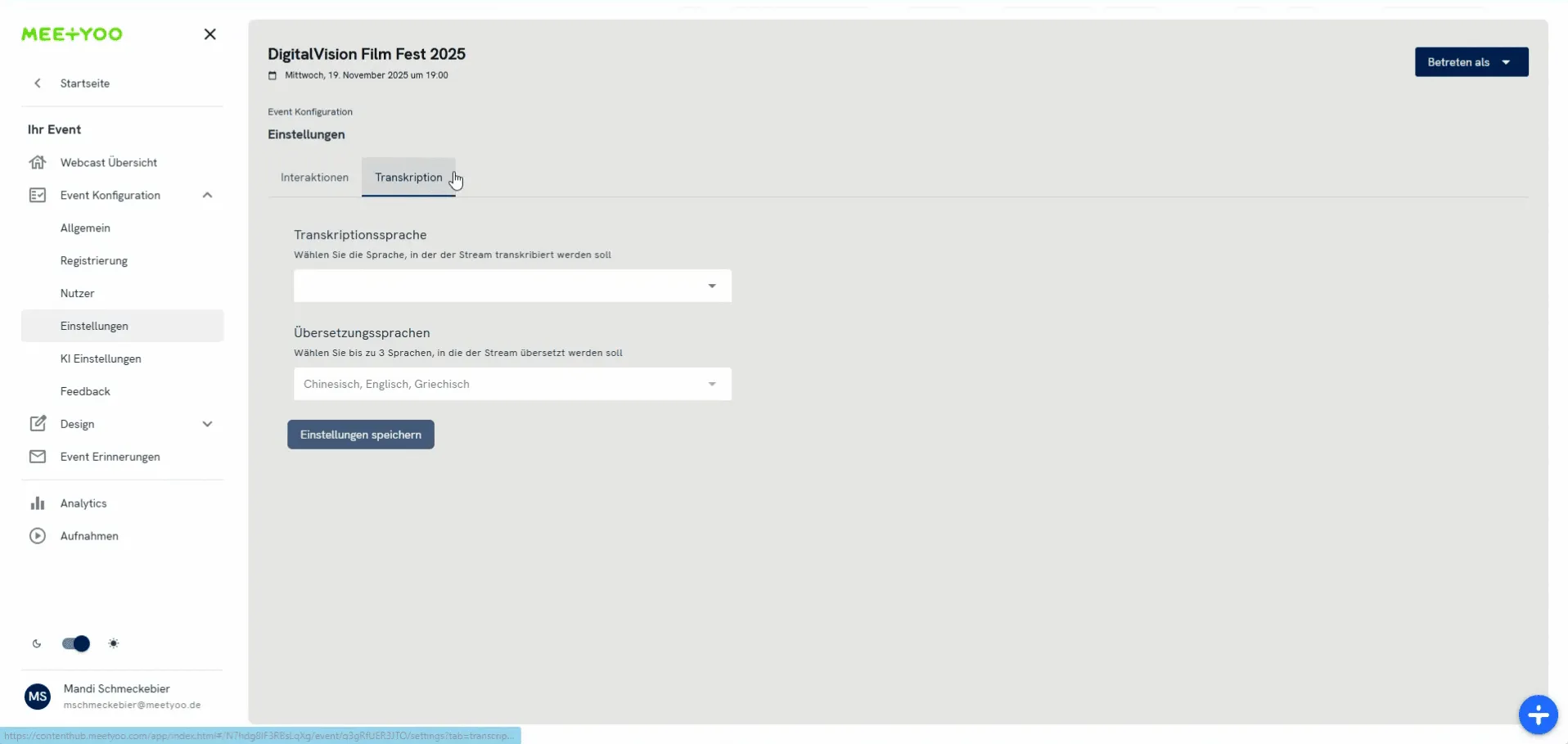
- Set Transcription Language: Select the language in which your stream is held (e.g., German/Deutsch).
- Select Translation Languages: You can choose up to three languages in which the transcriptions should additionally be displayed below the video (e.g., English, Greek, Chinese).
- Save: Confirm your selection.
Considering Latency: Plan for 20-30 Seconds
A critical point in live interactions is the technical latency of your webcast (the delay between your camera/microphone and the reception by the participant). Generally, this is about 20 seconds.
Best Practices for Handling Latency:
When you ask your participants for feedback or questions, you must factor in this delay:
- 20 Seconds Delay: Your participants hear your request only after approx. 20 seconds.
- Writing Time: After that, they need another moment to formulate their answer or question and submit it.
Therefore:
- Adjust your moderation: After you have asked a question, fill the time by speaking a little further, giving additional ideas or thoughts, or addressing a pre-prepared question.
- Use prepared questions: Especially at the beginning, to "break the ice" and bridge the initial waiting time, it is advisable to prepare 1–2 questions that you moderate and answer yourself. This way, you bridge the latency until the first questions from the participants come in.


