
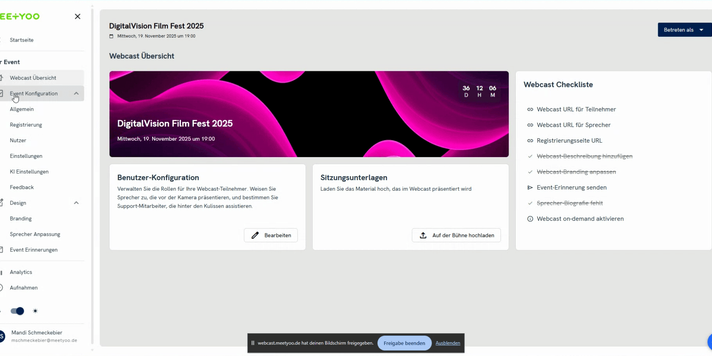
Increase the efficiency of your webcasts and concentrate entirely on your presentation! With the AI functions in your webcast tool, you automate tasks such as clustering and tagging incoming questions. This article guides you step-by-step through activating and using these intelligent features.
Benefits of AI Labeling: The AI Live Assistant automatically classifies incoming participant questions by topic areas. This gives you an immediate overview and allows you to answer questions on the same topics collectively at the end of your presentation.
1. Activate AI Functions in the Event Configuration
Before you can use the AI functions in your live webcast, they must be enabled in your event settings.
Here's how to proceed:
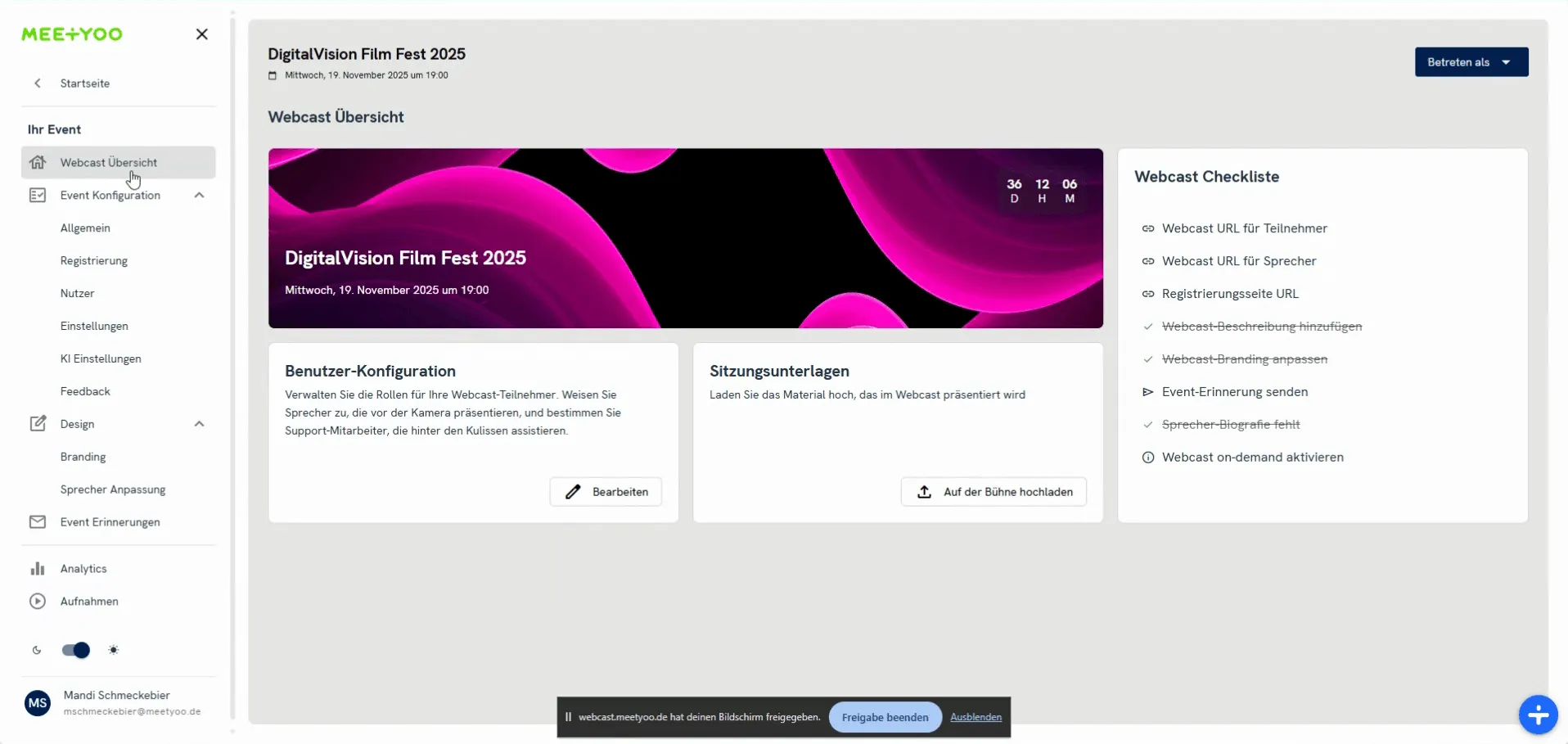
- Navigate to Event Configuration in the left sidebar and select the submenu item AI Settings.
- Activate AI Features generally with the toggle switch.
- Below the general activation, you select which AI-supported functions you want to use:
- Allow Chat with Webcast: Participants can chat with the webcast content even during the on-demand phase, for example, to receive summaries, highlights, or core information. It is also useful for you as a content creator to generate content ideas or social media posts.
- Allow Live Assistant: This activates the AI Live Assistant, which supports moderators and presenters in real-time—including automatically labeling incoming questions.
- Finally, click Save.
2. Invite and Configure the AI Live Assistant
After the functions have been generally activated in the event, you must invite the AI Assistant in the questions area of your webcast and activate the automatic labeling.
Steps for configuration:
- Switch to the Submitted Questions area (next to the chat) in your webcast.
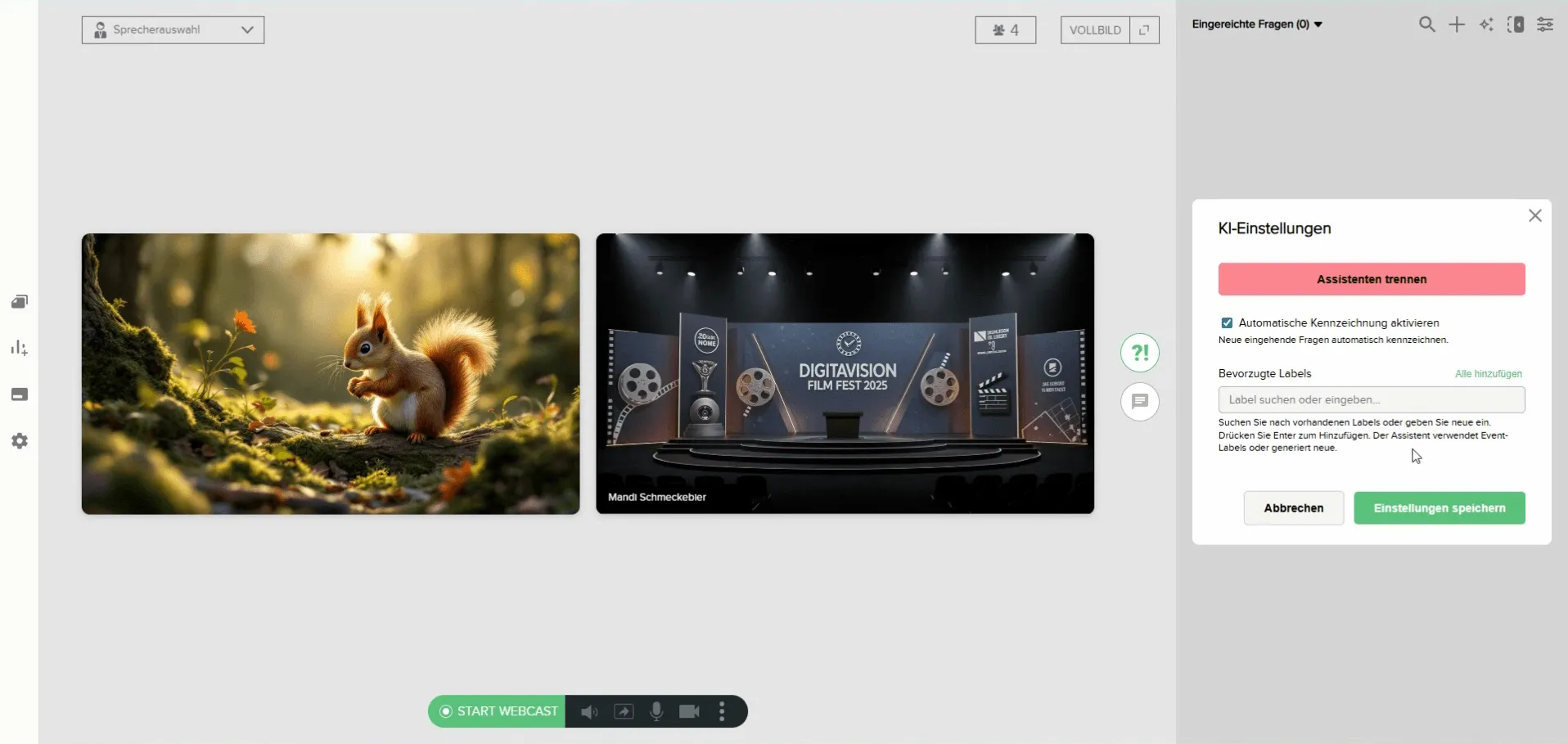
- Click the small Star Icon ($\star$) for AI Settings in the top right. A pop-up window opens.
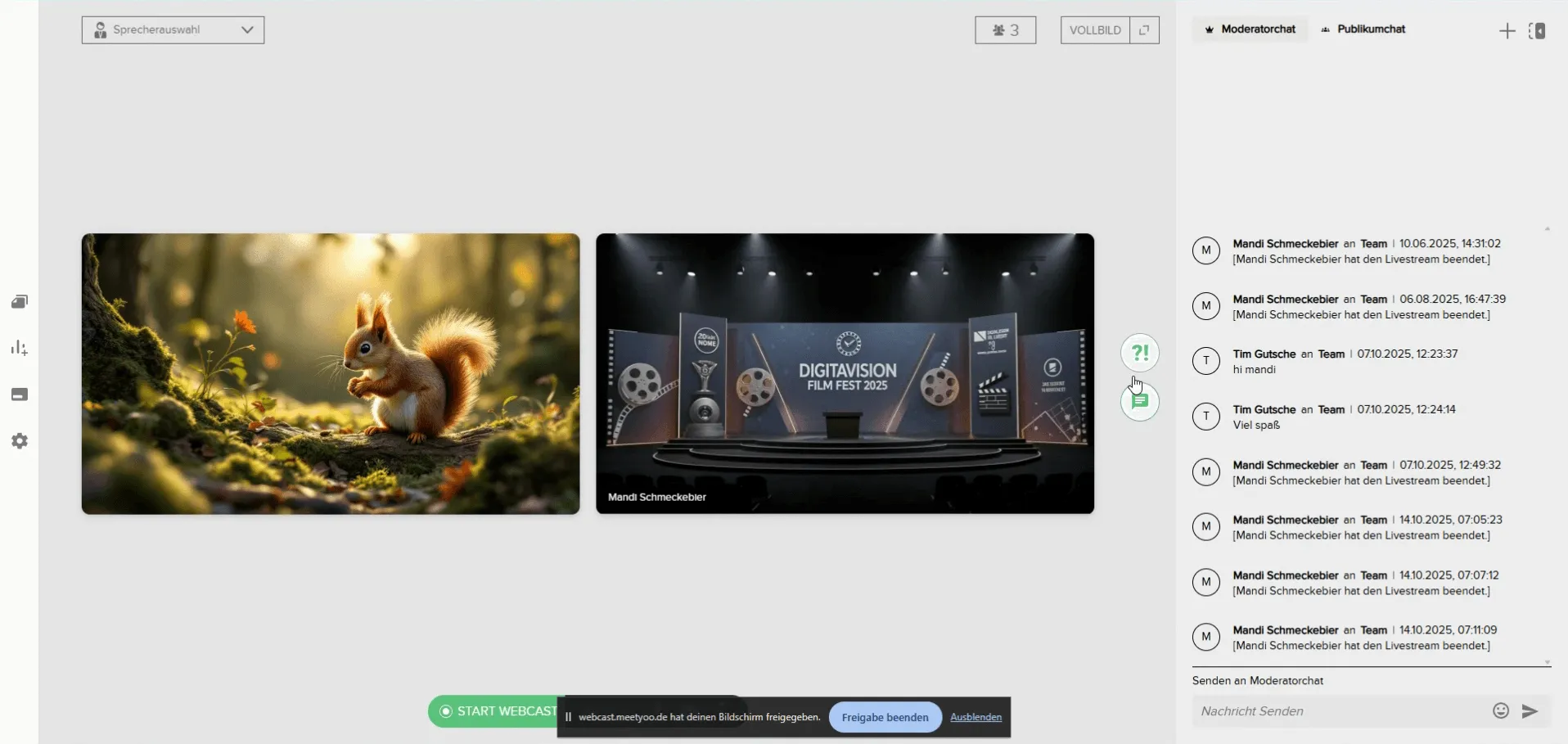
- In the pop-up, click Invite Assistant. The option changes to Disconnect Assistant, and the AI Assistant is displayed as Event Guru in the moderator list.
- Activate the Automatic labeling activated (checkbox).
- Set Preferred Labels (Optional): You can enter labels here that the assistant should preferably use, e.g.,
Product,Finance,Forecasts. If you leave the field empty, the AI decides freely and can also generate new labels. - Click Save Settings.
Important: The assistant must be reinvited every time you leave and re-enter the webcast. However, the automatic labeling remains saved once you have activated it.
3. Labeling and Filtering Questions
As soon as the AI Assistant is invited and automatic labeling is activated, the AI begins to tag incoming participant questions based on their content.
Functionality in practice:
- When a participant submits a question, it appears in the Submitted Questions area.
- The AI analyzes the question and automatically assigns one or more labels to it. For example, the question "What are the financial forecasts for 2026?" is tagged with the labels Forecasts and Finance.
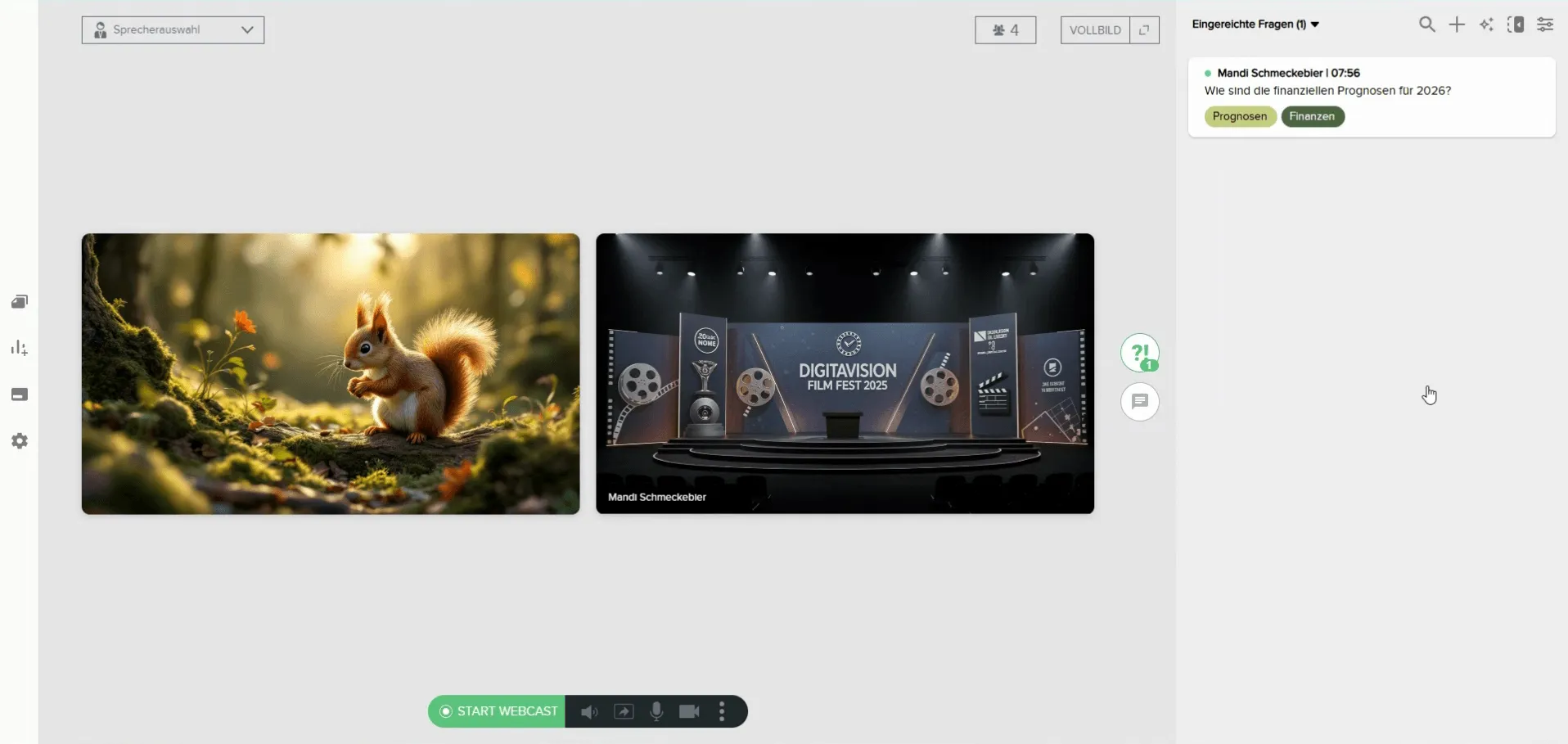
- To cluster the questions by topic, click the Filter Icon (three horizontal lines) in the top right of the questions overview.
- In the filter menu, you can now select one or more labels under Search labels, e.g., only Finance.
- Confirm with Done.
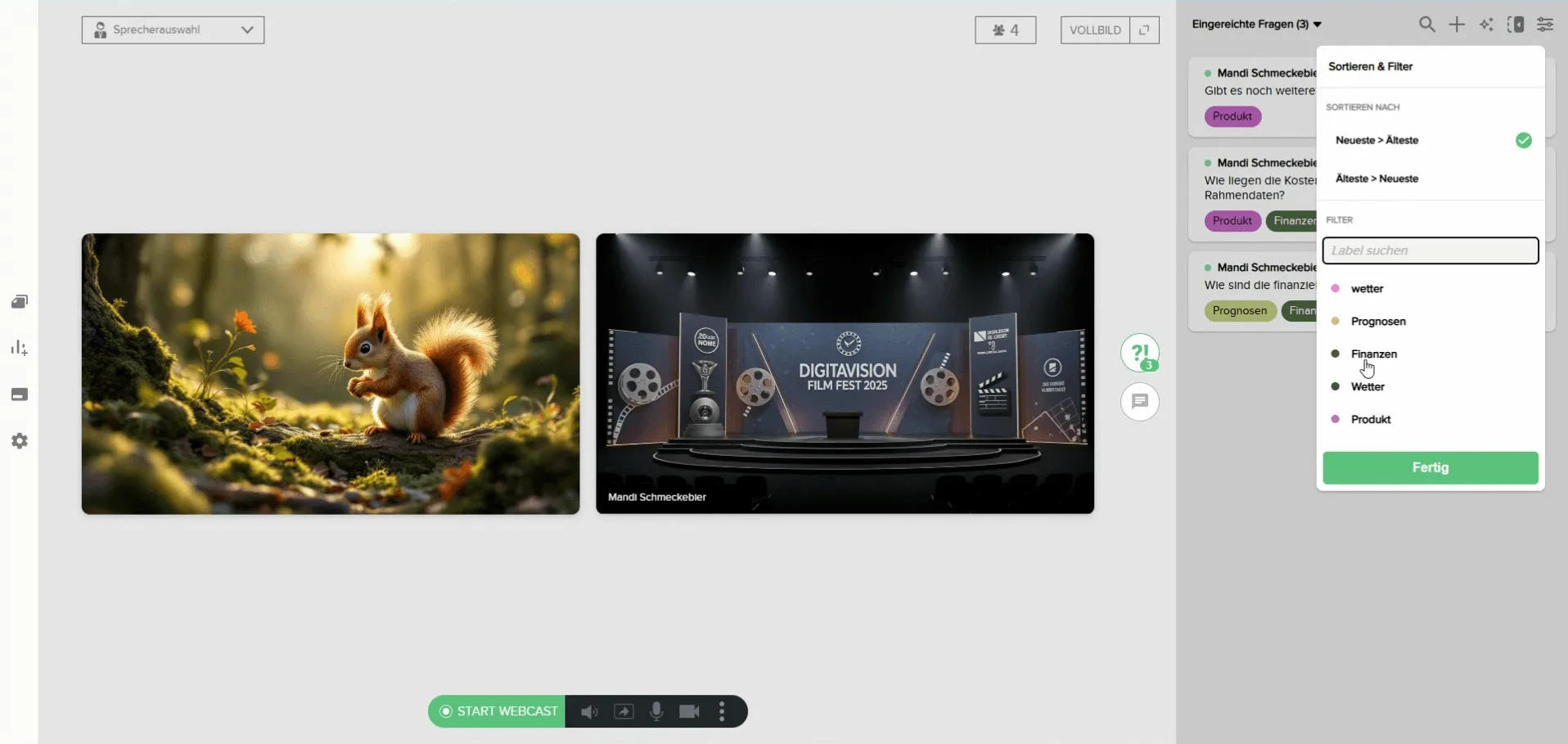
- Subsequently, only the questions containing the selected label will be displayed to you.
- After you have completed a topic and answered the questions, you can easily remove the filter by clicking the small (x) next to the active filter.
This smart AI tool is your virtual assistant that helps you maintain an overview, concentrate on your content, and make your Q&A sessions more effective.