
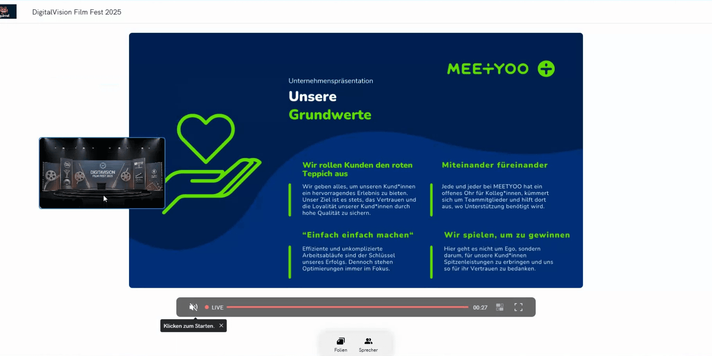
As a content creator, it is crucial that your material reaches the audience smoothly and in the best quality. Directly uploading presentations and videos to your webcast studio not only offers high reliability but also significant advantages for your viewers.
This guide will show you how to upload and manage your content and why this is the best approach.
1. The Easy Path to Content Upload
You have two simple ways to bring your documents into your webcast.
Direct Upload from the Webcast Overview
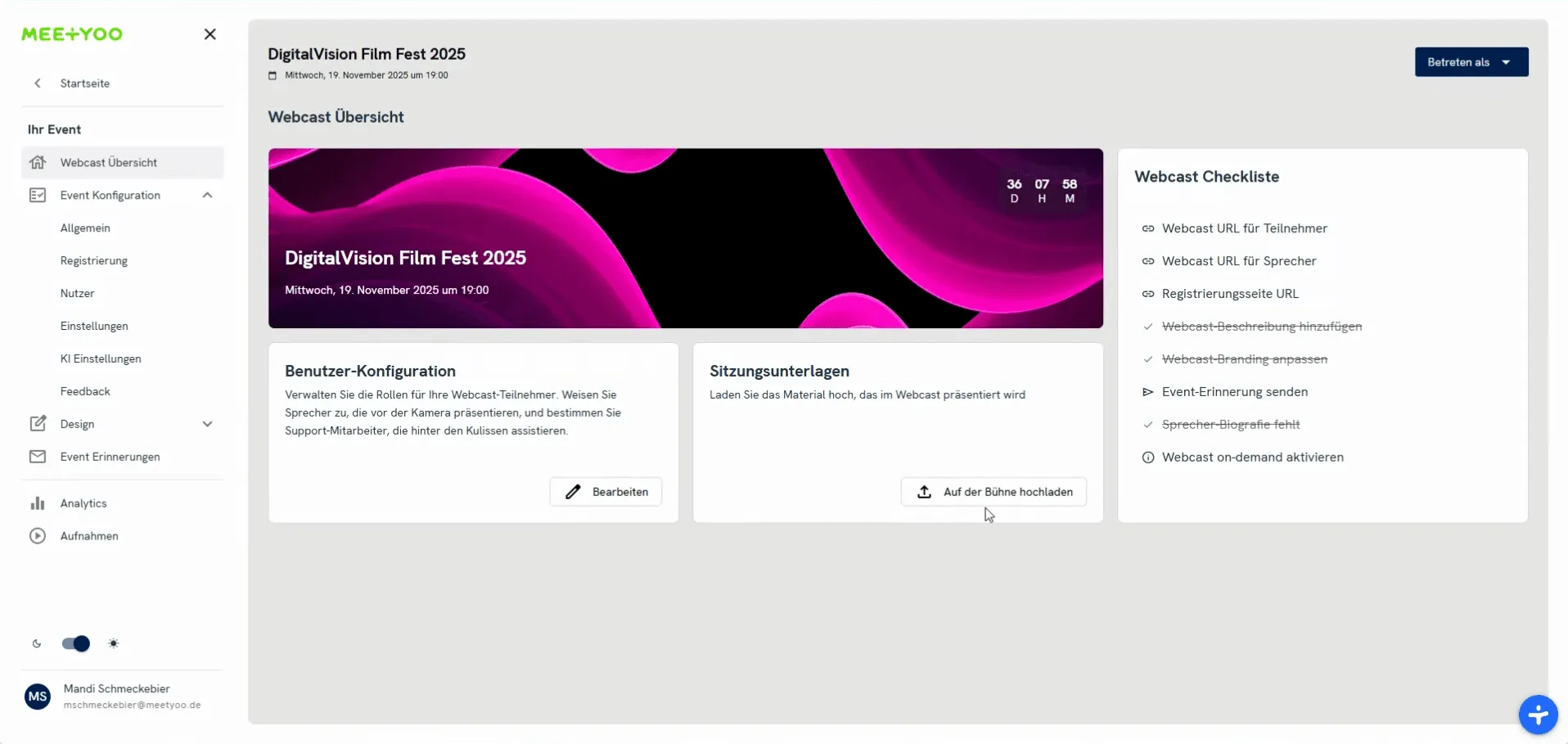
After creating your event, you will find a prominent button in the Webcast Overview.
- Click on the button 'Auf der Bühne hochladen' (Upload to the Stage) or similar.
- You will be directed straight to the Webcast Backend, where you can perform all configurations.
Upload within the Webcast Backend
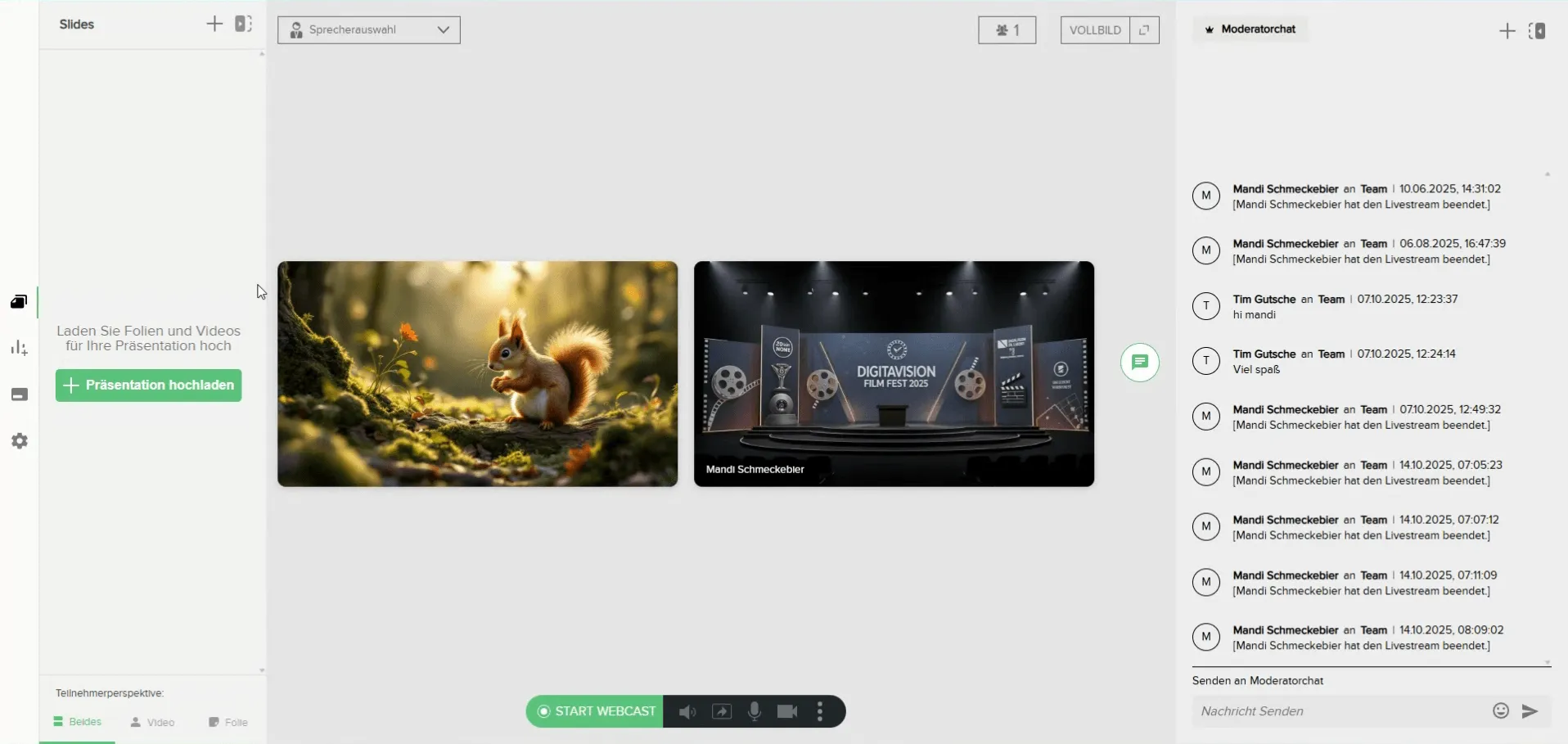
In the Backend, navigate to the 'Slides' section in the left menu bar. Here you can upload both presentations and videos.
2. Uploading and Managing Presentations (Slides)
Uploading your presentation slides as separate files offers attendees the greatest flexibility in viewing the content later.
Best Practices for Upload
To ensure optimal formatting and error-free display, you should consider the following points:
- Recommended Format: Upload your presentation as a PDF. This ensures that the formatting is exactly as you created it.
- Aspect Ratio: Ideally, use the 16:9 format for optimal viewing.
- Timing: Always upload your presentations with some lead time! This gives you enough time to check all slides and avoids stress right before the live start.
Step-by-Step Instructions
- In the 'Slides' section, click on the green button '+ Präsentation hochladen' (Upload Presentation).
- Select the desired presentation file from your computer in the file dialog.
- After a brief upload time, the slides of your presentation will be individually displayed in the left column of the Backend.
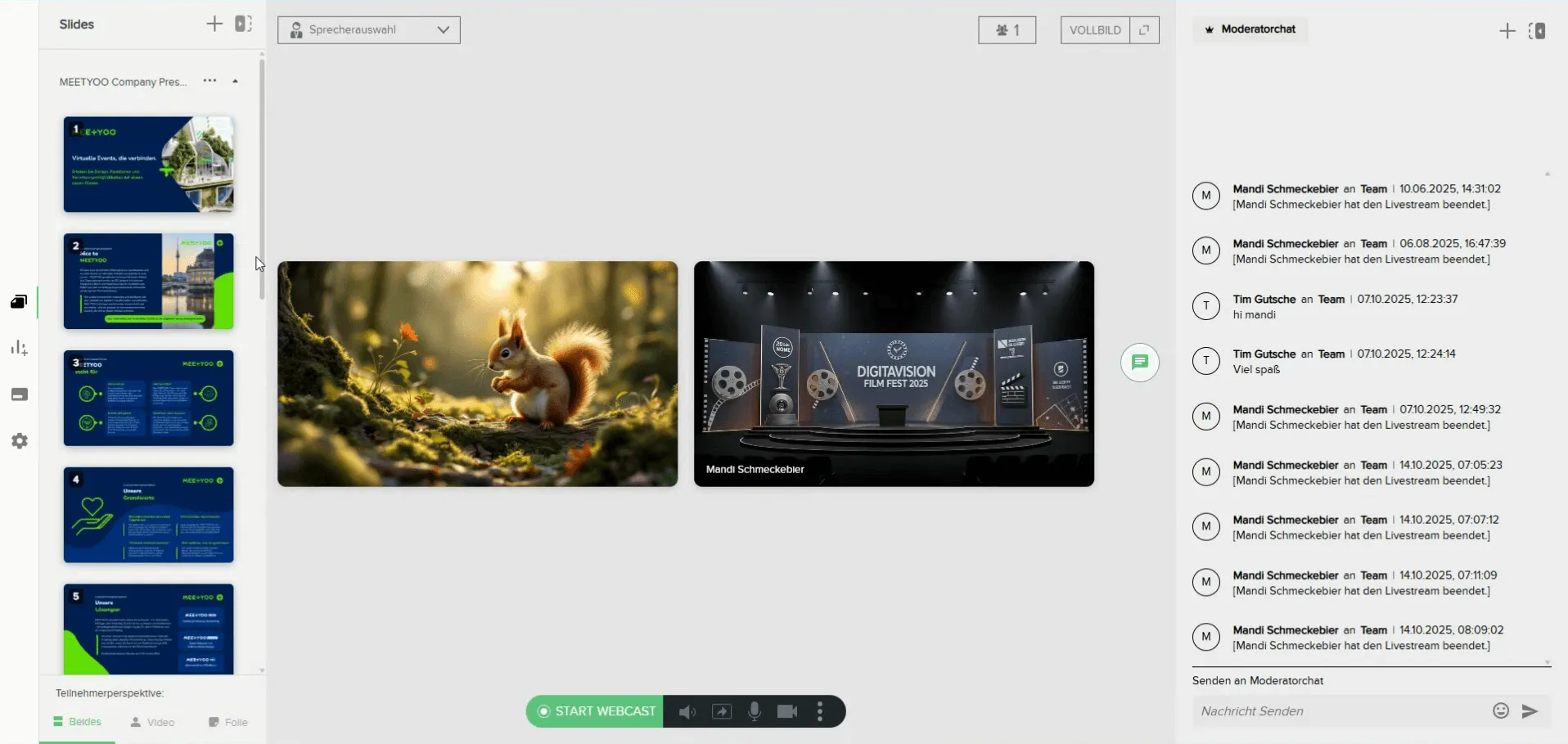
- Navigation: You can now simply click through the slides, either with the mouse on the individual slides, the arrow keys on your keyboard, or the transparent arrows on the stage.
- Management: You can upload additional presentations at any time using the '+' symbol. You can also delete older presentations using the three small dots next to the presentation name.
3. Uploading and Playing Videos
In addition to static presentations, you can also load videos directly into your Webcast Backend.
- In the 'Slides' section, click the '+' symbol in the top bar and select 'Neues Element hochladen' (Upload New Element) (or click directly on one of the video options).
- Select the video file from your computer.
- Allow a little more time for video uploads, depending on the size and length.
- Length Recommendation: Videos should ideally not be longer than 2 to 3 minutes to optimally engage your viewers' attention.
Playback Options
Once the video is uploaded, you have two crucial options when playing it to maintain control over the event:
- Video mit Ton starten (Start video with sound): The video is broadcast to attendees in full-screen mode, and your microphone is muted. This is ideal for pre-recorded inserts without commentary.
- Video ohne Ton starten (Start video without sound): The video is played, but you can continue to speak over it, for example, for live commentary.
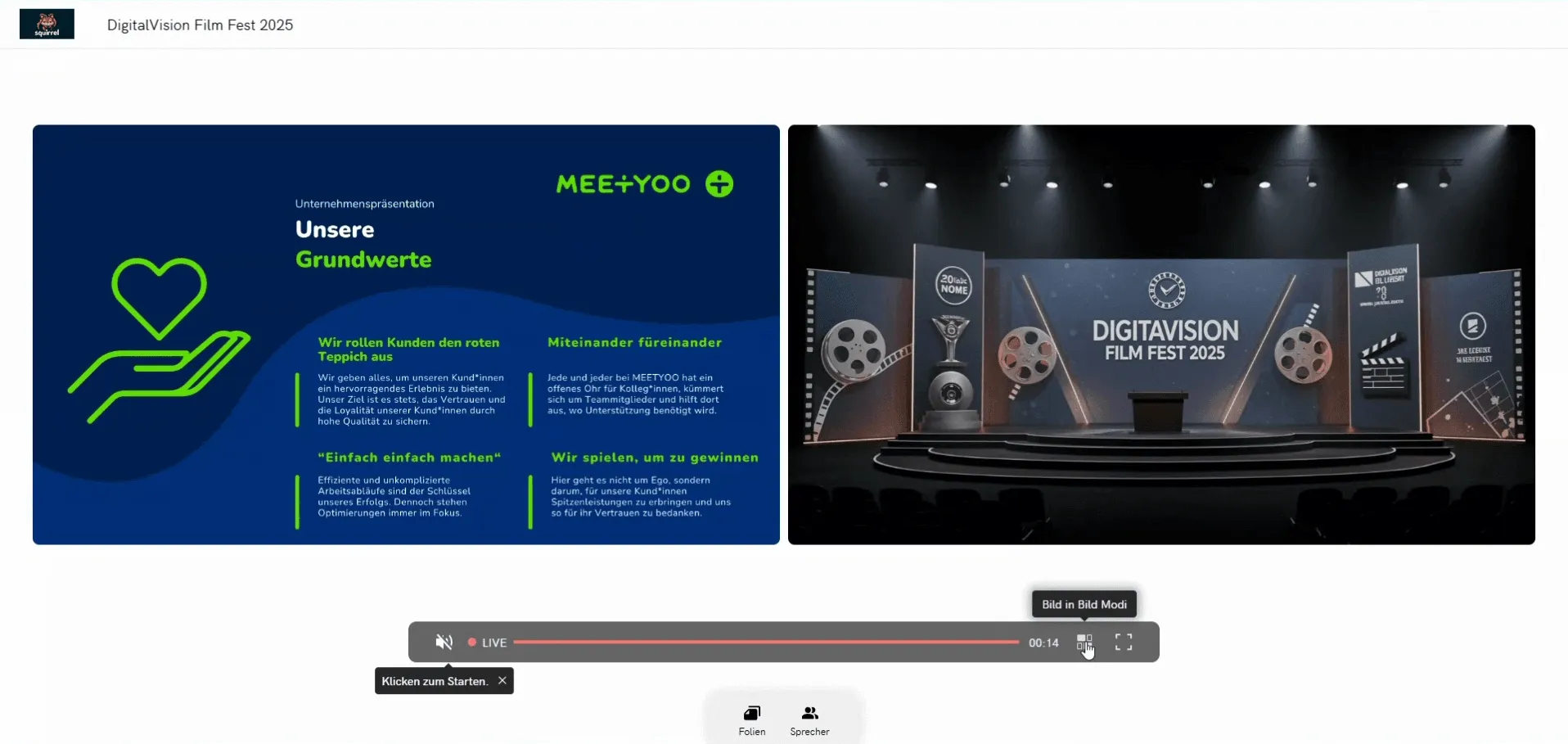
4. The Decisive Advantage: Flexible Attendee View
Directly uploading presentations is the key to a superior user experience for your audience.
Best Practice: The Difference from Screen Sharing By uploading, you avoid complex screen sharing. All slides are natively available in the webcast in the highest quality and do not need to be transmitted via your screen.
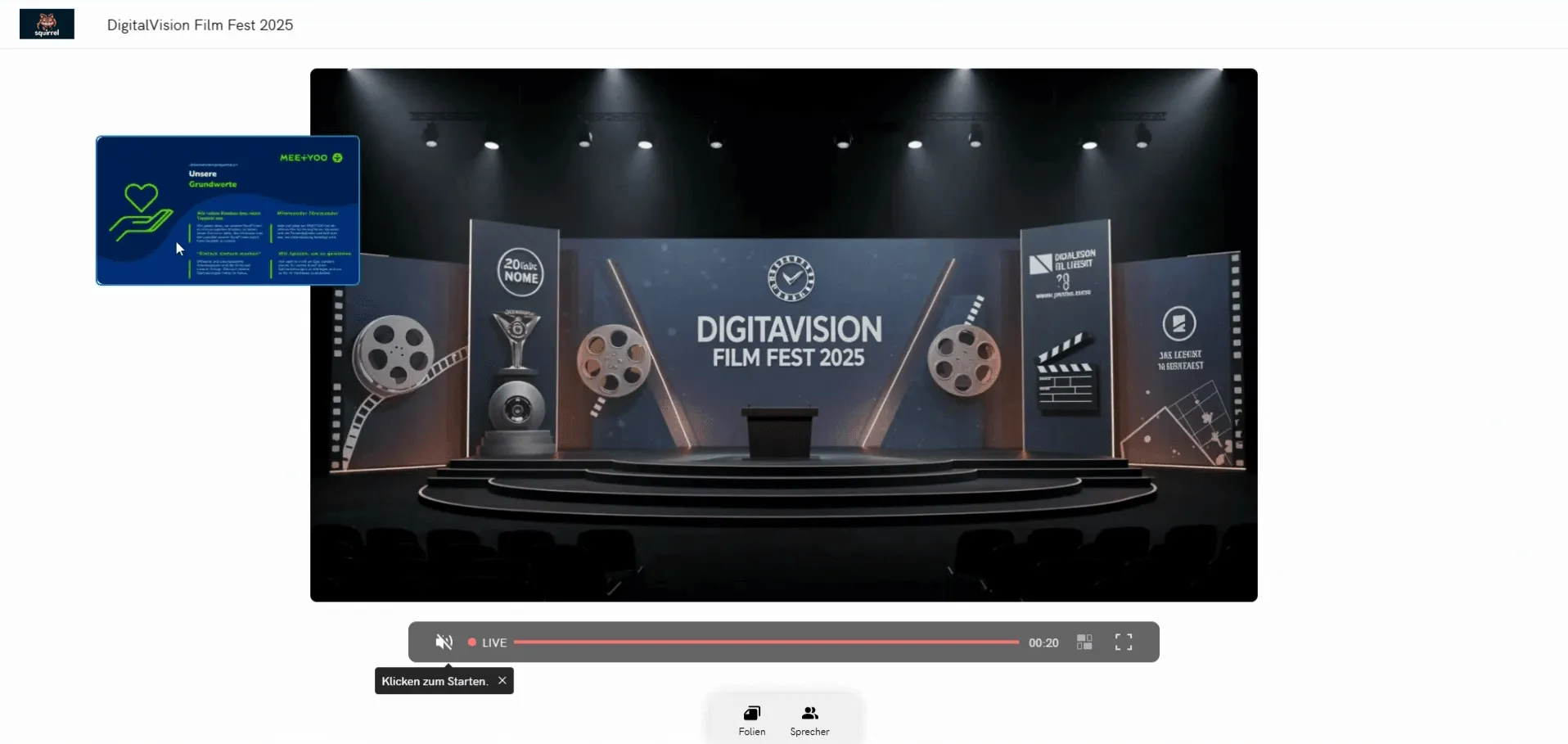
When you share your content and your camera feed, every attendee has the opportunity to customize the view according to their own preferences. This creates a superior user experience:
- Individual Control: Everyone can flexibly choose whether they want to see the camera feed large and the presentation small, or vice versa.
- Full Focus: Viewers can also choose to display only the camera feed (e.g., during a discussion) or only the presentation (e.g., for a detailed graphic).
- Relaxed Experience: This flexibility shifts control from the presenter to the viewer, ensuring everyone can focus on what is most important to them.
Start uploading your content now to offer your viewers this flexible and professional webcast experience.